Using Shopify Metafields in xConnector
Shopify metafields let you store additional information about your products and variants beyond the standard Shopify fields. In xConnector, this information can support both invoicing and warehouse operations—from using a specific product name or code on invoices to recording warehouse, row, and shelf locations for easier product picking.
This allows you to keep your storefront product details unchanged while providing the information needed for your internal workflows. To use these values in xConnector, create the supported metafields with the required namespace, key, and type, then enable metafield reading in your settings.
xConnector reads supported metafields when:
- The Read order and product metafields option is enabled.
- The metafields use the required namespace, key, and type.
- Values have been entered for the relevant products or variants.
How Metafield Values Are Applied
Supported metafield values take priority over the corresponding information in the order. If no corresponding metafield is available, xConnector uses the original order data.
This override applies to the corresponding field—not to all the information in the order.
For example:
| Field | Original order value | Metafield value | Value used on the invoice |
|---|---|---|---|
| Product name | White Boho Dress | Dress | Dress |
| Product code | AAA | AAB | AAB |
Supported Product Metafields
The table below uses the xconnector namespace shown in the configuration example.
| Name | Namespace and key | Type |
|---|---|---|
product-length | xconnector.product-length | Integer |
product-width | xconnector.product-width | Integer |
product-height | xconnector.product-height | Integer |
product-type | xconnector.product-type | Single line text |
product-name | xconnector.product-name | Single line text |
warehouse-row | xconnector.warehouse-row | Single line text |
warehouse-row-unit | xconnector.warehouse-row-unit | Single line text |
warehouse-shelf | xconnector.warehouse-shelf | Single line text |
product-code | xconnector.product-code | Single line text |
set-of | xconnector.set-of | Single line text |
measuring-unit | xconnector.measuring-unit | Single line text |
warehouse-name | xconnector.warehouse-name | Single line text |
check-on-delivery | xconnector.check-on-delivery | True or false |
Configuration
step 1 Create the Metafields in Shopify
Create the metafield definitions at the appropriate level:
- Product variant: for products with variants.
- Product: for products without variants.
For each definition, use the exact namespace, key, and type required by xConnector.
For example, to configure an alternative product name:
| Setting | Value |
|---|---|
| Name | product-name |
| Namespace and key | xconnector.product-name |
| Type | Single line text |
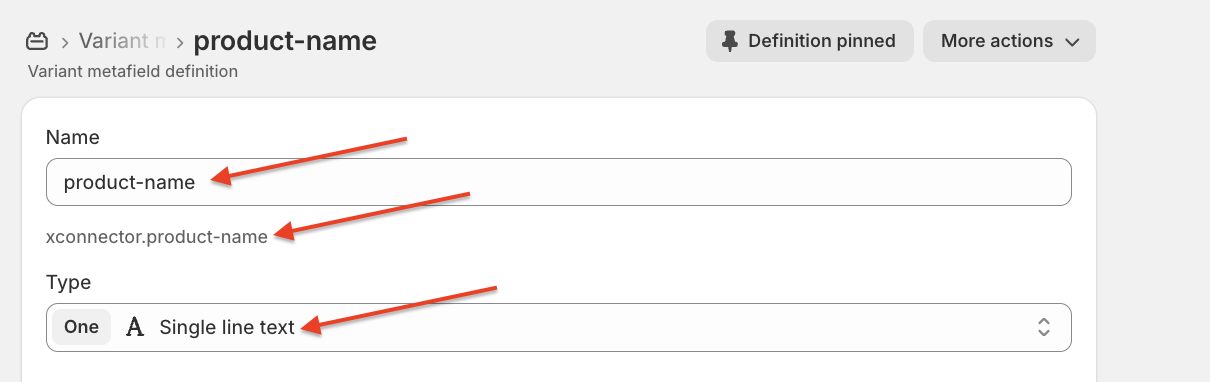
Important: xconnector is the namespace. xconnector.product-name is the combined namespace and key, not the namespace alone.
step 2 Enable Metafield Reading in xConnector
Go to:
xConnector → Profile → Preferences → Automation
Enable Read order and product metafields.
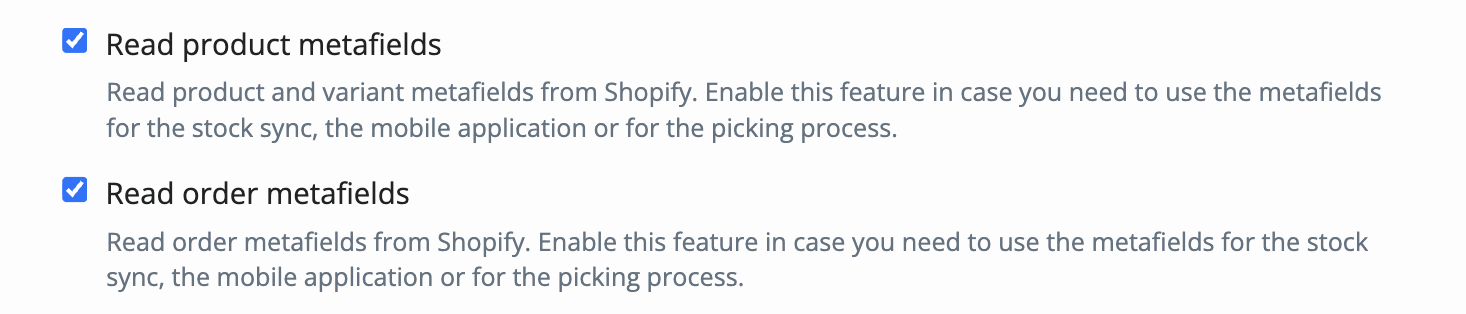
The metafield values will be read automatically during the next synchronization (next day, after 07.00 a.m)
To refresh the metafield newly created:
- Open an order in xConnector that contains the relevant product.
- Click the product within the order.
- Click Refresh metafields.
Example: Use a Different Product Code on the Invoice
Your product’s original code is AAA, but you want AAB to appear on the invoice.
- Create
xconnector.product-codewith the type Single line text at the appropriate product or variant level. - Enter AAB as the metafield value.
- Enable metafield reading in xConnector.
- Wait for synchronization or use Refresh metafields.
- Generate the invoice.
The invoice will use AAB, not AAA, because the metafield value takes priority. If the product has no corresponding metafield, xConnector uses the original code, AAA.
Contact
➡️ Need help with xConnector? We are just a message away:
Chat: click the blue chat icon (bottom-right)
E-mail: support@xconnector.app
Phone: +4 0373 747 991
➡️ Stay connected with xConnector:
Facebook group: https://www.facebook.com/groups/shopify.romania.xconnector
Facebook page: https://www.facebook.com/xConnectorApp
TikTok: https://www.tiktok.com/@xconnector.app
YouTube: https://www.youtube.com/@xconnector_app
Was this article helpful?
That’s Great!
Thank you for your feedback
Sorry! We couldn't be helpful
Thank you for your feedback
Feedback sent
We appreciate your effort and will try to fix the article