DHL
Modified on Tue, 10 Mar at 3:04 PM
DHL Integration – Documentation
Verify Access to the DHL API
In order to connect to the DHL API, you must request special API credentials from DHL.
You must also make sure that the user account is enabled for API access. Please confirm this with your DHL contact person before connecting the service in xConnector.
Required Data for the DHL API Connector
The following credentials are required to connect to the DHL API:
- Username
- Password
- Account Number
Additional setting:
- Printer Template – select the desired shipping label format (AWB format).

After entering the required data:
- Click Test Connection to verify the connection.
- If you receive the message “Connection successful”, click OK and then Save.
- If you receive an access denied message, please:
- verify the credentials you entered
- confirm with your DHL contact person that the user is enabled for API access and that the credentials are correct.
Once the DHL service is successfully connected, it can be used to automatically generate shipping labels (AWBs).
Other Required Settings
1. Sender Address
If you use just one fulfillment location:
Go to:xConnector → Profile → Your Account → Shop Address
Fill in the sender details. These details will automatically appear on the shipping label.
If you use multiple fulfillment locations:
Go to: xConnector → Profile → Your Account → Fulfillment Location
Activate the fulfillment location selector that uses the addresses already configured in Shopify.
When generating the shipping label, you will be able to select the fulfillment location from which the shipment will be sent.
The sender details on the shipping label will be automatically taken from the information already configured in Shopify → Locations.

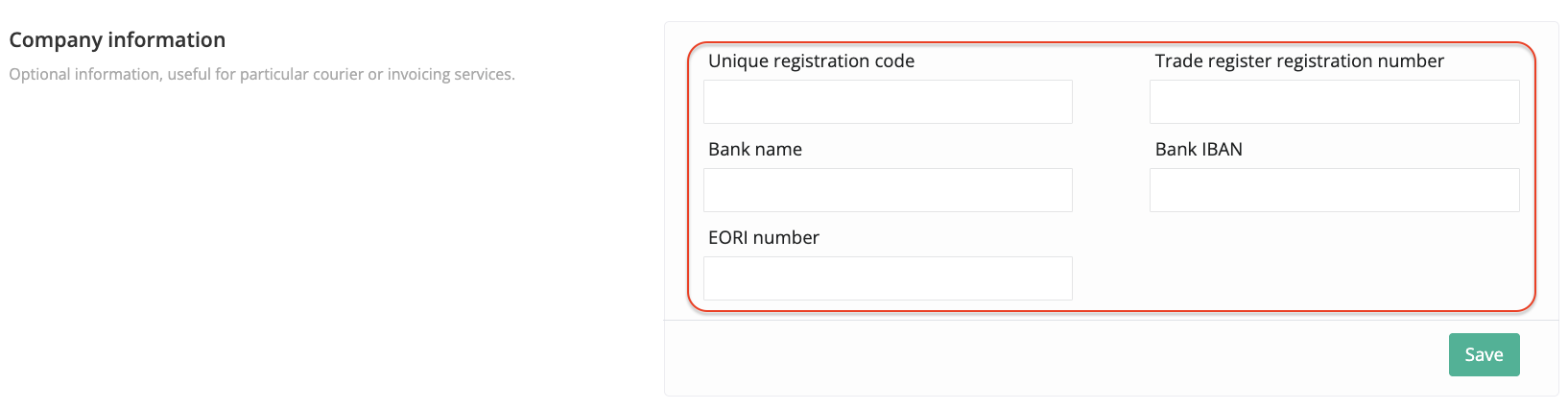
2. Company Information
Go to:xConnector → Profile → Your Account → Company Information
Fill in all company details of the sender. These details are required for proper shipping label generation.

DHL Shipping Label Generation – Important Conditions
Below are some of the most common conditions and limitations related to DHL shipping label generation through API.
1. Cash on Delivery is not supported
DHL does not support Cash on Delivery (COD / ramburs) for this integration.
2. Incoterms apply only to extra-EU shipments.
Incoterms are not required for shipments within the EU
For intra-EU shipments, no special delivery terms are required.

3. Default Incoterms for extra-EU shipments
For shipments outside the EU, the default Incoterm is DAP (Delivery at Place).
However, the client should be able to select any of the supported Incoterms, depending on their business needs.
4. Customs declaration is required only for extra-EU shipments
For shipments outside the EU, a customs declaration is mandatory.
It is not required for shipments within the EU.
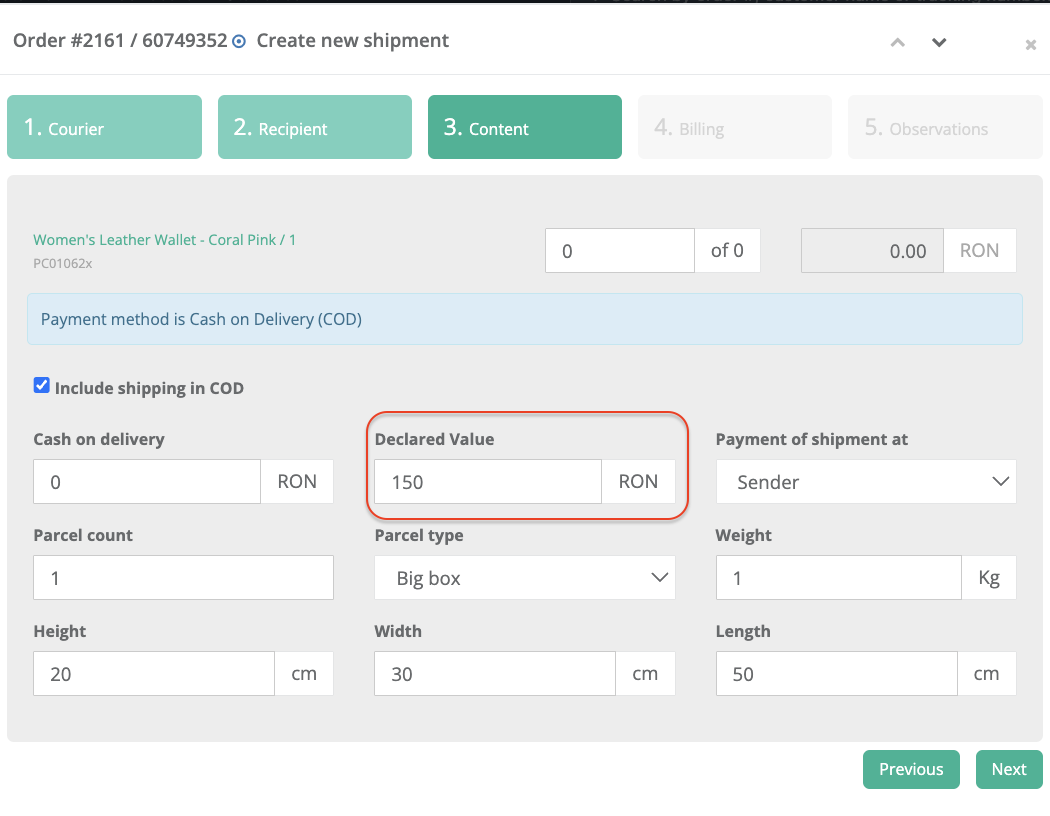
5. Declared value is mandatory only for extra-EU shipments
For extra-EU shipments, the declared value is mandatory.
It is not required for intra-EU shipments.
You can fill in the declared value in one of the following ways:
Manually: enter the declared value in the Content step when generating the shipping label.
or
Automatically: enable the option that automatically fills in the declared value for each shipping label.
Go to:
xConnector → Profile → Preferences → Shipping and Invoicing → Auto Declared Value
6. Company details are mandatory, including the EORI number.
An EORI number is mandatory for international customs-related shipping processes.
Without a valid EORI number, the shipment cannot be processed for export.
Feel free to contact us if you need any further information:
Chat: click on the blue chat icon (bottom-right)
E-mail: support@xconnector.app
Phone: +4 0373 747 991
Was this article helpful?
That’s Great!
Thank you for your feedback
Sorry! We couldn't be helpful
Thank you for your feedback
Feedback sent
We appreciate your effort and will try to fix the article