Step 1:
Go to xConnector → Profile → Connected Services → Connect a new service → Shipping labels → Connect a courier → Allpacka
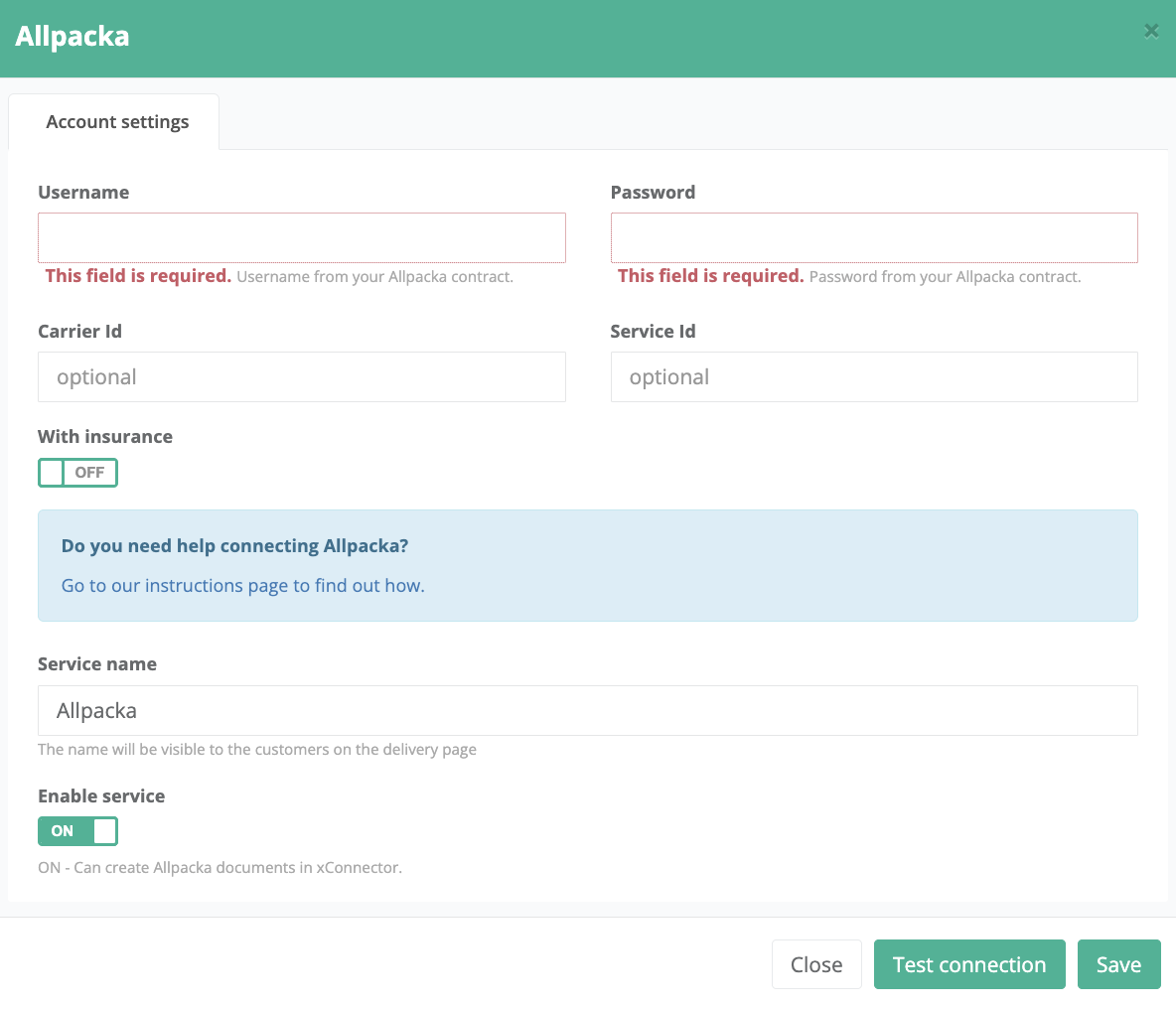
Step 2:
a. Fill in your username and password provided by Pactic, and make sure they have activated your API user so you can connect to the Pactic API through xConnector.
b. Carrier ID and Service ID should be filled in only if you need to generate a shipping label with a specific courier.
If you leave them empty, Pactic will automatically decide which courier will be used to generate the shipping label.
These IDs are also provided by Pactic.
If you want to generate shipping labels through Pactic but using multiple couriers, you will need to add a separate Pactic connector for each courier.
For each connector, save the corresponding Carrier ID and Service ID, and rename the Service type so you can easily distinguish them. (see attached the services list)
This way, when you generate a shipping label, you can select which Pactic partner courier you want to use.
c. With insurance: depending on your contract with Pactic, set this option to Yes or No.
Step 3:
Click on Test connection.
- If you entered your credentials correctly, you will receive a Successful connection message.
- If you entered them incorrectly, you will receive a Denied connection message. In this case, please try again or ensure that your courier has activated your API user.
Step 4:
Click Save.
Was this article helpful?
That’s Great!
Thank you for your feedback
Sorry! We couldn't be helpful
Thank you for your feedback
Feedback sent
We appreciate your effort and will try to fix the article