With this setup, customers choose their parcel locker or pickup point directly in the EasySell COD order form, before they place the order.
EasySell replaces the Shopify checkout with a Cash on Delivery order form. xConnector shows the locker map and sends the selected locker to the order. No Shopify Plus subscription is needed.
Watch the video: xConnector Locker Map Integration with EasySell Checkout on Shopify (1 minute).
Table of contents
- Before you start
- Step 1: Open EasySell and add a shipping rate
- Step 2: Show the xConnector Access Token field
- Step 3: Copy the access token from xConnector
- Step 4: Paste the token and save the rate
- Step 5: Add the Select Locker button to the form
- Result
Before you start
You need:
- an active xConnector subscription;
- an active EasySell COD Form subscription;
- at least one courier configured in xConnector.
Step 1: Open EasySell and add a shipping rate
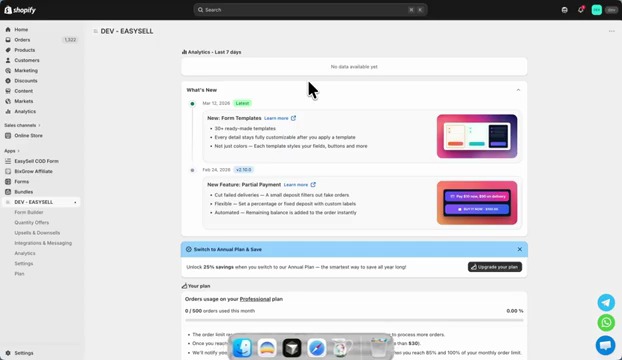
1. In Shopify, open the EasySell COD Form app.
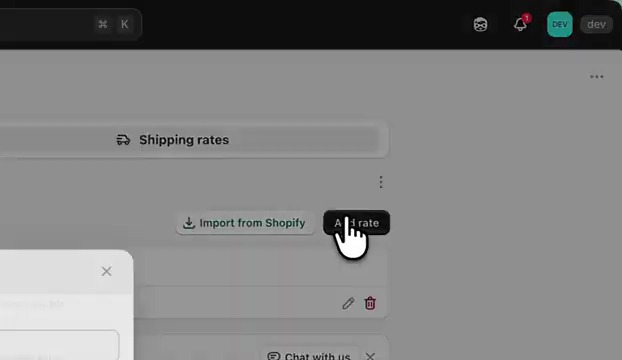
2. Go to Form Builder > Shipping rates and click Add rate.
Step 2: Show the xConnector Access Token field
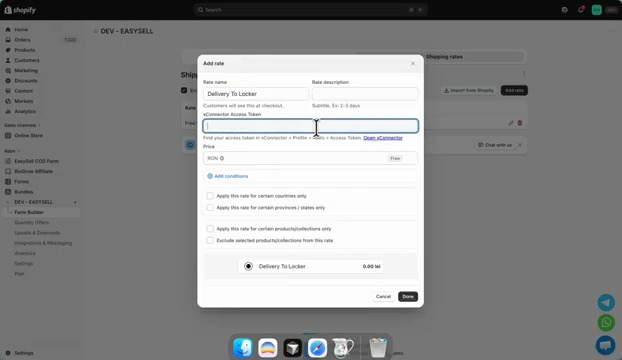
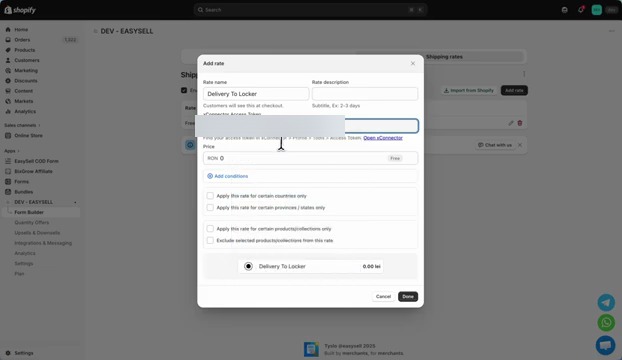
1. In Rate name, type xconnector.
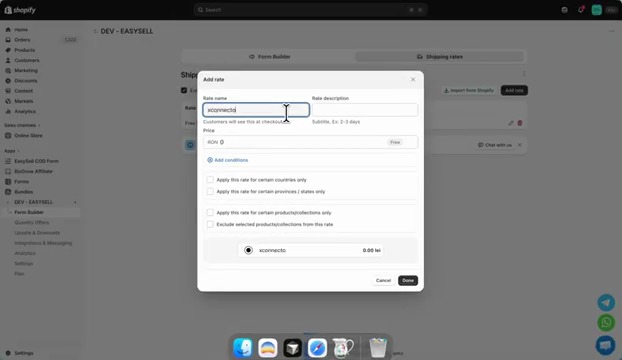
2. The xConnector Access Token field appears in the window.
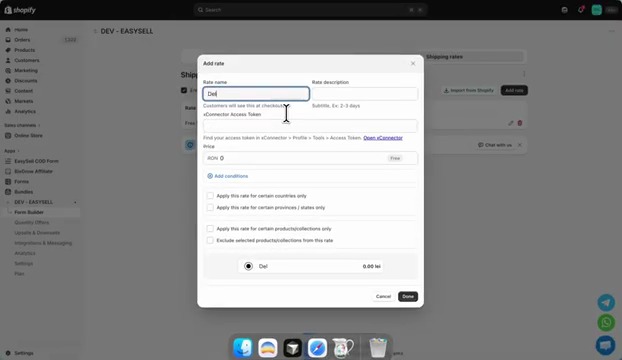
3. Replace the text in Rate name with the name customers will see in the form, for example Delivery To Locker. The xConnector Access Token field stays in the window. Under it you can see where to find the token: xConnector > Profile > Tools > Access Token.
Step 3: Copy the access token from xConnector
1. Open xConnector in a new tab. You can use the Open xConnector link under the field.
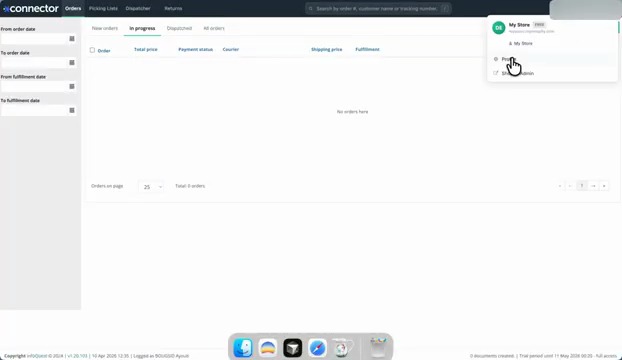
2. Click the menu in the upper right corner and choose Profile.
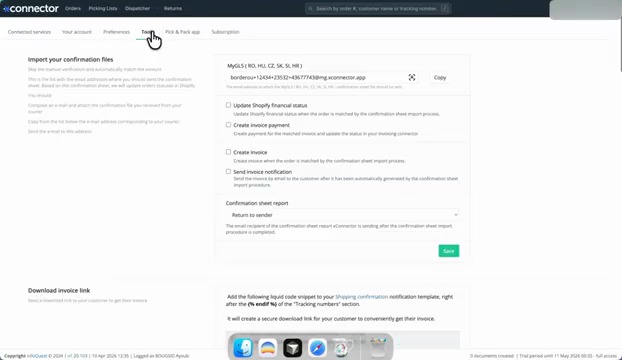
3. Open the Tools tab.
4. Find Access token, select the token and copy it.
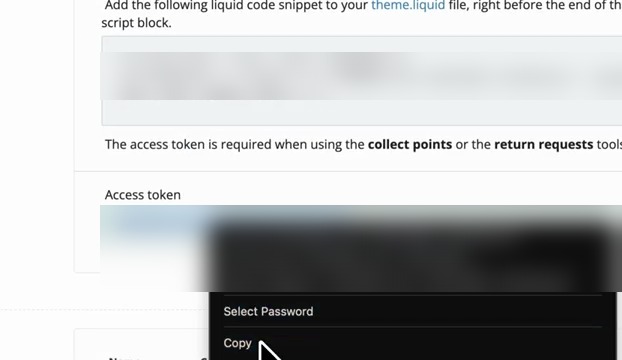
The access token belongs to your store. Keep it private and do not share it.
Step 4: Paste the token and save the rate
1. Go back to EasySell and paste the token in the xConnector Access Token field.
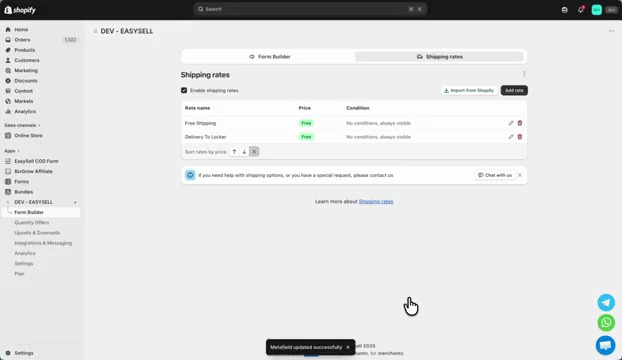
2. Click Done. The message Metafield updated successfully appears, and the new rate is in the Shipping rates list.
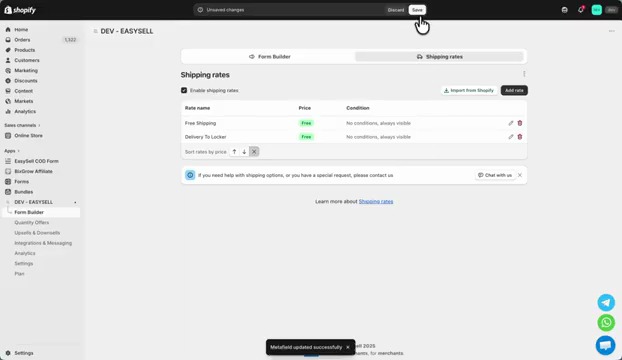
3. Click Save at the top of the page.
Step 5: Add the Select Locker button to the form
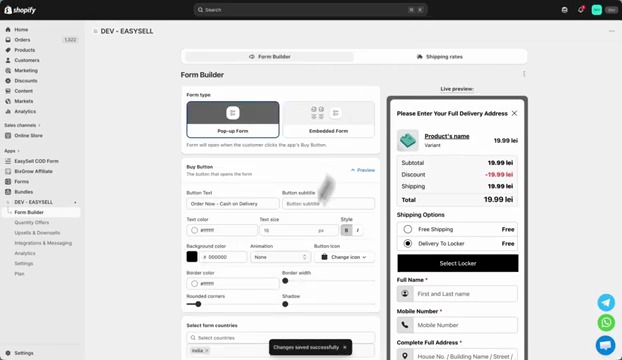
1. Open the Form Builder tab and click Add new fields.
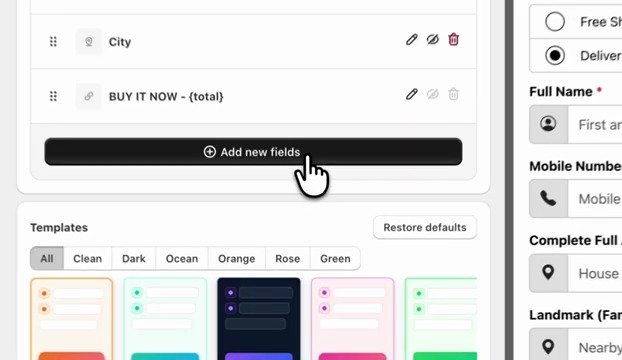
2. Choose Link Button.
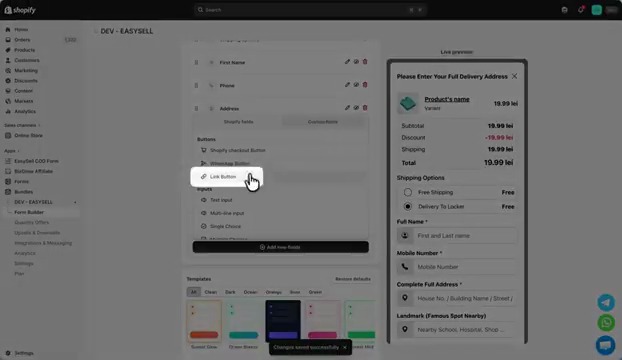
3. Drag the Link Button right under Shipping options.
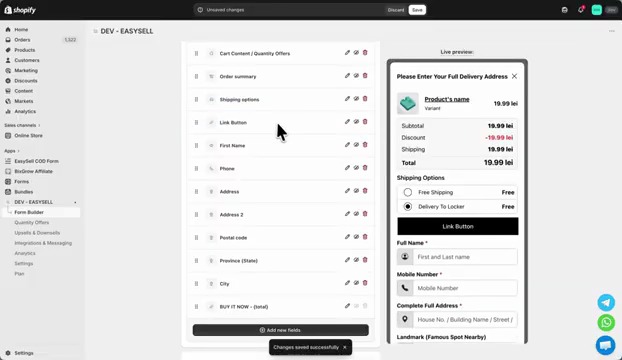
4. Open the button settings. In Link, enter #xconnector.
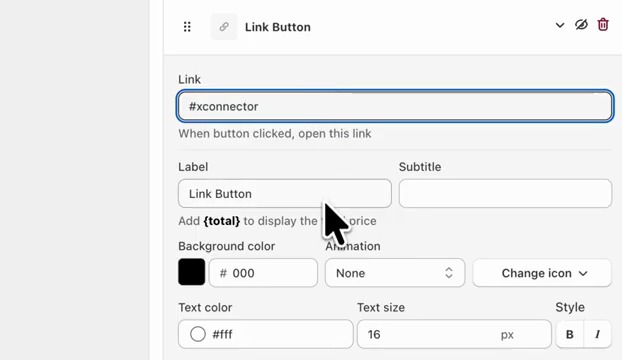
5. In Label, enter the text of the button, for example Select Locker.
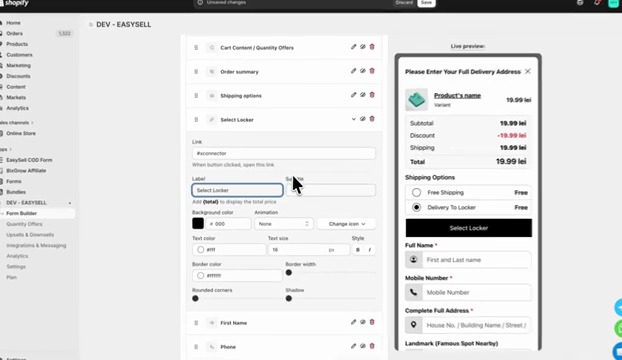
6. Click Save at the top of the page.
Result
In the order form, under the delivery options, customers now see the Select Locker button. They choose Delivery To Locker, click the button, choose a locker on the map and place the order.
The selected locker is available in xConnector, where you can use it to create the shipping label.
Useful articles
- Locker map - all solutions
- Locker map - send automatic emails when no locker is selected
- Locker map - check orders without a locker
Subscription plan
This feature is available on the xConnector Advanced plan.
Need help?
Our team is here to help. You can contact us:
- Chat: directly from your xConnector account or on about.xconnector.app
- Email: support@xconnector.app
- Phone and WhatsApp: +40 373 747 991
- Website: about.xconnector.app
Was this article helpful?
That’s Great!
Thank you for your feedback
Sorry! We couldn't be helpful
Thank you for your feedback
Feedback sent
We appreciate your effort and will try to fix the article