Locker selection in Shopify checkout (without Shopify Plus)
Overview
Shopify only allows checkout UI customization on Shopify Plus. Because of this, a locker map cannot be embedded in the standard checkout.
xConnector provides an additional option by showing a short list of nearby lockers (not a map). The list is generated from the address entered at checkout: the service computes an area around the address and returns the closest lockers.
When a locker is selected, xConnector saves it on the order as the chosen delivery method.
For Hungary there are available the following couriers:
- DPD
- GLS
- Packeta
How it works
- Customers enters the shipping address at checkout.
- xConnector calculates nearby lockers and returns a short list.
- The list is displayed in checkout for selection.
- The selected locker is saved on the order in xConnector.
Note: This approach creates one unique shipping method for lockers. Unlike the older V03 map approach, it cannot be split or filtered into multiple locker-specific methods.
Setup
Step 1 — Enable locker list in checkout
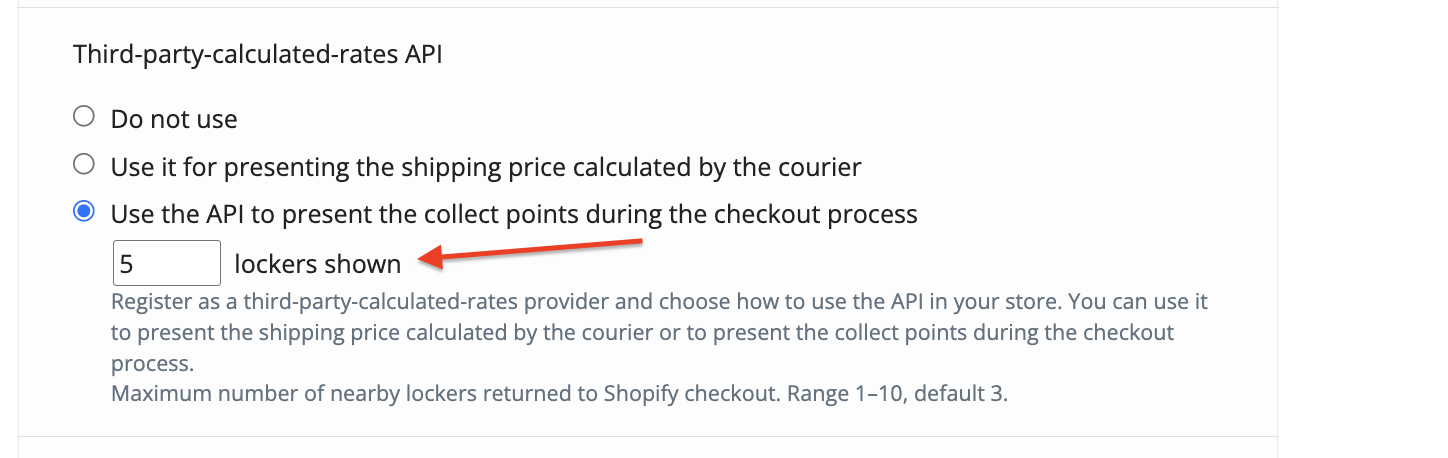
Go to xConnector → Profile → Preferences → Type of calculated rates.
Select Collect points based
Select how may lockers do you need to display
Save.
Step 2 — Activate locker function (Collect points ON)
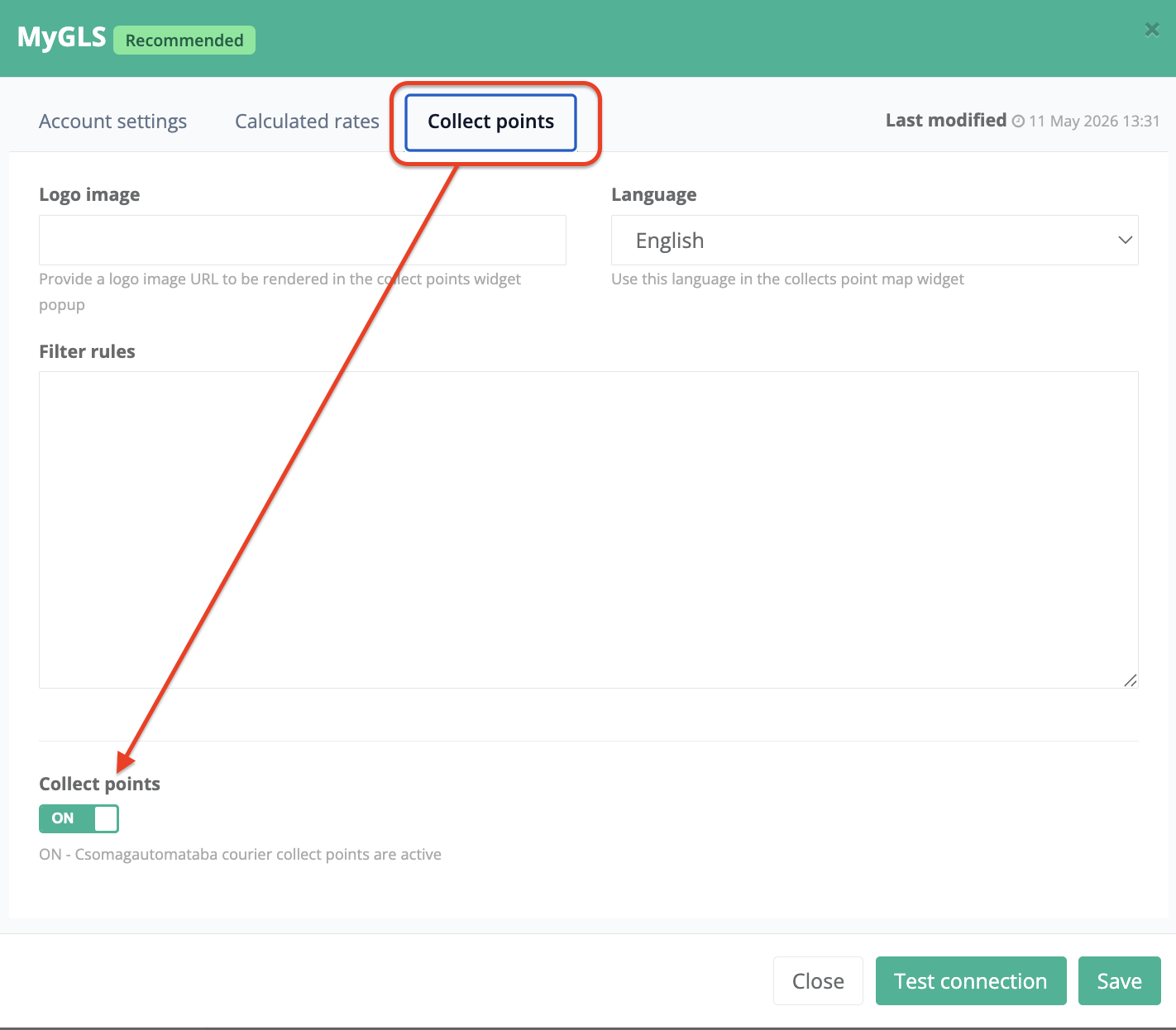
Go to xConnector → Profile → Connected services.
Click your Courier.
Open Collect point and switch the Collect points = ON.
Save.
Step 3 — Define shipping costs
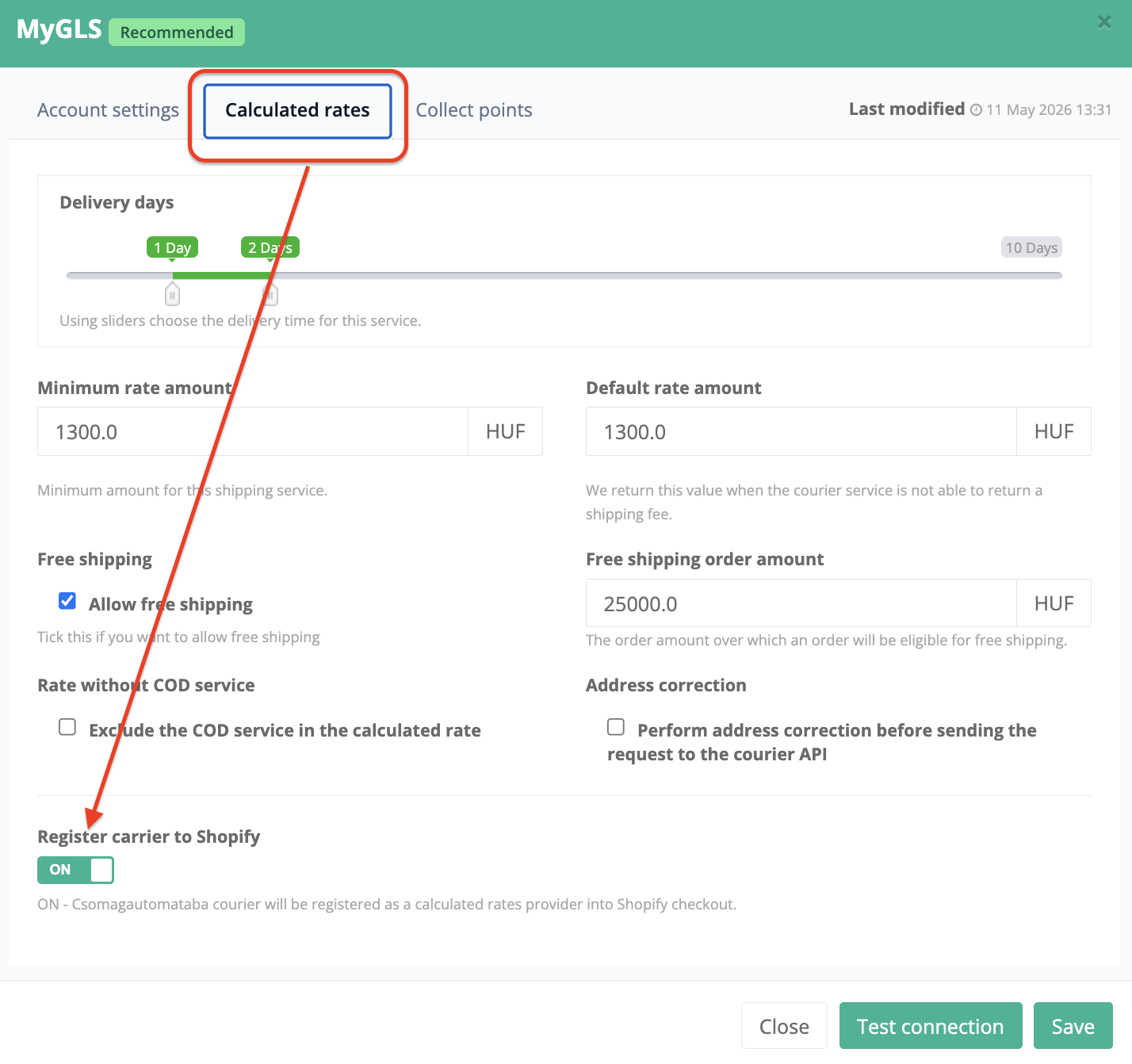
Go to xConnector → Profile → Connected services.
Click your Courier → Calculated rates.
Open Calculates rates and switch Calculates rated = ON.
Enter the shipping costs (Minimum rate amount, Default rate amount, Allow or not the Free Shipping)
Save.
Step 4 – Rename the connector to the name you want to appear on the checkout page
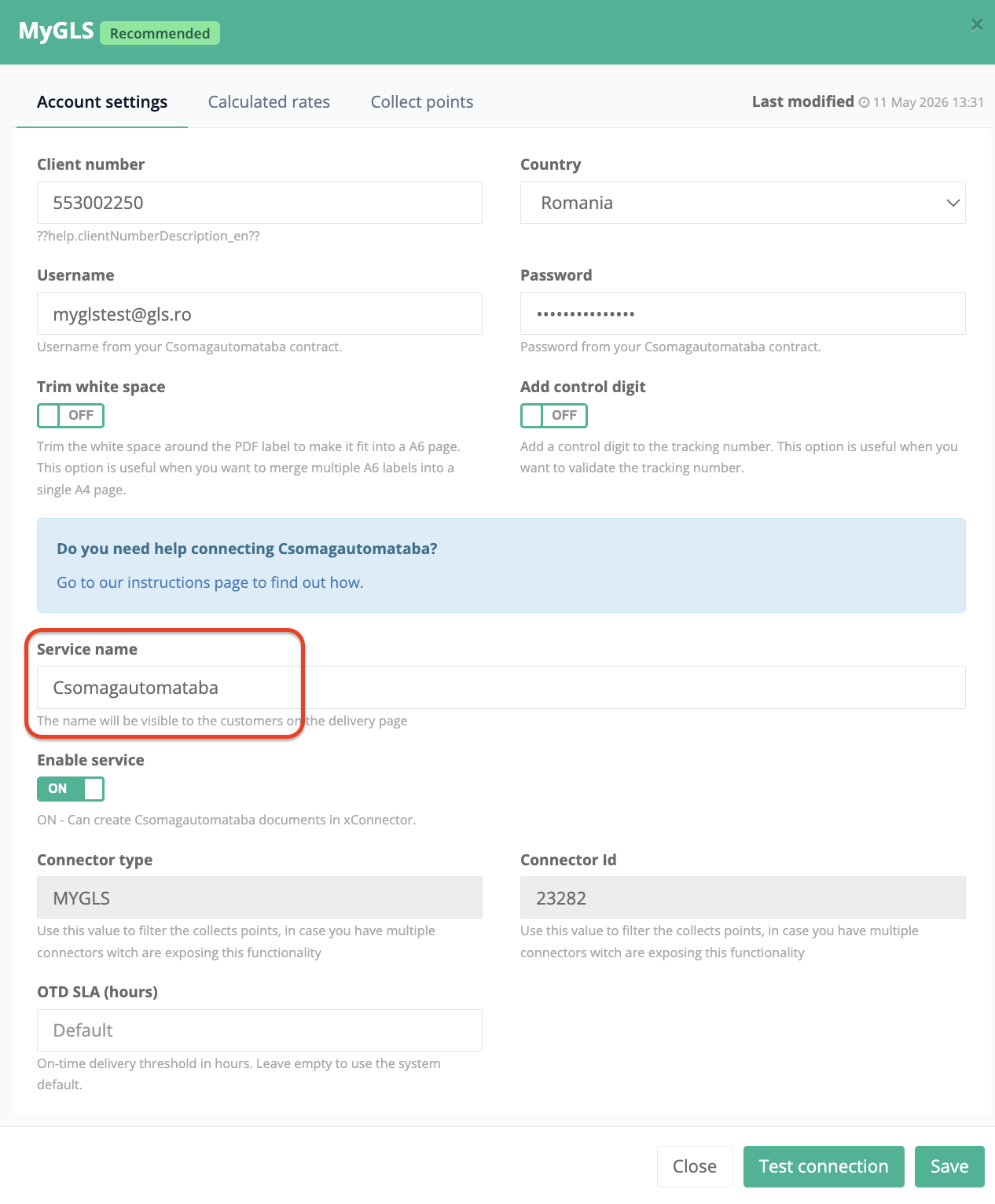
Go to xConnector → Profile → Connected services.
Click your Courier → Account settings
Service name = your text
Save.
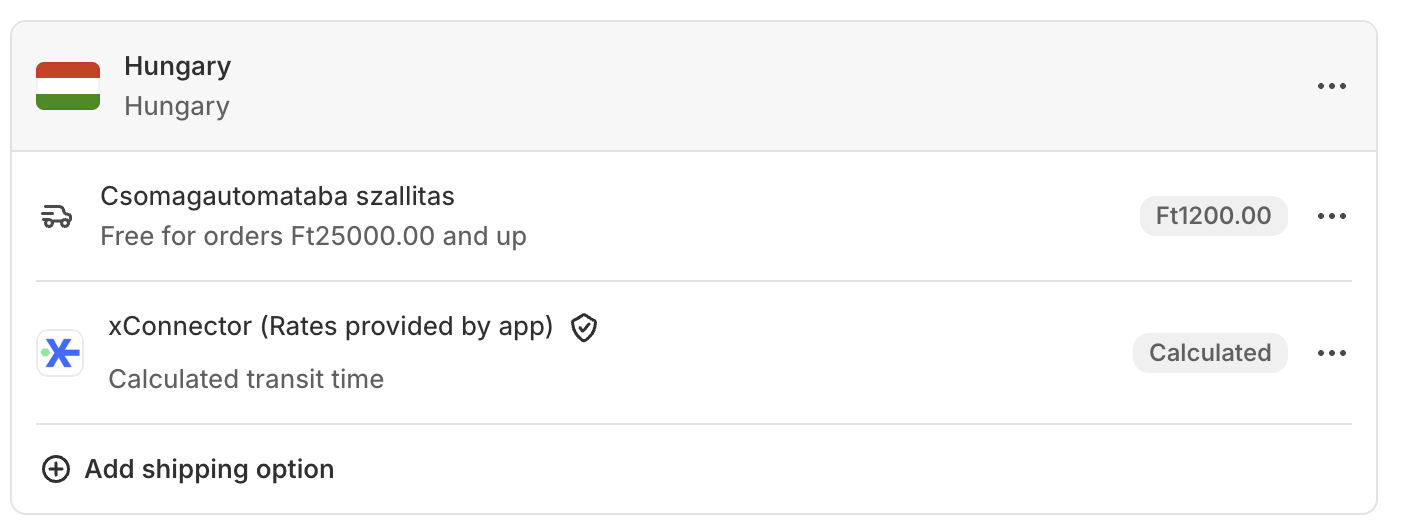
Step 5 – Make sure that calculated shipping rates are enabled in Shopify.
- Go to Shopify → Settings → Shipping and delivery → General profile
- Here it should be displayed xConnector - Rates provided by app
If you previously used the V03 locker map into Thank you page - you should remove it
Remove legacy map components from Shopify to avoid conflicts:
- In Shopify → Settings → Checkout → Extensions, remove the locker Thank you page and Order status page extensions.
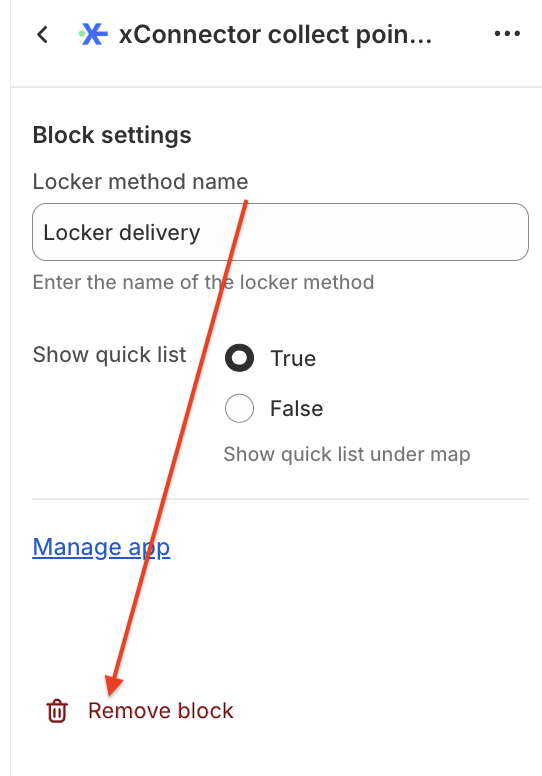
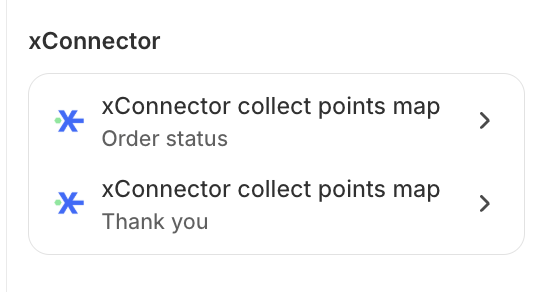 Click on each block and than Remove
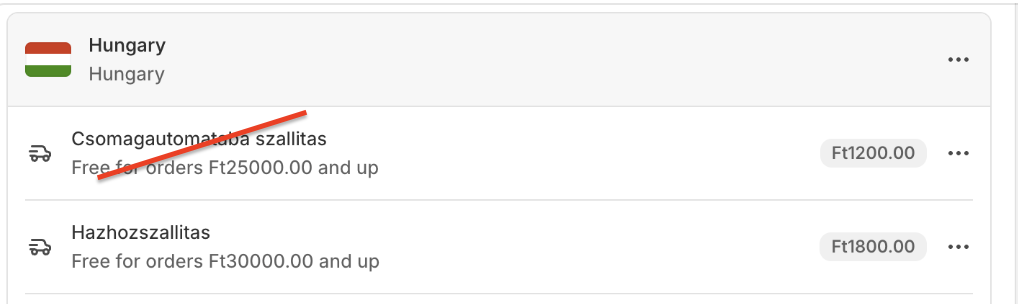
- In Shopify → Settings → Shipping and delivery, remove the old locker shipping method.
If previously you had another locker delivery method - just remove it
Then place a test order
As a result: in Shopify - Checkout the customer can select their desired locker as a Shipping method
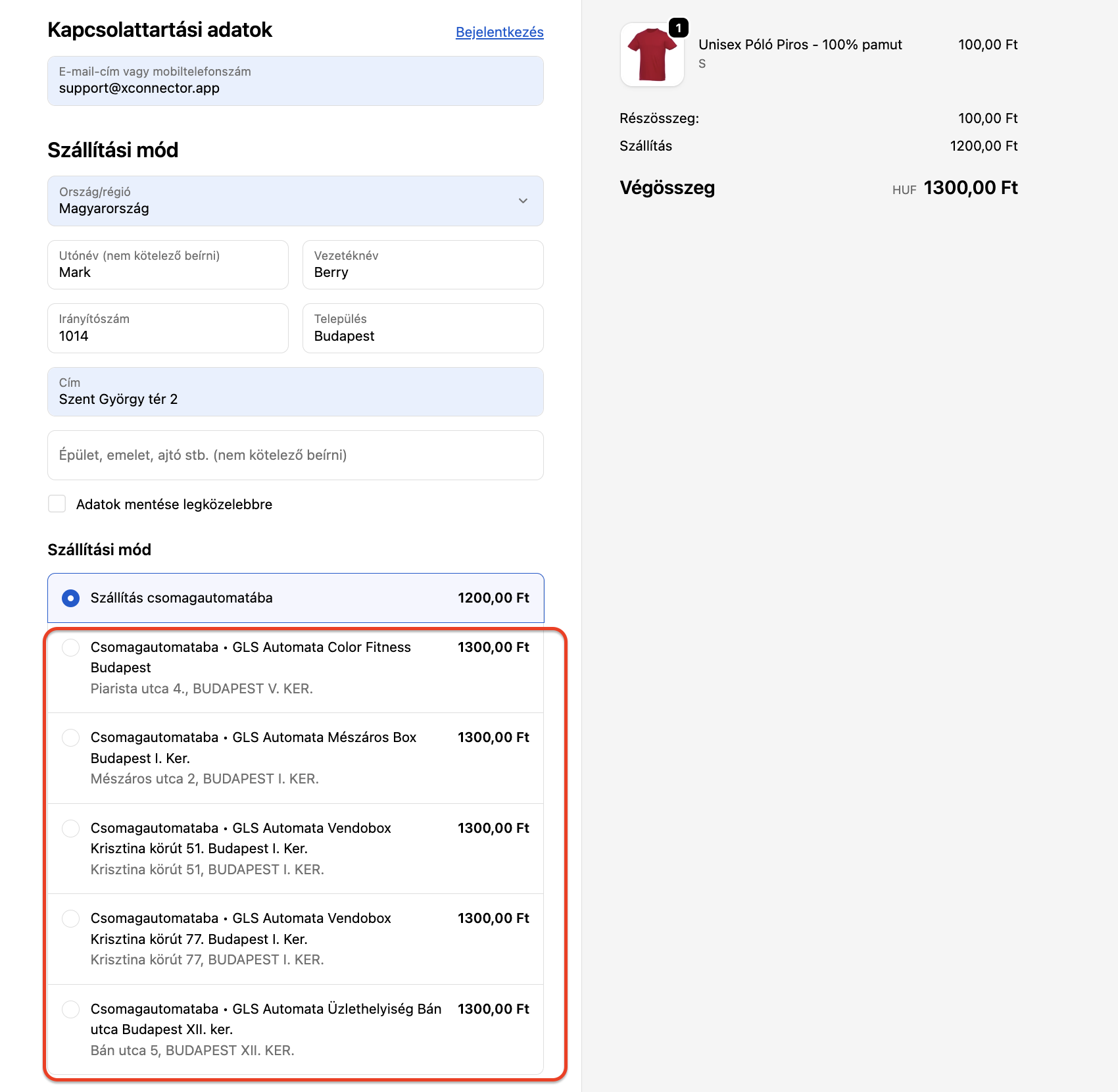
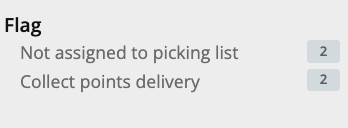
In xConnector you can identify the locker orders by
- by the Delivery method name or

- by filtering orders Flag= Collect points
Notes & limitations
- This solution works for Grow subcription plans stores because it does not require custom checkout UI blocks.
- The list is based on the checkout shipping address and shows only the closest lockers.
- in xConnector - shipping method is exposed by the selected locker. Filtering by locker delivery as a general shipping method is no longer possible for this current method
Troubleshooting
- No lockers appear: verify the shipping address is complete and the courier supports lockers for that region.
- Rates not showing: check that Calculated rates are configured for the courier and that Collect points based is selected in Preferences.
- Old map still showing: remove all V03 map extensions and the old locker shipping method as described above, then save and test again.
This feature is available for the Enterprise plan in xConnector and for Advanced if in Pilot program
Feel free to contact us if you need any further information:
Chat: click on the blue chat icon (bottom-right)
E-mail: support@xconnector.app
Phone: +4 0373 747 991