Automatic Box Selection Based on Product Dimensions - V01
xConnector can automatically recommend the smallest box that fits all products in an order, based on their dimensions.
This saves time when creating shipping labels and helps you choose the right package without checking box sizes manually.
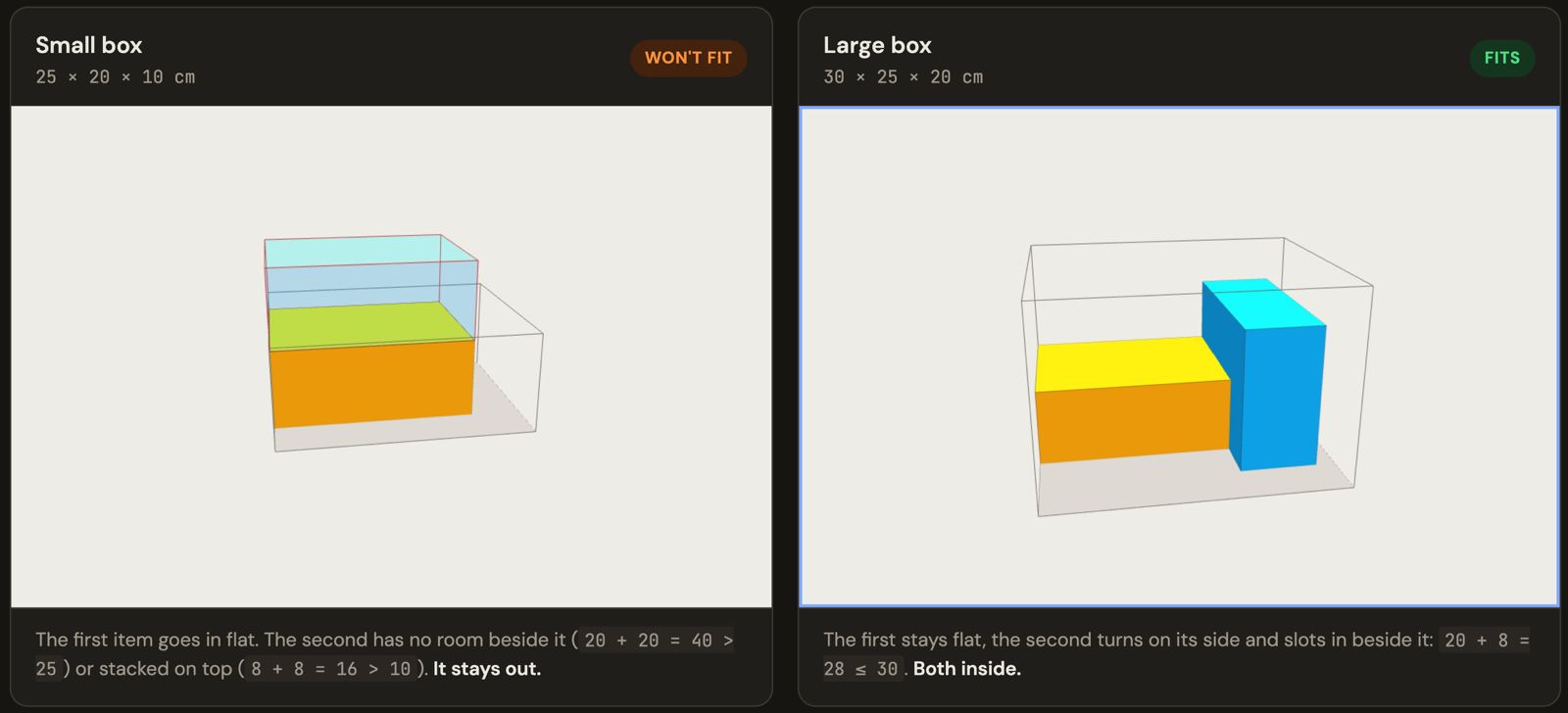
How it works - v01
When you create a shipping label, xConnector:
- Reads the length, width, and height of each product
- Checks your configured boxes from smallest to largest
- Selects the smallest box that can fit all products
- Automatically fills in the package dimensions and weight, including the box tare weight
The recommended box is only a suggestion. You can always select a different package manually.
Before you start
To use this feature, you need to complete the following setup.
STEP 1. Add the xConnector metafields in Shopify
If you sell products without variants, add the metafields at the product level.
If you sell products with variants, add the metafields at the product variant level.
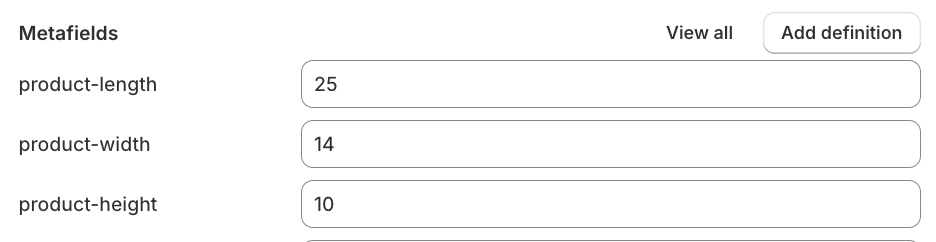
Create these three metafields and the corresponding namespaces as Integer
Metafield Name | Metafield Namespace and key |
product-length |
|
product-width |
|
product-height |
|
Synchronizing dimensions
After product dimensions are updated in Shopify, they are automatically synchronized with xConnector.
Synchronization happens:
- When Shopify sends a product update
- During the daily product refresh at 4:00 AM
If you need the dimensions to be synchronized immediately:
- Open an order in xConnector that contains the respective product;
- Click the product in the order;
- Click Refresh metafields.
Product and variant dimensions
For products with multiple variants, you can also configure dimensions at variant level.
xConnector uses dimensions as follows:
- For a product with only the default variant, product-level dimensions are used
- For products with multiple variants, variant dimensions are used first
- If the variant does not have dimensions, xConnector can use the product-level dimensions instead
Length, width, and height must all be available at the same level.
For example, xConnector cannot combine:
- Length from the variant
- Width and height from the product
Example: I added the metafields to the variant level of the product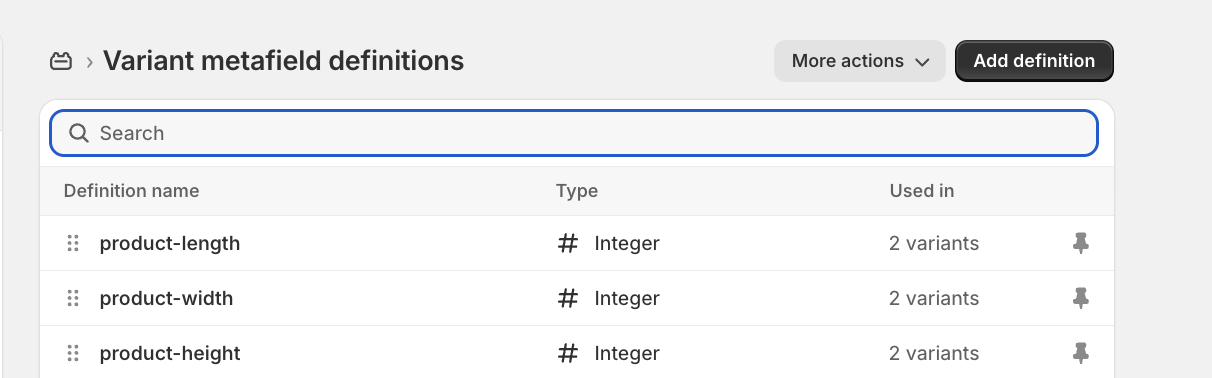
Each property must match the table above. Make sure the name and namespace are entered exactly as shown.
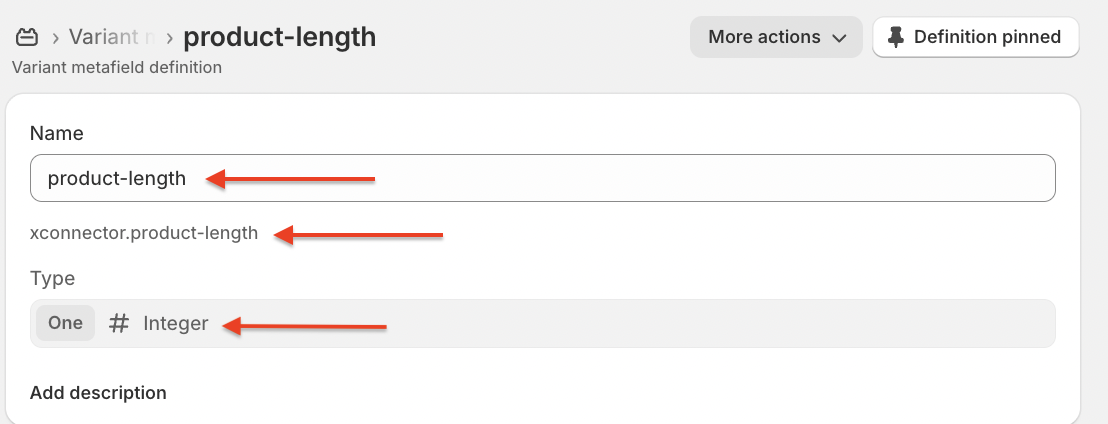
STEP 2. Fill in the product dimension metafields in Shopify
xConnector considers the value to be in centimetres.
Go to each product or product variant and fill in the product dimenssion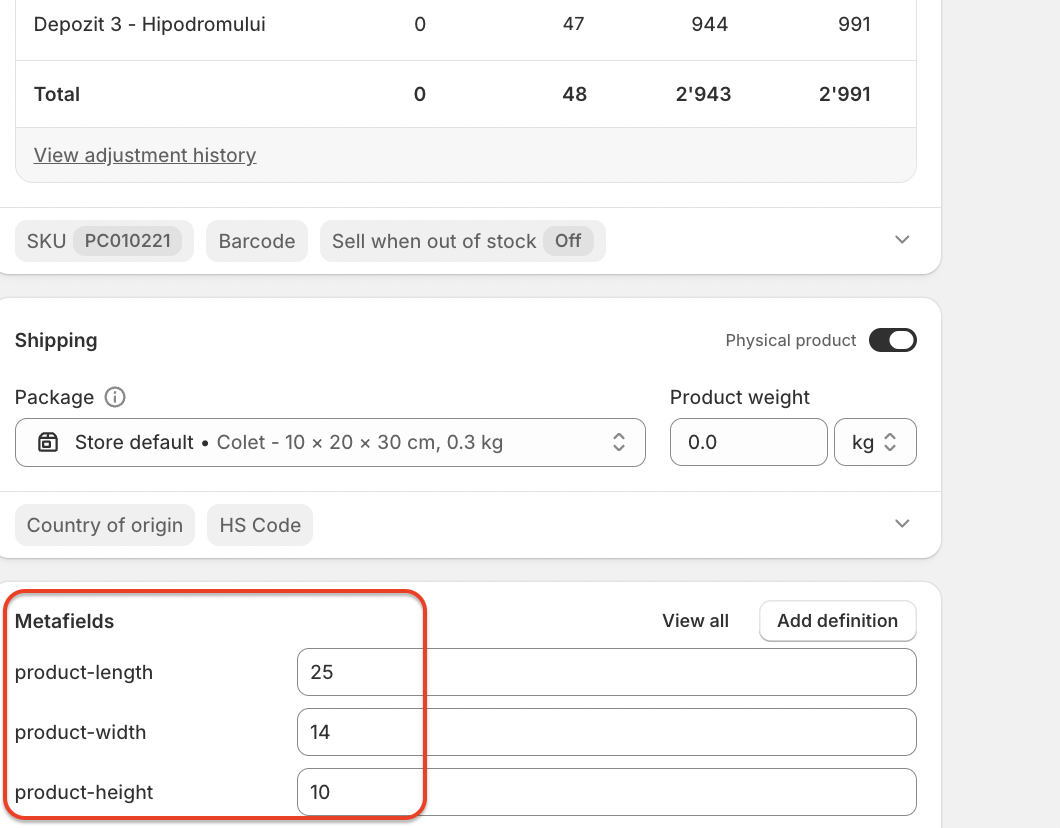
For example the product has
- Length:
25 - Width:
14 - Height:
10
STEP 3. Enable product metafields in xConnector
Go to: xConnector > Profile > Preferences > Automation > Read order and product metafields
STEP 4. Activate automatic box recommendation
Go to: xConnector > Profile > Preferences > Shipping packages > enable Recommend the smallest package based on product dimensions
Then click Save.
STEP 5. Configure your boxes in xConnector
Go to: xConnector > Profile > Preferences > Shipping packages
Add at least one package:
- Package type: Big Box, Cutie mare, or any other text that helps you identify it easily
- Length
- Width
- Height
- Box weight, if applicable
Box dimensions should be entered in centimetres.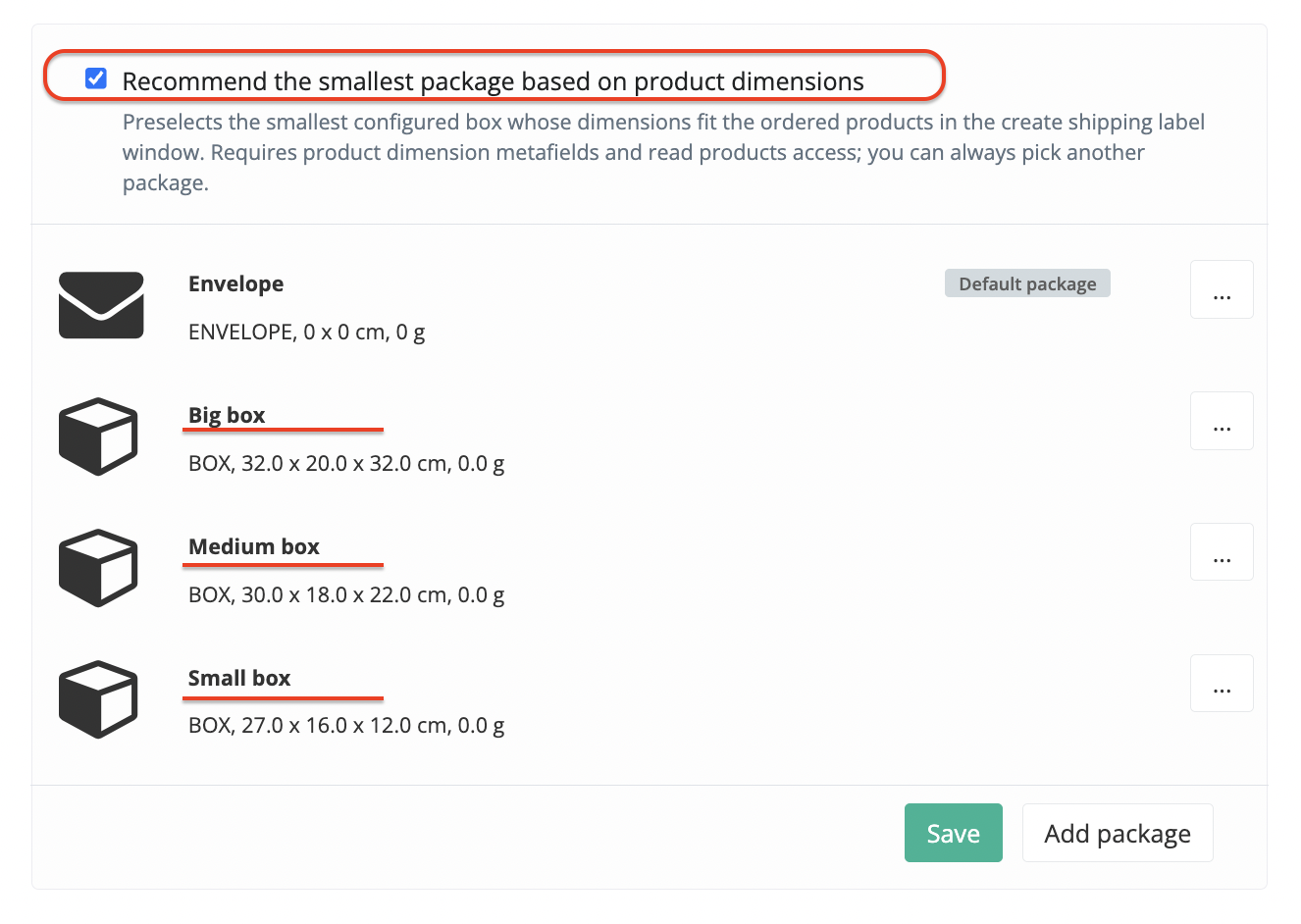
Creating a shipping label manually
When you open the shipping label form, xConnector checks the products in the order.
If all required dimensions are available:
- xConnector calculates which box can fit the products
- The smallest suitable box is automatically selected
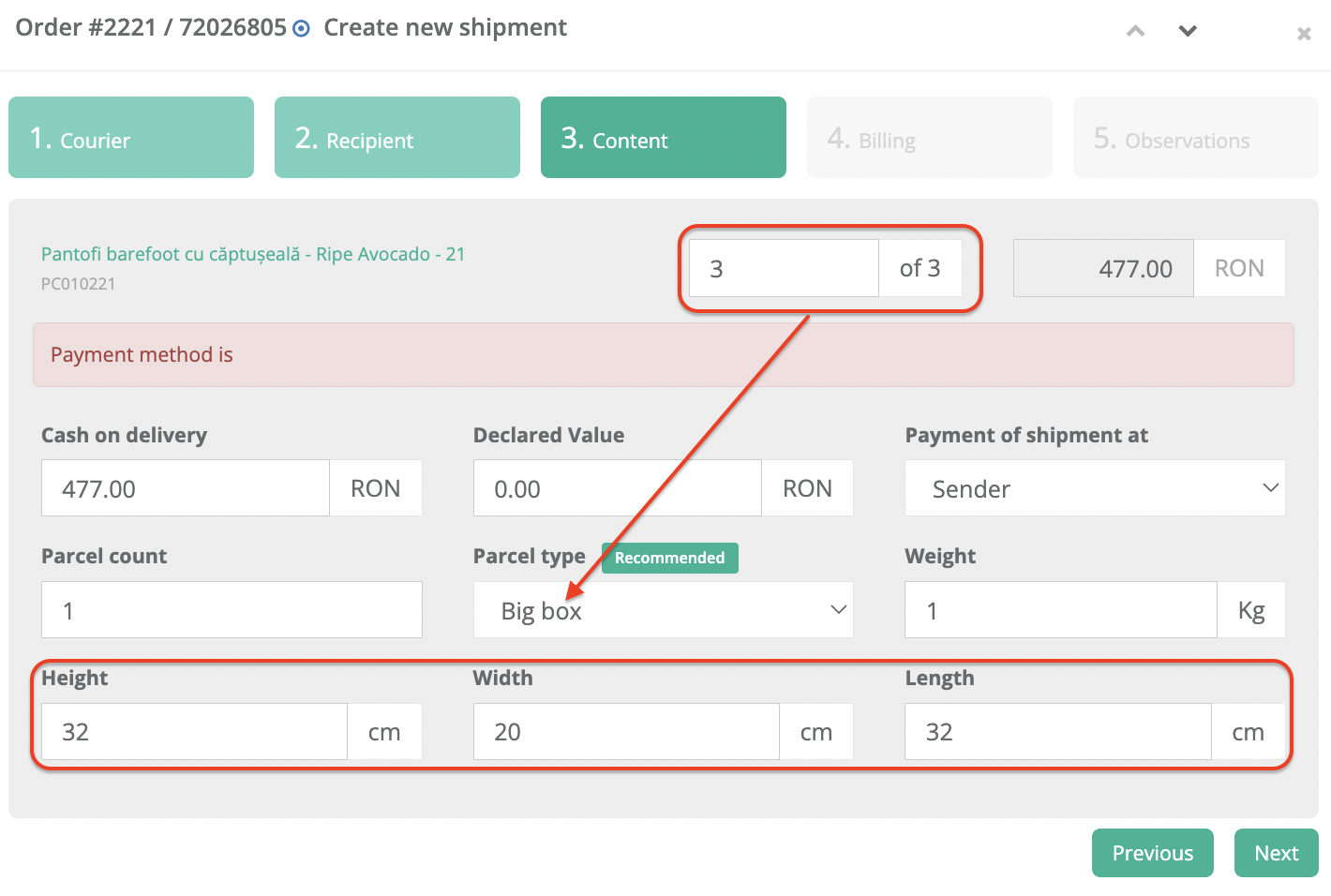
- The box dimensions are filled in
- The package weight is recalculated, including the box tare weight
- A Recommended label appears next to the selected package
You can still select another package at any time.
This is V01, and the project is still under development. The next planned steps are:

→ Picking List — so you can see directly which box type is recommended for each order

→ Integration with the Pick & Pack mobile app — so the recommended box can be used directly during the picking and packing process
Example:
- One pair of shoes has the following dimensions 25 × 14 × 10 cm
- I generate the shipping label individually:
case 1: Order with 1 product - recommended Small Box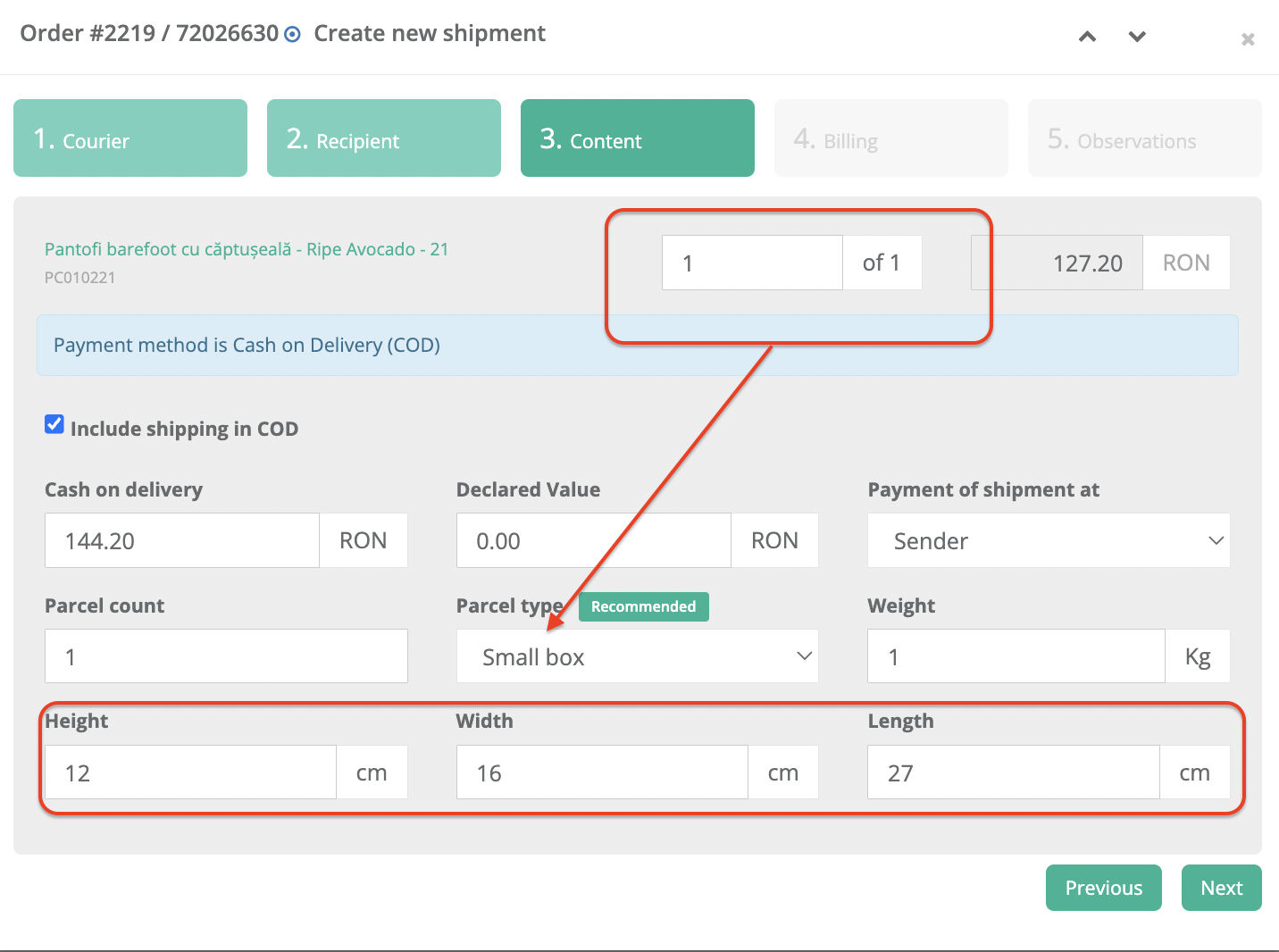
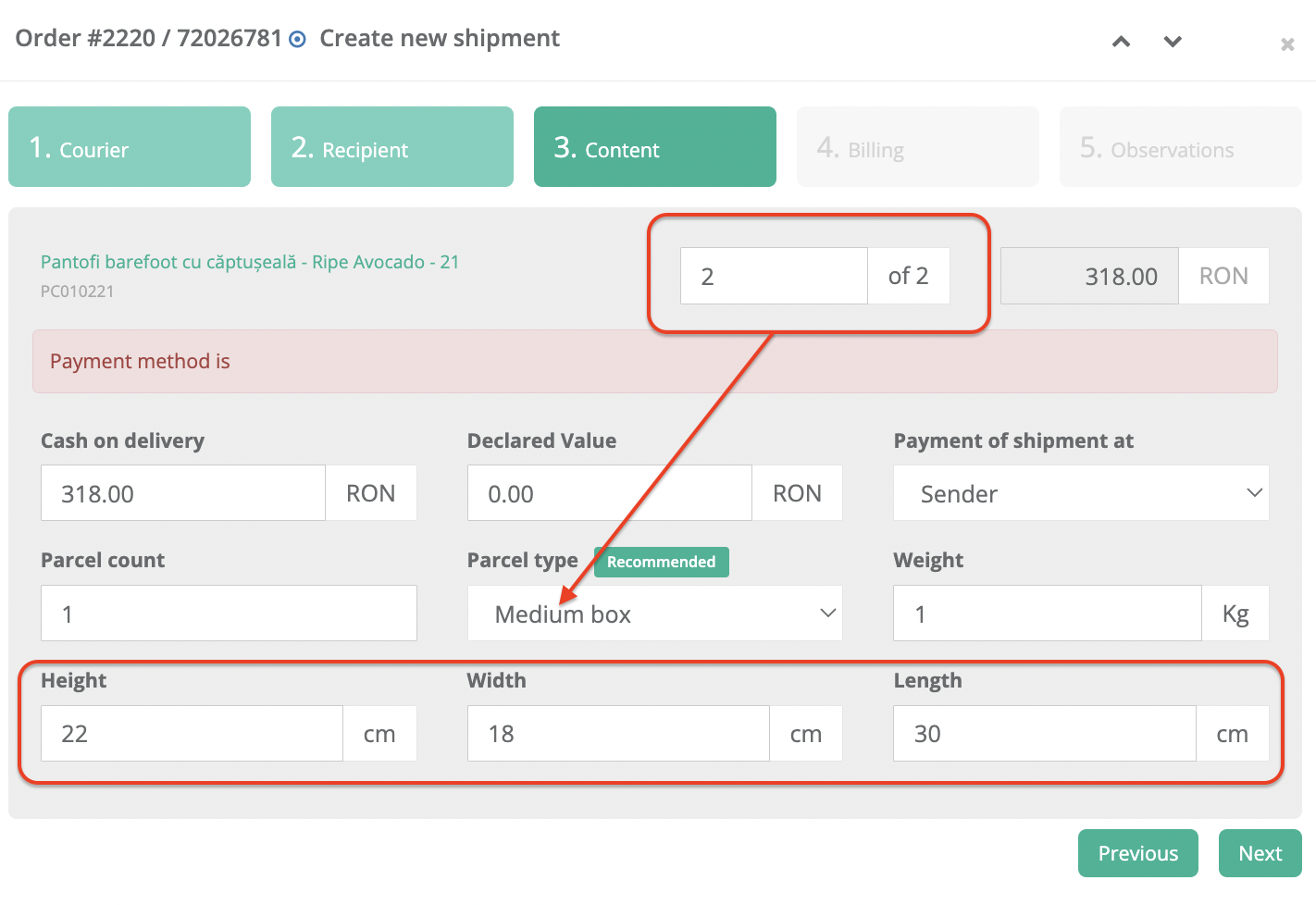
case 2: Order with 2 products - recommended Medium Box
case 3: Order with 3 products - recommended Big Box
Bulk and automatic shipping label creation
The same box recommendation can also be used for:
- Bulk shipping label creation
- Automatic shipping label creation
xConnector automatically applies the recommended box dimensions and recalculates the shipment weight using the selected box's tare weight.
Changes to the order
The recommendation may be recalculated if you change product quantities.
The Recommended label is removed if you make changes that could affect the original recommendation, such as:
- Selecting another package
- Changing the number of parcels
- Switching the fulfillment order
- Changing the carrier or service
When no box is recommended
xConnector will not recommend a box when:
| Situation | Reason |
|---|---|
| The feature is disabled | Automatic box recommendation is not active |
| Read product metafields is disabled | xConnector cannot read the product dimensions |
| A product is missing a dimension | Length, width, and height are required |
| No configured box is large enough | None of your boxes can fit the products |
| No Box package is configured | At least one box with dimensions is required |
| The shipment has multiple parcels | Recommendation is available only for single-parcel shipments |
| The order contains more than 200 product units | The automatic calculation limit has been reached |
| The recommended box exceeds carrier limits | The package is not valid for the selected carrier |
In these situations, nothing is blocked. The shipping label form works normally and you can select the package manually.
FAQ
Can I change the recommended box?
Yes. The recommendation is only a starting point. You can select another package from the dropdown at any time - only for individually shipping label generation
Does this work together with AUTO Envelope/Box selection?
Yes.
The existing Envelope/Box AUTO selection uses shipment weight.
The new box recommendation uses product dimensions to choose between your configured boxes.
The two features work independently.
What happens if the box is too large for the carrier?
xConnector checks the package against the limits of the selected carrier.
If the recommended dimensions exceed the carrier limits, the recommendation is not applied.
Are box dimensions inner or outer dimensions?
Configured box dimensions are considered the usable inner dimensions of the package.
Was this article helpful?
That’s Great!
Thank you for your feedback
Sorry! We couldn't be helpful
Thank you for your feedback
Feedback sent
We appreciate your effort and will try to fix the article