Locker delivery but no locker selected
If you offer locker delivery, there are cases where the customer may place the order but forget to select a locker.
To handle this scenario, we have implemented a Shopify Flow that can automatically trigger two notifications when a locker is not selected within a defined time.
What the Flow does
For each order placed with locker delivery, if the customer does not select a locker within a maximum of X minutes, the Flow can automatically send notifications to:
- the store
- the customer
Steps to implement the Flow
- Go to Shopify -> Apps -> Flow
- Import and activate the Flow (➡️ see attached)
- Edit the Flow and update the condition and the email address
a. one text from your locker shipping line
b. the store email address(es)
3.a Edit and update one text from your locker shipping line
The purpose of the Flow is to identify only the orders with locker delivery.
Replace 'insert_a_text_from_your_shipping_line' with the text from your locker shipping line.
Example:
The locker shipping line is Locker delivery -> fill in 'Locker'
The locker shipping line is Livrare la Easybox -> fill in 'Easybox'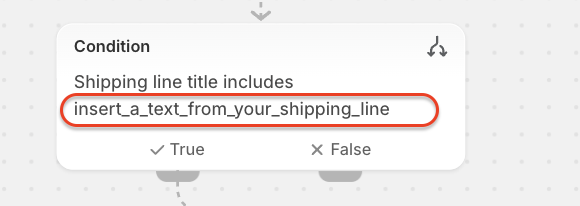
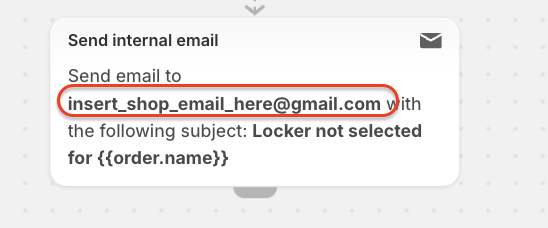
3. b Edit und update the store email address(es)
Default waiting time
The Flow is set by default to 7 minutes, but you can modify this waiting time.
- We do not recommend setting it below 5 minutes
Optional configuration
It is not mandatory to keep both notifications in the Flow.
You can:
- keep both notifications active, or
- keep only one and delete the other
Notifications triggered by the Flow
1) Store notification (informational)
The store receives an email whenever an order is placed with locker delivery, but no locker is selected within X minutes from order placement.
- This notification is informational only
- The email is sent through the Shopify server
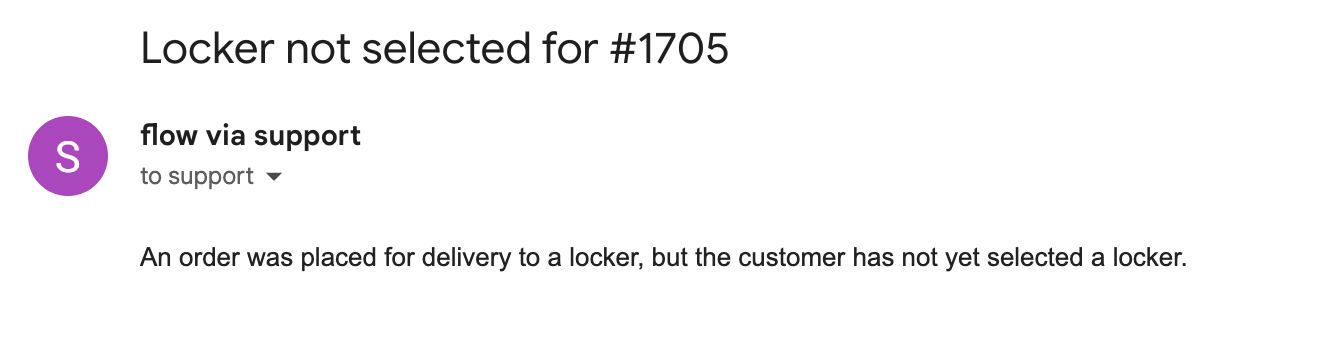
- The action in the Flow is shown below. You should enter the shop email address where you want to receive the notification.
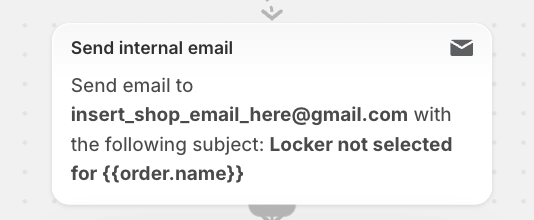
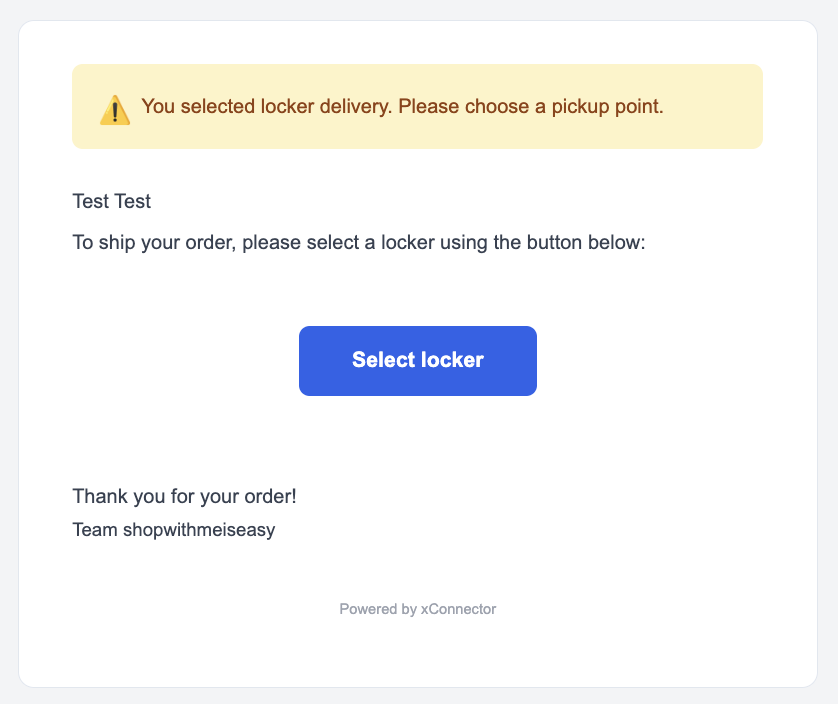
2) Customer notification
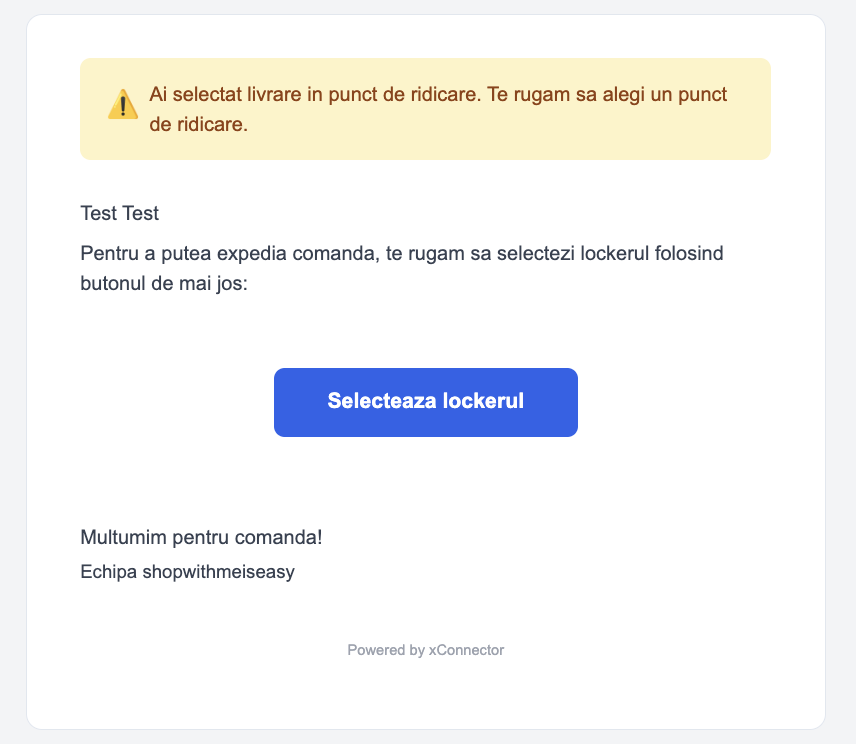
The customer receives an email whenever they place a locker delivery order but do not select a locker within X minutes from order placement.
- The email includes a direct link to the Order Status Page where the customer can select a locker
- The email is sent through the xConnector server
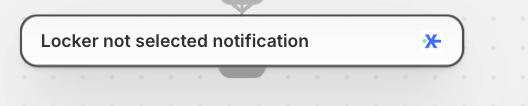
- The action in the Flow is shown below
Notification language
In the Flow, you can set the language used for the customer notification.
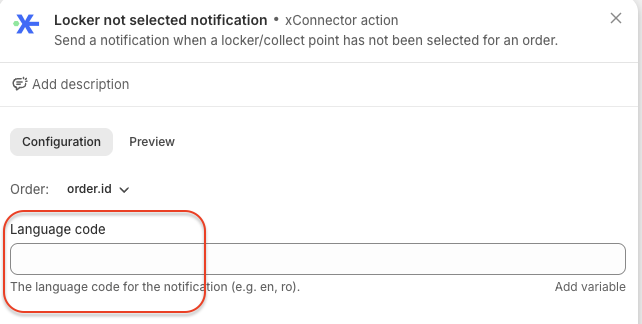
Edit the flow, select the action
a. If the language field is left empty
The notification language is automatically determined based on the shipping address country.
Examples:
- If the order is from Romania, the notification is sent in Romanian
- If the order is from Hungary, the notification is sent in Hungarian
- If the order is from Italy, the notification is sent in Italian
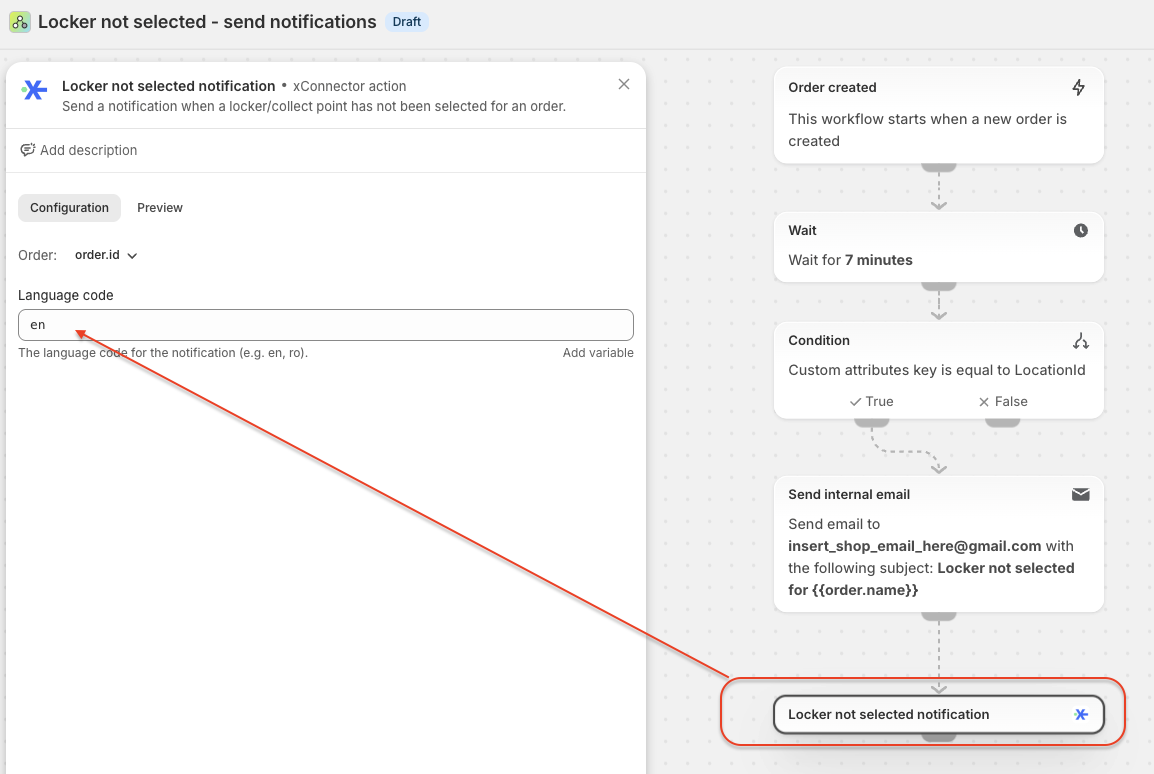
b. f the language field is filled in
You can manually define the notification language according to your internal Flow rules/customisation (for example: ro, en, bg, etc.).
- A language code must be entered for each action where you want to control the notification language. One language code for one action
Example:
Email customization
At the moment, there is no email customization section available.
This is a standard informational / utility email sent by xConnector to the email address from the order.
If the customer still does not select a locker, neither during checkout nor after receiving the notification, you have several methods available to select the locker.
Method 1
xConnector - click on the order number - check the Addtional details - click on the link - the locker map will be displayed and you can select the locker

Method 2
You can select the locker for them by accessing the order's details in Shopify.
xConnector - Click on the round button - new Shopify tab it will open the order's details

Click on More actions - View order status page - The map pop-up window will open and you can select the desired locker

Method 3
When generating the shipping label in the Recipient tab > Collect point: here you can select the locker

Method 4
You can instruct the customer to revisit the Thank you page by clicking the View order link in the Shipping Confirmation email. This will open the map popup window, allowing them to select their desired pickup location.
This feature is available to Advanced plan
Feel free to contact us if you need any further information:
Chat: click on the blue chat icon (bottom-right)
E-mail: support@xconnector.app
Phone: +4 0373 747 991
Was this article helpful?
That’s Great!
Thank you for your feedback
Sorry! We couldn't be helpful
Thank you for your feedback
Feedback sent
We appreciate your effort and will try to fix the article