Select the Invoice Connector for Automatic Invoicing via Shopify Flow
Description:
We have implemented the option to specify which invoicing connector should be used when generating invoices automatically via Shopify Flow.
In xConnector, connect two different invoicing connectors using the same credentials but configure each with a different invoice series.
Alternatively, you can connect two different invoicing services, each having its own unique Connector ID.
The Connector ID is displayed in the service configuration screen, under the Account Settings tab.
This ID is unique for each connector.
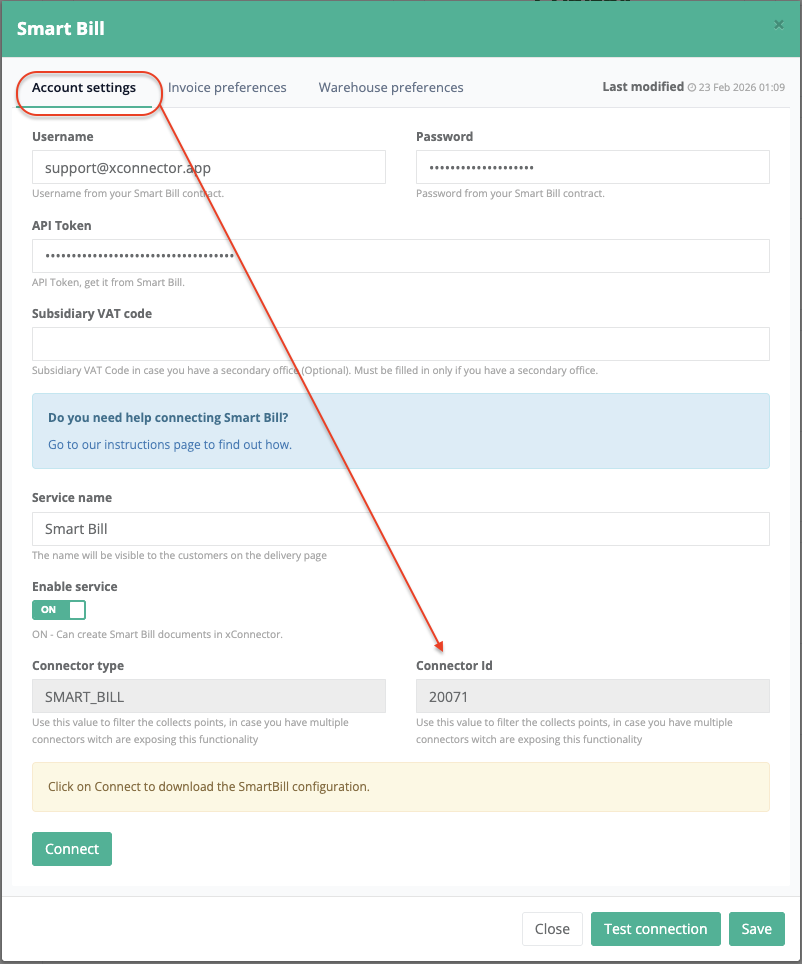
In Shopify Flow, define the desired conditions and, in the Create Invoice action, add the Connector ID corresponding to the connector you want to use.
Example: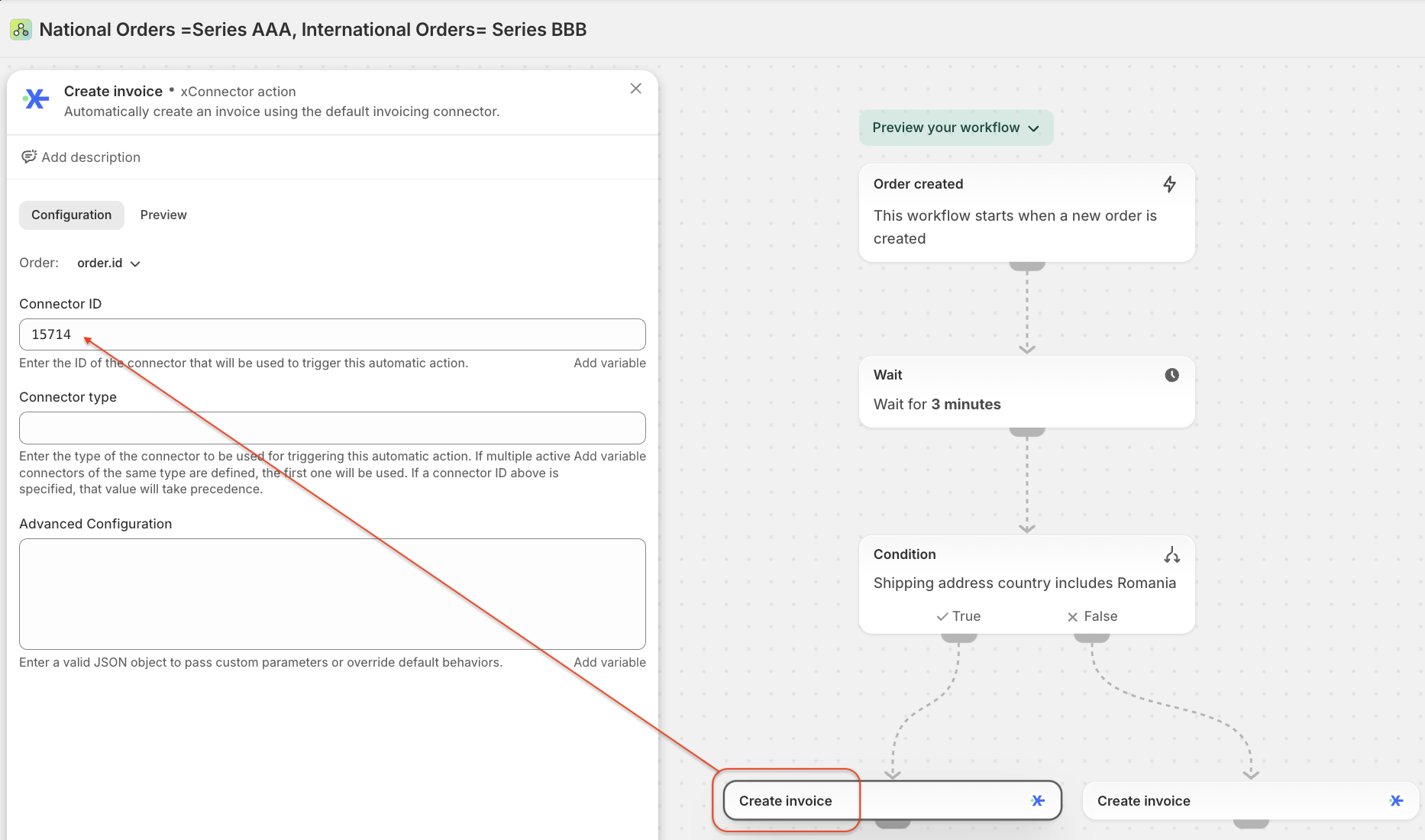
For each automatic invoice creation action, the desired Connector ID must be specified.
We recommend adding a waiting time before the action (minimum 2 minutes) to ensure the order data is fully processed.
Recommendation: Always set a waiting time before generating documents, so the order data has time to update first.
- xConnector > Profile > Preferences > Shipping&Invoicing: enable Include shipping in COD
- xConnector > Profile > Preferences > Shipping&Invoicing: enable Include shipping in invoice
B2B Invoicing
If you have activated—or want to activate—the company details lookup feature for billing (B2B - using the company billing details for the invoice), configure the following settings:
- xConnector > Profile > Preferences > Shipping&Invoicing: enable Search for company details
- xConnector > Profile > Preferences > Shipping&Invoicing > Address use for invoice = Billing address
- xConnector > Profile > Preferences > Shipping&Invoicing > check the option Don't create invoice if company not found
Always test your flows by placing test orders. Verify that the flow is configured correctly and that documents are generated as expected.Even if you do not want automatic invoice generation via Flow, you can connect as many invoicing connectors as needed (for different series, different companies, or different invoicing services) and select the desired connector when generating documents.Was this article helpful?
That’s Great!
Thank you for your feedback
Sorry! We couldn't be helpful
Thank you for your feedback
Feedback sent
We appreciate your effort and will try to fix the article
