When a customer chooses locker delivery, they sometimes place the order and close the page without choosing a locker. This article shows how to find these orders, check them and choose the locker, and how to stop them from being shipped until a locker is chosen.
The first step to avoid orders without a locker is to send the customer an automatic email a few minutes after they place an order without choosing a locker:
Send automatic emails when no locker is selected.
Table of contents
- Check the orders without a locker selected before you generate shipping labels (AWBs)
- Check if the locker is selected on the order
- Select the locker for the customer
- Put locker orders ON HOLD until a locker is selected
Method1. Check the orders without a locker selected before you generate shipping labels (AWBs)
In the xConnector order list:
- In the filter panel, set Shipping carrier = your locker delivery method.
- Add the filter Flag = Collect points delivery. On its own, it shows only the orders that already have a locker.
- Click the ! negate button on the Collect points delivery filter, to exclude those orders.
Result: only the locker delivery orders without a locker are shown. If every order has a locker, the list is empty.
Optional: save the filter. Save it with Saved filters > Save as new view. It stays in your list of saved filters, and you can open it with one click every time, before you generate shipping labels.
Step-by-step guide: Filter the orders without a locker selected

2. Check if the locker is selected on the order
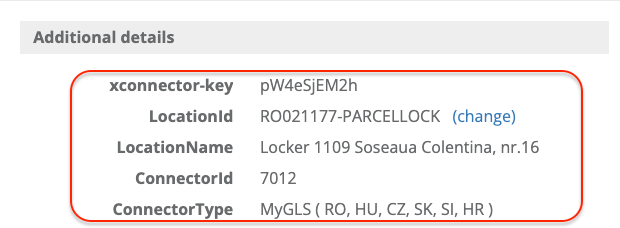
In xConnector
- Click the order number.
- In the upper right corner, find Additional details.
- If a locker is selected, you will see the Location ID, the Location name and the ConnectorID.
In Shopify
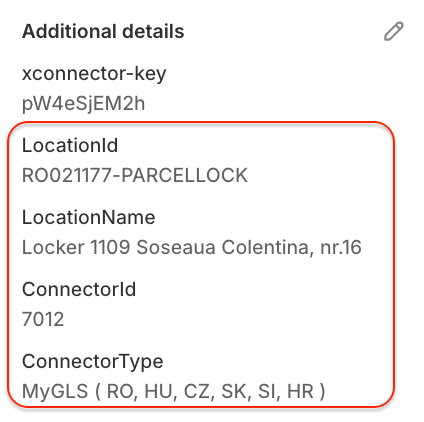
- Open the order in Shopify.
- Find Additional details.
- If a locker is selected, you will see the same Location ID, Location name and ConnectorID.
3. Select the locker for the customer
If the locker is still missing, there are three ways to save it on the order.
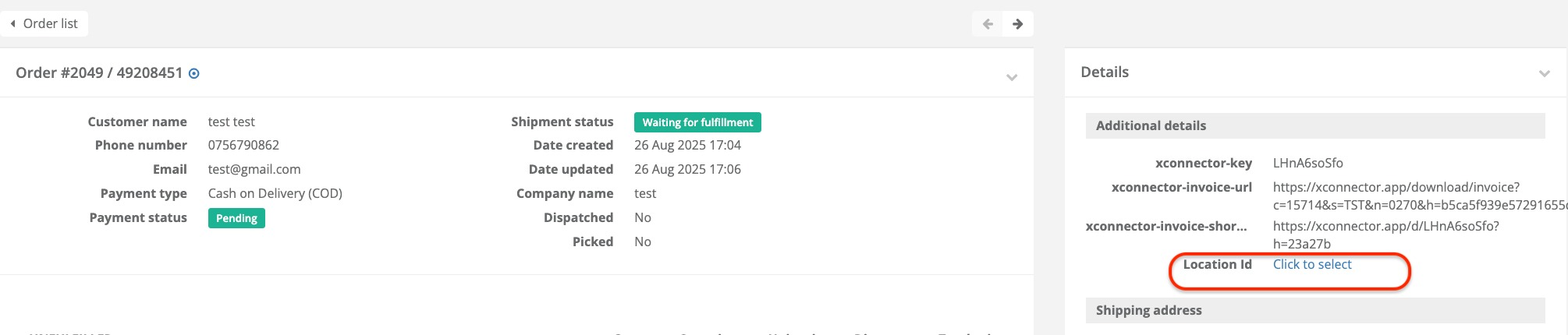
Option 1: Choose the locker in xConnector
Click the order number in xConnector. In Additional details, click the Location ID link. The map window opens and you can choose the locker.
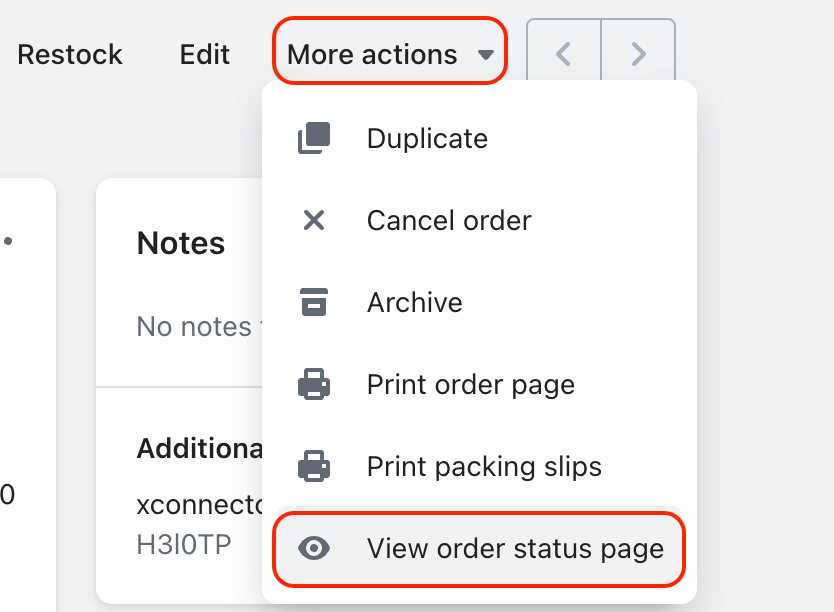
Option 2: Choose the locker on the Order status page in Shopify
- In Shopify, click More actions > View order status page.
- The map window opens. Choose the locker.
Option 3: Ask the customer to choose the locker from the Order confirmation email
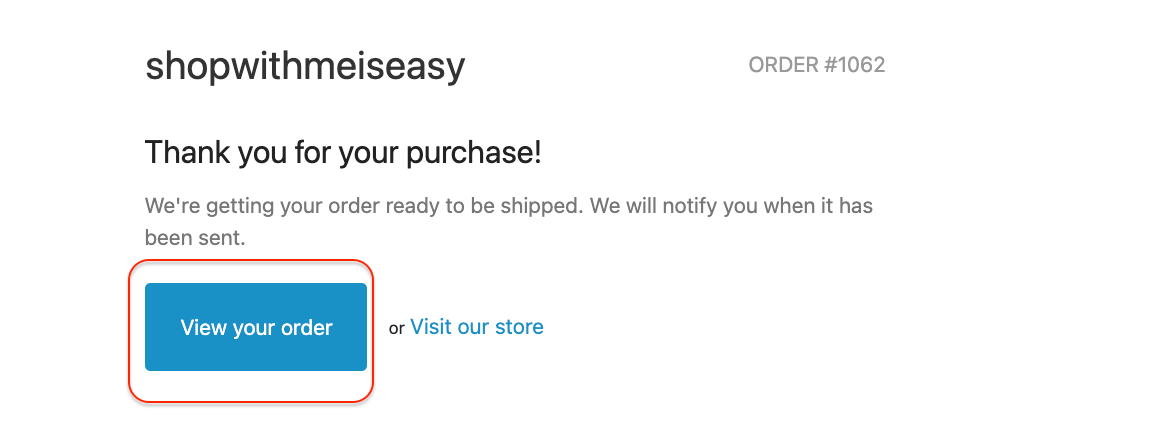
Ask the customer to open the View your order link from the Order confirmation email. The map window opens and they can choose the locker.
4. Put locker orders ON HOLD until a locker is selected
Another way to make sure you process only orders with a locker selected is to set up Shopify Flows that put locker orders ON HOLD automatically. An order on hold cannot be fulfilled, so no shipping label is created for it.
Two Shopify Flows work together:
- When a locker delivery order is created, it is put on hold automatically, with the tag and note ON_HOLD.
- As soon as the customer chooses the locker on the map, the order is released from hold automatically, the tag and note are removed and you can fulfill it and create the shipping label as usual.
How to set it up: Locker map - hold orders until a locker is selected
Useful articles
Subscription plan
This feature is available on the xConnector Advanced plan.
Need help?
Our team is here to help. You can contact us:
- Chat: directly from your xConnector account or on about.xconnector.app
- Email: support@xconnector.app
- Phone and WhatsApp: +40 373 747 991
- Website: about.xconnector.app
Was this article helpful?
That’s Great!
Thank you for your feedback
Sorry! We couldn't be helpful
Thank you for your feedback
Feedback sent
We appreciate your effort and will try to fix the article