v0.1 The locker map available for the old Checkout version (Deprecated)
How does it work?
How many couriers would you like to display on the locker map?
1. One Locker Delivery Option at Checkout and One Courier Locker Option on the Map
2. One Locker Delivery Option at Checkout and Multiple Couriers Locker Options on the Map
3. Multiple Couriers Options at Checkout and Just One Courier on the Map
How does it work?
The customer chooses the delivery method at Checkout and the lockers map it displays on the Thank You page
The customer select a locker, and this information is saved in the order.
If the customer's browser has geolocation enabled, the nearest pick-up point will be recommended based on their location. Or he can just search his favorite locker.
You can automatically generate the shipping labels for lockers delivery.
How many couriers would you like to display on the locker map?
When configuring the lockers map for your lockers delivery options, you have three flexible choices:
1. One Locker Delivery Option at Checkout and One Courier Locker Option on the Map
Description: The map displays lockers for just one courier.
Workflow:
Checkout: Locker delivery
Thank You Page: The map displays only the lockers for one courier.
2. One Locker Delivery Option at Checkout and Multiple Couriers Locker Options on the Map
Description: The map displays all the couriers activated in xConnector, offering customers a broader range of choices and enabling them to select the most convenient pickup location from various available services.
Workflow:
Checkout: Locker delivery
Thank You Page: The map displays all the lockers for the couriers you activated under the function "Collect Points Delivery".
3. Multiple Couriers Options at Checkout and Just One Courier on the Map
Description: The map displays only the lockers from the courier selected at checkout. This option is recommended when you have multiple couriers for locker delivery that may (or not) have different delivery prices, and you wish to display only one courier’s lockers on the map, the one selected by the client at checkout.
Workflow:
Checkout:
Locker delivery for Courier 1 - delivery price x EUR
Locker delivery for Courier 2 - delivery price y EUR
Locker delivery for Courier 3 - delivery price z EUR
Thank You Page: The map displays only the lockers for the one courier selected by the client at checkout.
How to install the map widget on your website?
Depending on how many couriers would you like to display on the map, there are different settings for each option.
Please, find below 3 different option for displaying the Lockers map.
1. One Locker Delivery Option at Checkout and One Courier Locker Option on the Map
- Description: The map displays lockers for just one courier.
To integrate the map widget with the lockers on your website, you must follow just four steps:
Step 1: Open the Java Script code: click here to open the Java Code.
Step 2: Add the JavaScript code in Shopify
Shopify > Settings > Checkout > Order status page scripts > Script > Copy-Paste the JavaScript code here > Save
Step 3: Customize the Java code script with your website data by replacing 3 parameters
- Delivery method
- Shopify store domain
- Acces token
The code customisation involves replacing 3 specific texts within the code with the relevant data from your store. Also, you must activate the functionality Collect points for the courier.
This is the Java Code and the parameters marked in red that you should replace:

- Delivery method
First you need to add a new delivery method in Shopify:
Shopify > Settings > Shipping and delivery > General shipping rates > General - Shipping zones > Add rate
Keep in mind that special characters like |,+,, / are not allowed in the Java script so try to name the rate without special characters.
At the Checkout, the clients can opt from two delivery methods:
- Home delivery (your own home delivery name)
- Locker delivery (your own locker delivery name)

Search for the text delivery-method-name-from-Shopify in the Java code and replace it with your own rate name.
Example:
In Shopify, I defined a new delivery method: Locker delivery.
In Javascript code I replaced the text delivery-method-name-from-Shopify with the exact name for the delivery method I saved in Shopify: Locker delivery.
delivery-method-name-from-Shopify = your rate name
| Original code: {% if shipping_method.title == "delivery-method-name-from-Shopify" and showMap == true %} Customized code: {% if shipping_method.title == "Locker delivery" and showMap == true %} |
- Your shop domain
Search for the text shop-domain.myshopify.com in the Java code and replace it with your own shopify domain.
Example:
My Shopify domain store is wowshop.myhopify.com, so I make sure that I replace it with the same name in the JavaScript code.
your-shop-domain.myshopify.com = your shopify domain
| Original code: <script type="text/javascript" src="https://xconnector.app/js/ xconnector-pickup-points.js?shop=your-shop-domain.myshopify.com"></ script> Customized code: <script type="text/javascript" src="https://xconnector.app/js/ xconnector-pickup-points.js?shop=wowshop.myshopify.com"></ script> |
- Acces token
Search for the text acces-token-from-xConnector-tools in the Java code and replace it with your own access token.
Your unique acces token is here:
xConnector > Profile > Tools > Access token
Copy your unique access token and replace the text in the Java code.
access-token-from-profile-tools = your own access token
Example:
My unique access key is 999c3468-7831-47a1-99c5-10d99d1b87ff so I copy and paste it into the Java script.
| Original code: {% assign date = "now" | date: "%Y%m%d%H" %} var xConnector = { 'token': '{{ 'acces-token-from-xConnector-tools' | append: date | md5 | append: date }}' }; Customized code: {% assign date = "now" | date: "%Y%m%d%H" %} var xConnector = { 'token': '{{ '999c3468-7831-47a1-99c5-10d99d1b87ff' | append: date | md5 | append: date }}' }; |
Step 4: Activate the collect points functionality for your courier and save your Logo into xConnector:
- Logo image: fill in your logo image in .jpg format
- Go to xConnector > Profile > Connected services > Select courier > Collect points - Collect points [ON] > Save

Now, simply place a test order to see how your clients can view and interact with the map of lockers.
Example:
I activated the functionality Collect points just for Cargus
On the map it will be displayed only one courier that I activated - Cargus lockers.

One of the most common mistakes when saving the script is using quatation marks in a different format than the ones accepted by the script especially in the following line of code
{% if shipping_method.title == "delivery-method-name-from-Shopify" and showMap == true %}
✅""(correct)
❌““(incorrect)
2. One Locker Delivery Option at Checkout and Multiple Couriers Locker Options on the Map
- Description: The map displays all the couriers activated in xConnector, offering customers a broader range of choices and enabling them to select the most convenient pickup location from various available services.
To integrate the map widget with the lockers on your website, you must follow four steps:
Step 1: the same as for One Locker Delivery Option at Checkout and One Courier Locker Option on the Map
Step 2: the same as for One Locker Delivery Option at Checkout and One Courier Locker Option on the Map
Step 3: the same as for One Locker Delivery Option at Checkout and One Courier Locker Option on the Map
Step 4: Activate the collect points functionality for your as may couriers and save your Logo into xConnector:
- Logo image: fill in your logo image in .jpg format
Go to xConnector > Profile > Connected services > Select courier > Collect points > Collect points [ON] > Save
Repet Step 4 for as many couriers you wish to display the lockers on the map.
Example:
I activated the functionality Collect points for FanCourier, Sameday, Cargus and DPD.
On the map it will be displayed lockers for all 4 couriers that I activated - FanCourier, Sameday, Cargus and DPD.


1. Filters - Flag - Collect points delivery: it will display all the orders with Locker delivery method
2. Filters - Connector - how many orders

One of the most common mistakes when saving the script is using quatation marks in a different format than the ones accepted by the script especially in the following line of code
{% if shipping_method.title == "delivery-method-name-from-Shopify" and showMap == true %}
✅""(correct)
❌““(incorrect)
3. Multiple Couriers Options at Checkout and Just One Courier on the Map:
- Description: the map displays lockers for just one selected courier in the Checkout page.
This option is recommended when you have multiple couriers to offer for lockers delivery that may have (or not) different delivery prices and you wish to display on the map only one courier’s lockers.
Example: I display three couriers in the checkout . The map only dispalys the courier's locker selected here (in the checkout page)
If you select Locker delivery Cagus - the map will diplay only Cargus Lockers
If you select Locker delivery Fan Courier - the map will diplay only Fan Courier Lockers
If you select Locker delivery Sameday - the map will diplay only Sameday Lockers

To integrate the map widget with the lockers on your website, you must follow four steps:
Step 1: Open the Java Script code: click here to open the Java Code.
Step 2: Add the JavaScript code in Shopify
Shopify > Settings > Checkout > Order status page scripts > Script > Copy-Paste the JavaScript code here > Save
Step 3: Customize the Java code script with your website data by replacing 3 parameters and adding a condition and a constant for each courier
- Delivery method
- Shopify store domain
- Acces token
- Adding a Condition each courier
- Adding a constant for each courier
The example below shows the code for 2 couriers but you can add as many you wish
This is the Java Code and the parameters marked in red that you should replace:

1. Delivery method
First you need to add a new delivery method in Shopify for each courier
Shopify > Settings > Shipping and delivery > General shipping rates > General > Shipping zones > Add rate
Keep in mind that special characters like |,+,, / are not allowed in the Java script so try to name the rate without special characters.
At the Checkout, the clients can opt from two or more locker deliveries methods:
Example for 2 courier options with two different prices:


Search for the text common-word-for-delivery method-name-from-Shopify
in the Java code and replace it with a common word(s) from the two delivery methods.
Example:
In Shopify, I defined two rates name:
Locker delivery Sameday
Locker delivery Fan courier
-> the common words I use: Locker delivery
In Javascript code I replaced the text common-word-for-delivery method-name-from-Shopify with the common words saved in Shopify for the rates name: Locker delivery.
common-word-for-delivery method-name-from-Shopify = common word(s)
| Original code: {% if shipping_method.title contains "common-word-for-delivery method-name-from-Shopify" and showMap == true %} Customized code: {% if shipping_method.title == "Locker delivery" and showMap == true %} |
2. Your shop domain
Search for the text shop-domain.myshopify.com in the Java code and replace it with your own shopify domain.
Example:
My Shopify domain store is wowshop.myhopify.com, so I make sure that I replace it with the same name in the JavaScript code.
your-shop-domain.myshopify.com = your shopify domain
| Original code: <script type="text/javascript" src="https://xconnector.app/js/ xconnector-pickup-points.js?shop=your-shop-domain.myshopify.com"></ script> Customized code: <script type="text/javascript" src="https://xconnector.app/js/ xconnector-pickup-points.js?shop=wowshop.myshopify.com"></ script> |
3. Acces token
Search for the text acces-token-from-xConnector-tools in the Java code and replace it with your own access token.
Your unique acces token is here:
xConnector > Profile > Tools > Access token
Copy your unique access token and replace the text in the java code.
access-token-from-profile-tools = your own access token
Example:
My unique access key is 999c3468-7831-47a1-99c5-10d99d1b87ff so I copy and paste it into the Java script.
| Original code: {% assign date = "now" | date: "%Y%m%d%H" %} var xConnector = { 'token': '{{ 'acces-token-from-xConnector-tools' | append: date | md5 | append: date }}' }; Customized code: {% assign date = "now" | date: "%Y%m%d%H" %} var xConnector = { 'token': '{{ '999c3468-7831-47a1-99c5-10d99d1b87ff' | append: date | md5 | append: date }}' }; |
5. Adding a Condition each courier
Search for the text courier1-name-from-Delivery-method-name in the Java code and replace it with the courier’s name from the rate name.
| Original code: {% if shipping_method.title contains "courier1-name-from- delivery-method-name" %} {% if shipping_method.title contains "courier2-name-from- delivery-method-name" %} Customized code: {% if shipping_method.title contains "Sameday" %} {% if shipping_method.title contains "Fan Courier" %} |
6. Adding a constant for each courier
Search for the text xconnector-courier-name in the Java code and replace it with the constant. For each courier, xConnector has a constant to recoqnize the courier in our database. Find below our constants for each courier:
| Original code: XCONNECTORPICKUP.Form.showPopup(Shopify.shop,'xconnector- courier-name'); Customized code: XCONNECTORPICKUP.Form.showPopup(Shopify.shop,'Sameday'); XCONNECTORPICKUP.Form.showPopup(Shopify.shop,'Fan_courier'); |
Step 4: Activate the collect points functionality for each courier and save your Logo into xConnector:
- Logo image: fill in your logo image in .jpg format
Go to xConnector > Profile > Connected services > Select courier > Collect points > Collect points [ON] Save
After the settings above: at the checkout you’ll offer two Locker delivery options and the client can choose one of them. The map will only display the lockers from the courier that he selected.
One of the most common mistakes when saving the script is using quatation marks in a different format than the ones accepted by the script especially in the following line of code
{% if shipping_method.title == "delivery-method-name-from-Shopify" and showMap == true %}
✅""(correct)
❌““(incorrect)
What if the customer doesn't select a locker?
If the customer has not selected a pickup point from a locker on the Thank You page, there are three ways to save the pickup address in the order.
- You can tell them to revisit the Thank you page by clicking the link View order in the Shipping Confirmation e-mail. The map popup window will open and they can select their desired pickup location
- Alternatively, you can select it for them by accessing the order's details in Shopify, then selecting "More actions" and "View order status page."
See the order in xconnector - Click on the round button

- Click on More actions - View order status page - The map popup window will open and you can select the desired pickup location

3. When generating the shipping label at Recipient tab > Collect point: here you can select the locker

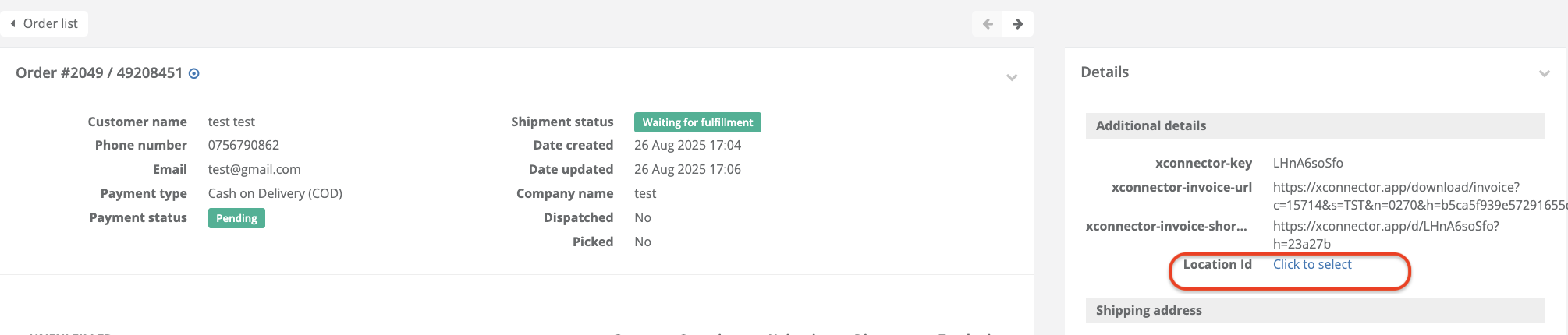
4. Click on the order number in xConnector - check the Additional details - Location ID and select the locker
Cool Tips That Make a Difference
How can I be notified if there is no locker selected?
How to check if there is a locker and how to select a locker if it's not yet selected?
https://xconnector.freshdesk.com/support/solutions/articles/103000362698-collect-points-how-to-select-a-locker
xConnector - Filters
You can filter the orders based on the delivery method. Please see the filters on the left side of the screen in the Shipping carrier section:

Shipping label generation
When generating a shipping label for a pickup-from-locker order, you need to select the corresponding service type. Depending on each courier, you need to select the appropriate service type for delivery to a locker. In the first tab - Courier - Service tab field.
For example:
Courier Sameday - Service type Next Locker
Courier Urgent - Service Type Easy Collet
Courier DPD - Service Type Parcel Shop
PIN to unlock the locker
Once the courier has placed the package in the locker, an email will be automatically sent to the customer with the PIN for locker access. That's way is important for the customers to have an email address.
In cases where the customer doesn't provide an email address (or chooses not to), you can enter your own email instead.
You'll receive the PIN code needed to open the locker and can then share it with the customer by phone.
Return the package to the locker point
Your customers can return the package to the locker - available only for Sameday courier.
You can generate a return shipping label to the locker by following the steps below:
Access the order details (click on the order number) - the order details page will open.
Click on the 'Create return shipment' button - the pop-up for generating the shipping label will open.

Courier: depending on the courier, select the Service type needed for return at a locker. For example Sameday has the Service type: Locker Retur
Pickup address: here is he default locker address, where the client received for the first time his package
Content: no need to fillin
Observation: check the option if needed
Go through the steps to generate the shipping label, Save, and Print.
you will find the access code to open a locker at the Timeline section (click on the order number - scroll down - Timeline)
Give this code to your client, he will be able to open the locker and the courier will pick it and deliver to you.

List of couriers supporting locker deliveries via xConnector ✅
Please note that not all couriers offer the Pick-up option.
Below is the list of couriers that have activated the Pick-up Points widget so far:
Sameday - EasyBox
FanCourier - FanBox
Packeta
GLS
MyGLS
Cargus - Ship&Go
DPD Romania
DPD Hungary
Speedy BG
Econt
Innoship
This feature is available to Advanced plan
➡️ Need help with xConnector? We are just a message away:
Chat: click the blue chat icon (bottom-right)
E-mail: support@xconnector.app
Phone: +4 0373 747 991
➡️ Stay connected with xConnector:
Facebook group: https://www.facebook.com/groups/shopify.romania.xconnector
Facebook page: https://www.facebook.com/xConnectorApp
TikTok: https://www.tiktok.com/@xconnector.app
YouTube: https://www.youtube.com/@xconnector_app
Was this article helpful?
That’s Great!
Thank you for your feedback
Sorry! We couldn't be helpful
Thank you for your feedback
Feedback sent
We appreciate your effort and will try to fix the article