With the xConnector locker selector, customers choose a parcel locker or pickup point in the cart, before checkout, and on the Thank you page if the order is placed without a locker selected in the cart. It works on all Shopify plans, with the standard Shopify checkout.
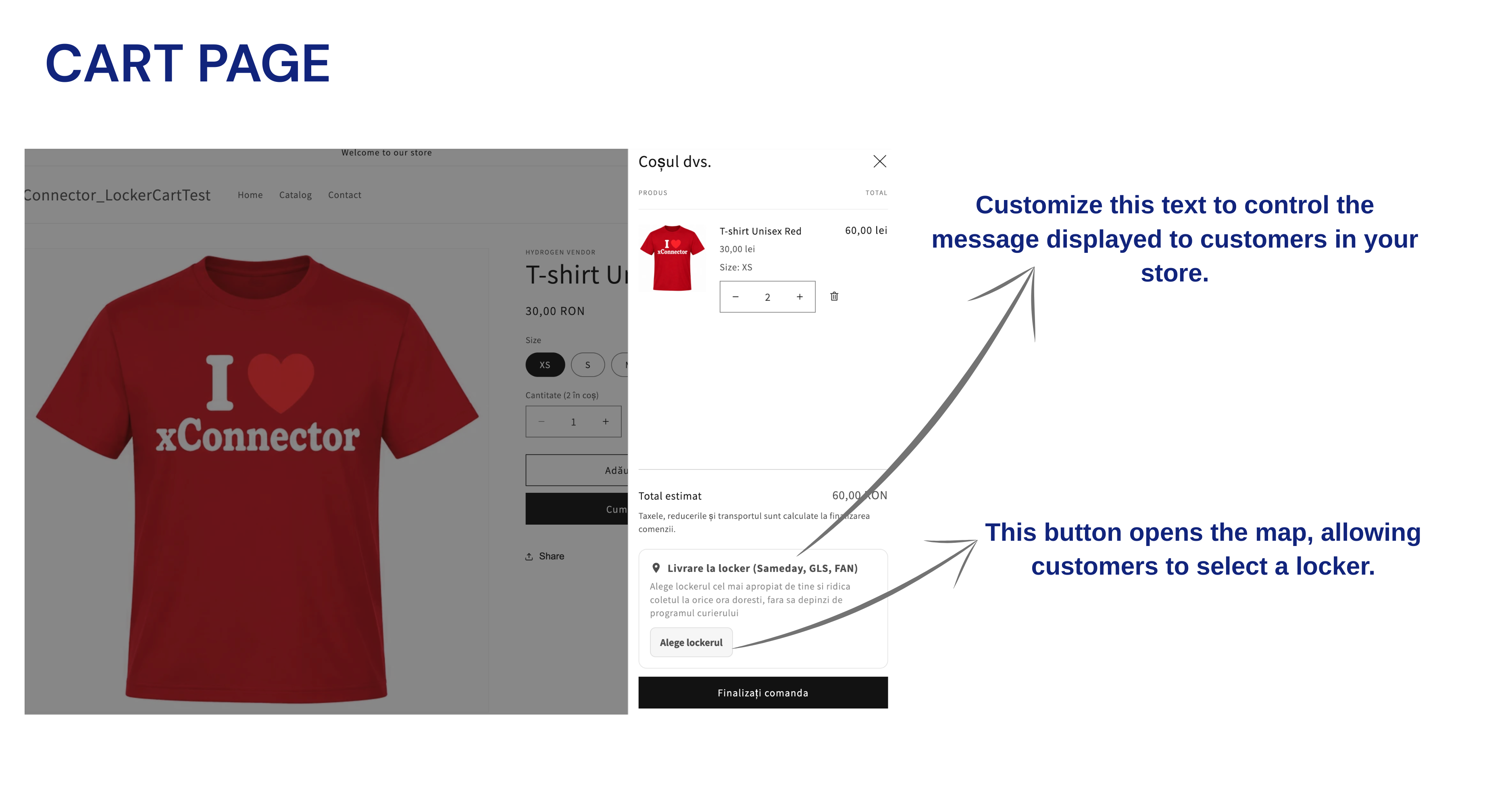
Table of contents
- How it works
- Before you start
- Part 1: Settings in xConnector
- Part 2: Add the locker selector to your theme
- Part 3: Checkout rule – show only the locker shipping option
- Part 4: After the order
- Test your setup
How it works
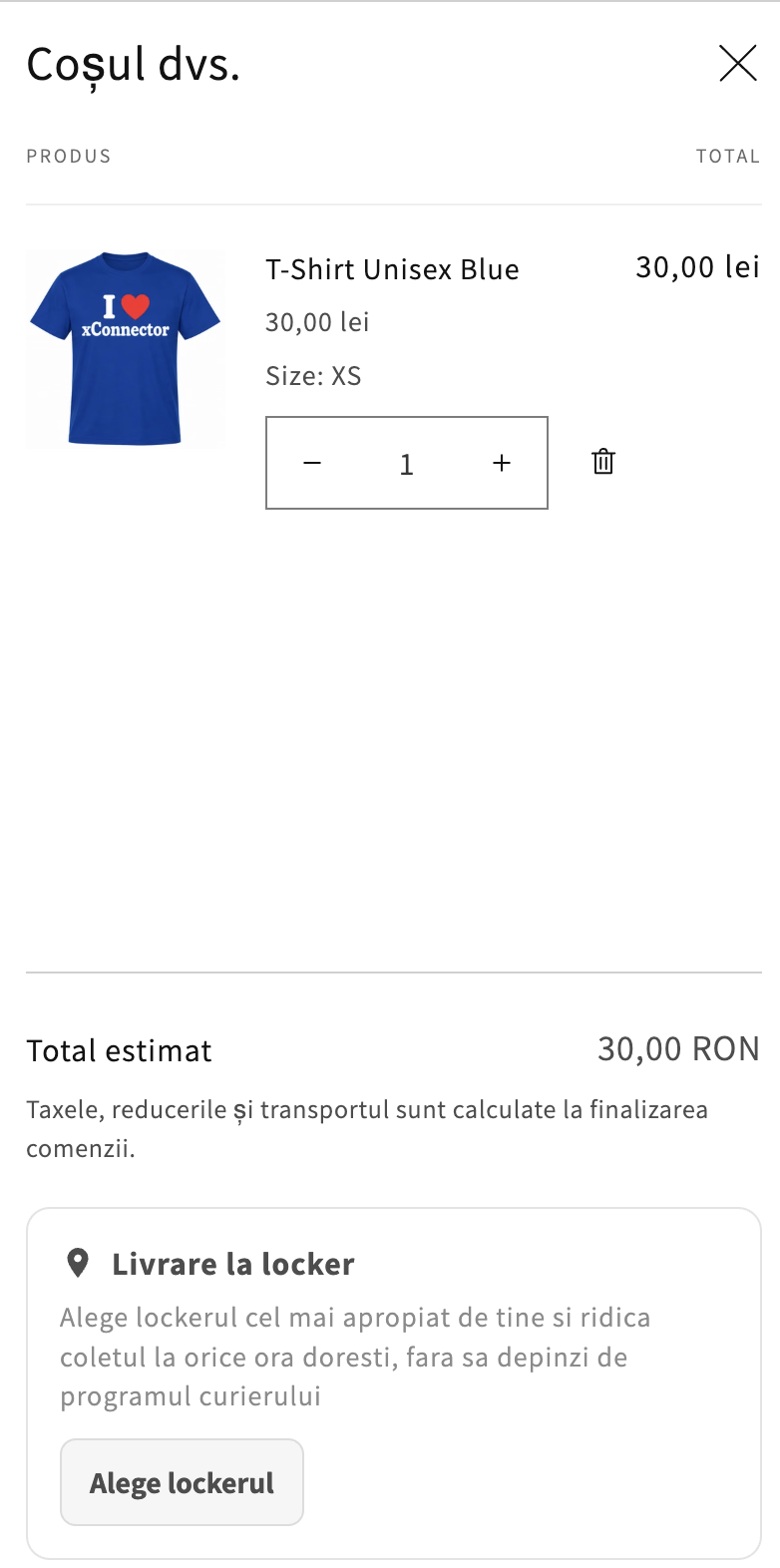
1. The customer opens the cart and clicks the locker selection button.
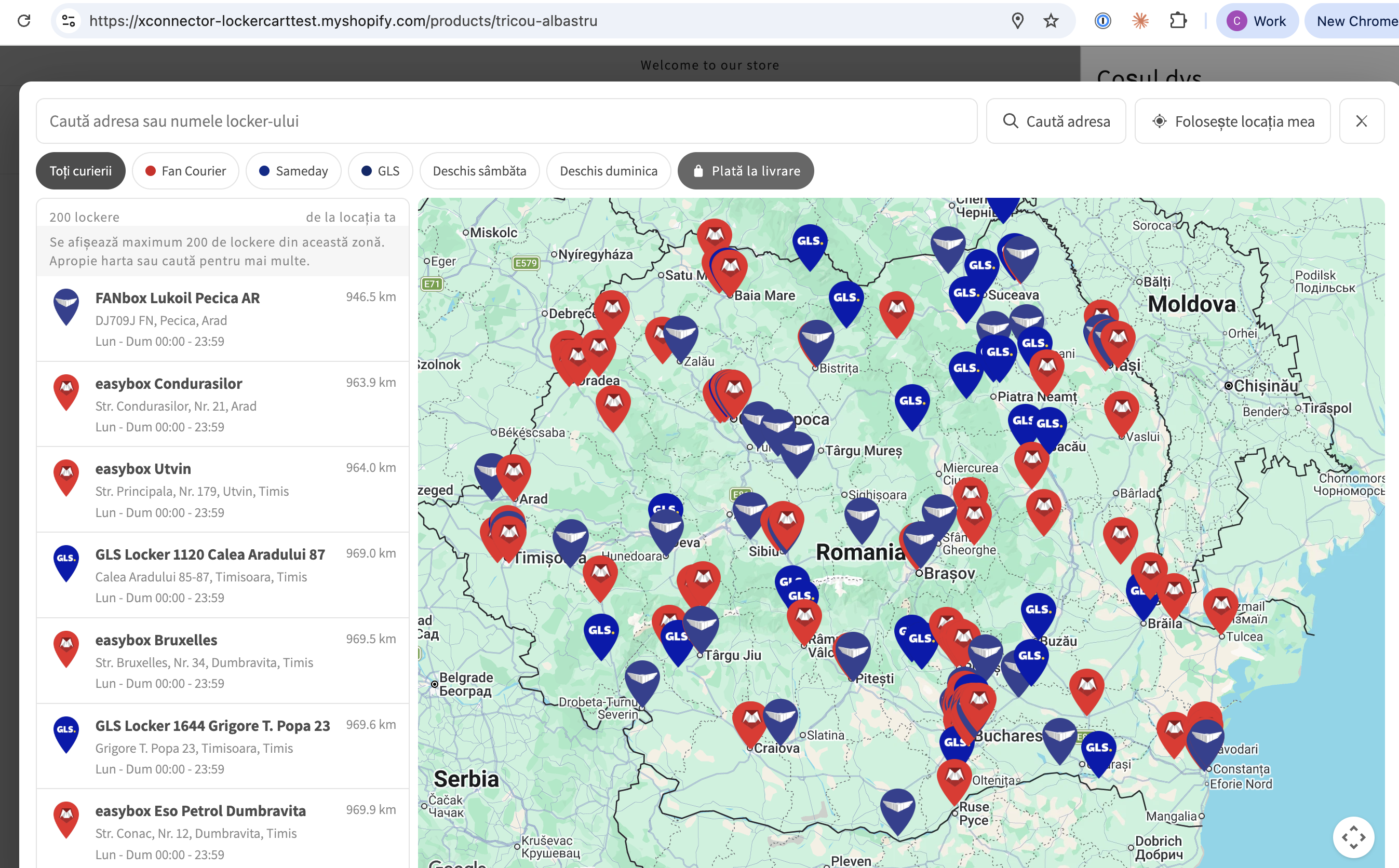
2. They choose a locker on the map or in the list.
3. They go to checkout. If you turn on Prefill the checkout address with the selected locker, the locker address is already filled in.
4. If you activate the checkout rule (Part 3), checkout shows only the locker shipping option, so the customer cannot choose another delivery by mistake.
5. The locker is saved on the order. You see it in Shopify and in xConnector, under Additional details, and xConnector uses it when you create the shipping label.
Before you start
1. Connect your courier in xConnector. Step-by-step guides for every courier: Couriers.
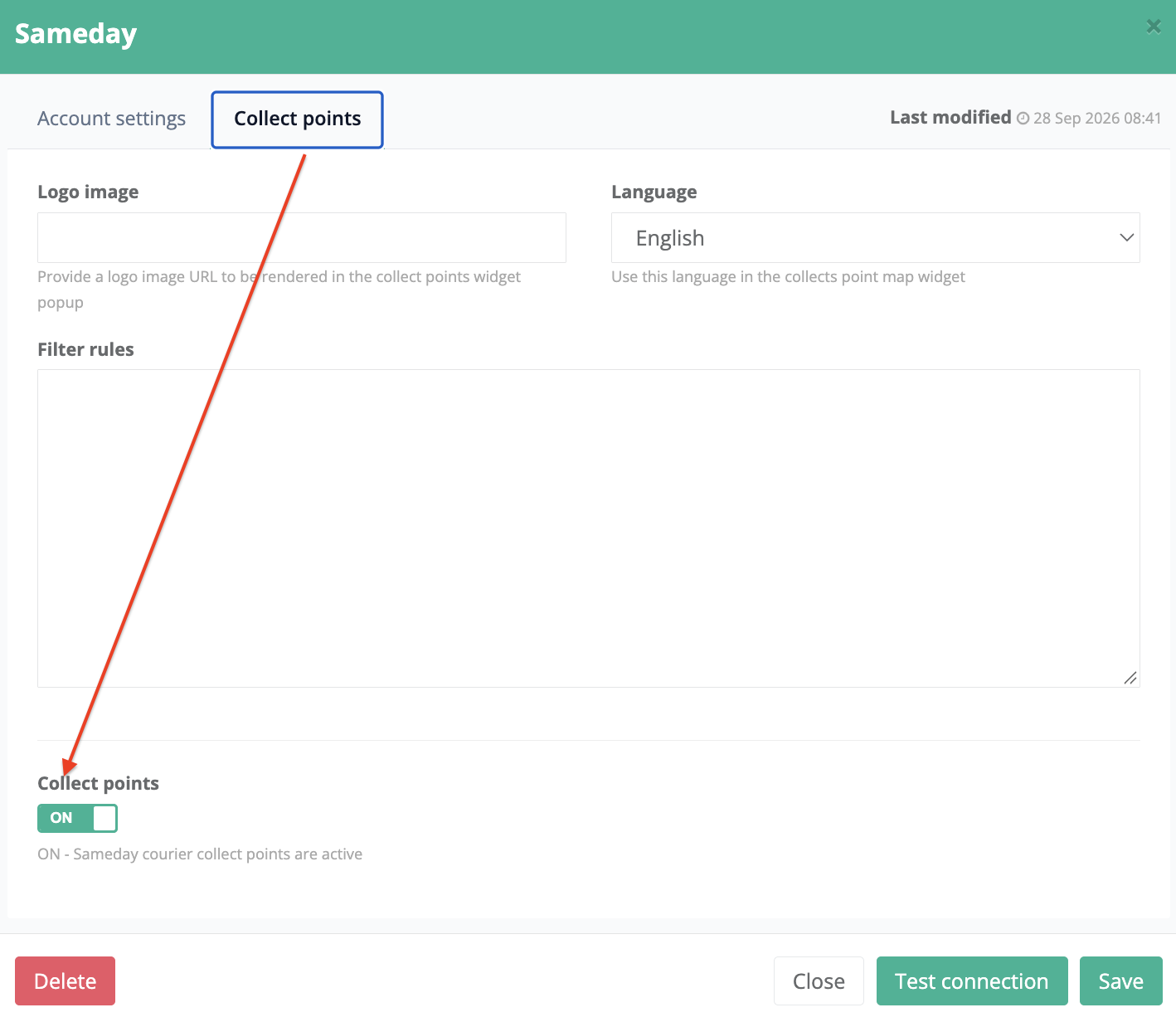
2. Turn on the lockers for the courier: in the courier settings, open the Collect points tab and turn it ON.
3. In Shopify, create the locker shipping option, for example Delivery to locker, in Settings > Shipping and delivery.
Part 1: Settings in xConnector
Go to xConnector > Profile > Checkout customization. Each card has its own Save button, which saves only that card.
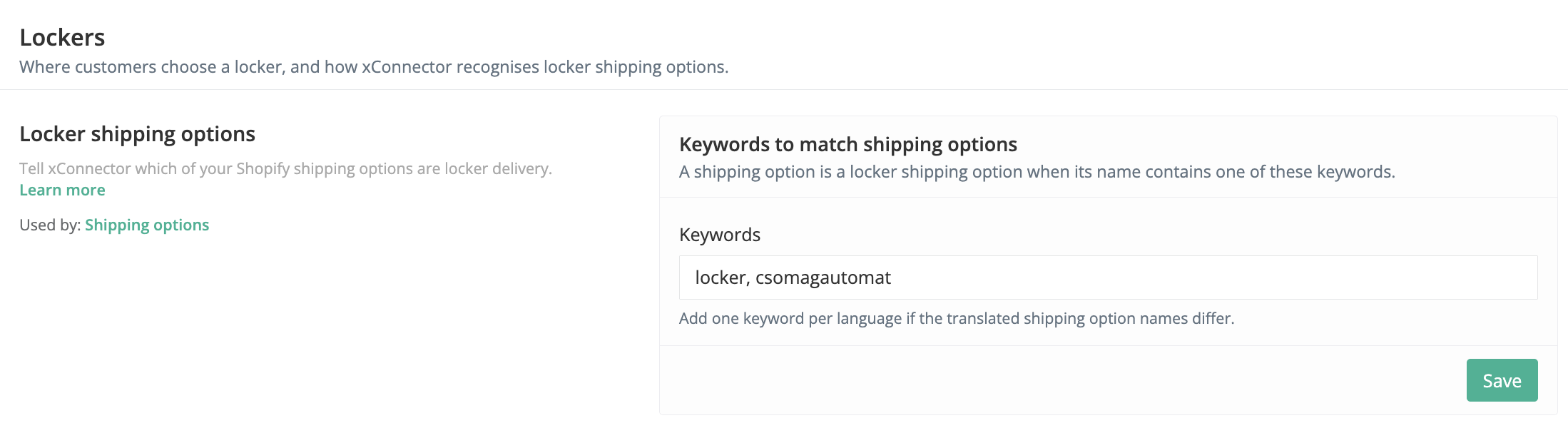
Locker shipping options
In Keywords to match shipping options, enter a word that appears in the name of your locker shipping option, for example locker. You can enter several keywords, separated by commas, for example locker, csomagautomat. If your shipping option has different names in other languages, add one keyword per language. Click Save.
xConnector uses these keywords to recognise the locker shipping option in checkout.
Locker couriers (optional)
- Keywords to match couriers: only if each courier has its own locker shipping option (for example, different prices). Enter, for each courier, the word that appears only in the name of its shipping option, for example sameday, gls. Shown when two or more couriers with lockers are turned on.
- Allowed couriers: for courier platforms with several couriers, such as Innoship or Postis. Enter the codes of the couriers whose lockers customers see, separated by commas, for example SAMEDAY, FAN_COURIER. Empty = every courier. This setting applies to all xConnector locker widgets, the cart included.
Locker map in cart
In the Cart widget card, click Check in Shopify to open the theme editor and install the widget (Part 2). The link Checkout rule: Shipping options takes you to the rule in Part 3.

Part 2: Add the locker selector to your theme
1. In Shopify, go to Online Store > Themes and click Customize.
2. Open App embeds and turn on xConnector lockers drawer.
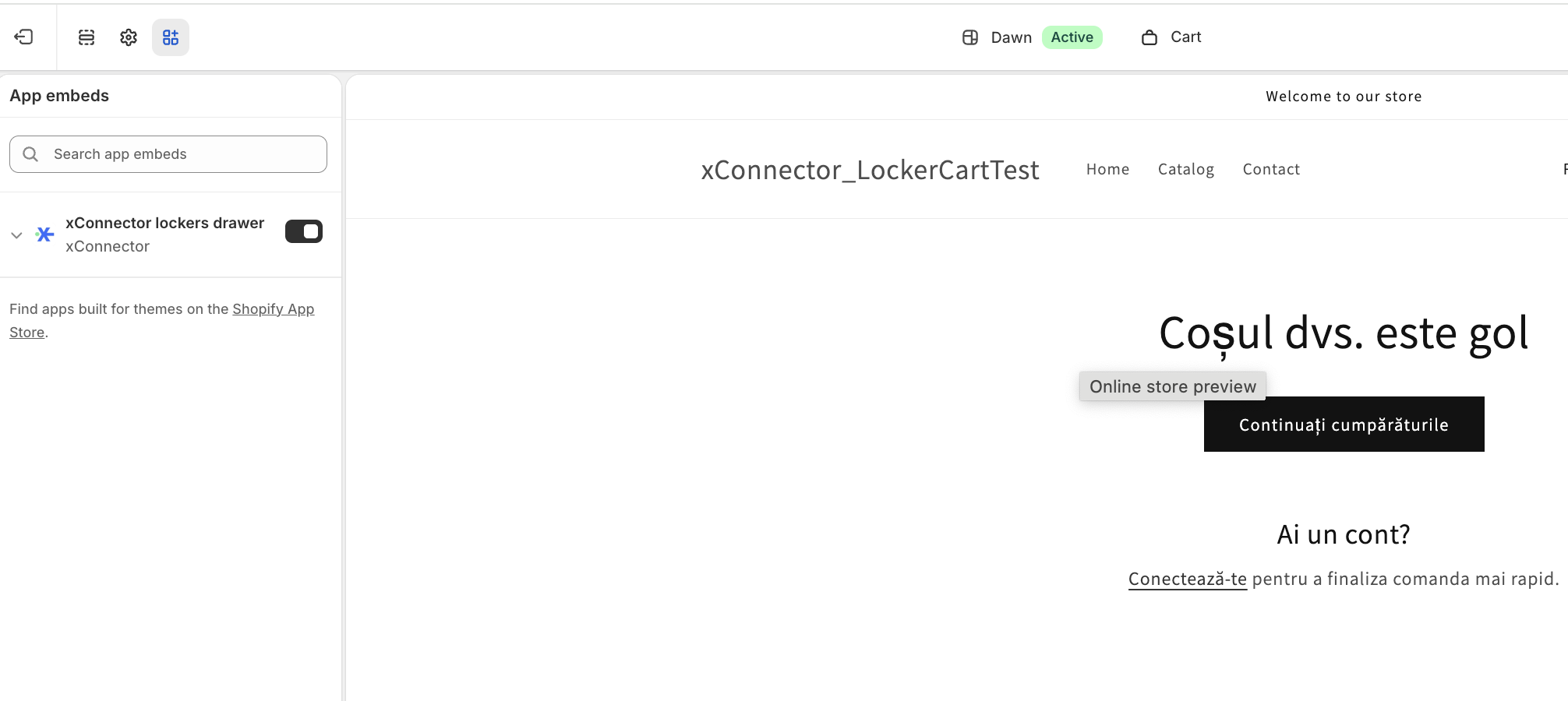
3. Fill in the settings (see the table below) and click Save.
| Setting | What it does |
|---|---|
| Title | The title above the text. Empty = the standard text in the storefront language. |
| Text above the button | The text above the button. It supports bold, italic, links and lists. Empty = the standard text in the storefront language. |
| Button text | The text on the button that opens the locker selector. Empty = the standard text in the storefront language. |
| Google Maps API key | Your own Google key, with Maps JavaScript API and Places API (New) enabled. Without a key, customers see only the list: no map and no address suggestions. How to create it: Google API Key. |
| Show lockers only in these countries | ISO country codes separated by commas, for example RO,BG. Empty = lockers from all countries. |
| Default country | The country used for the address search when your Shopify market has no country. Empty = the market country. |
| Show only lockers with cash on delivery (COD) | Shows only the lockers where customers can pay on delivery. |
| Ask for the buyer's location when the panel opens | On: the browser asks the customer for their location. Off: the map starts from the estimated location or the country. The Use my location button is always available. |
| Prefill the checkout address with the selected locker | Checkout opens with the locker's street, city, county and postal code in the shipping address, and the locker name in address line 2. The customer's name and phone stay the same. |
| Show the courier filter | Shows the filter by courier. |
| Show the Open Saturday / Open Sunday filters | Shows the filters for lockers open on Saturday and Sunday. |
| Show the cash on delivery filter | Shows the COD filter. It is ignored when Show only lockers with cash on delivery is on. |
| Search radius without a map | The search radius in km, used only without a Google key (list only). With a map, the visible area is the search area. |
| Cart drawer CSS selector | Fill in only if the selector does not appear on your theme: the CSS selector of the cart drawer. It must match exactly one element. |
| Insert before (CSS selector) | Fill in only if the selector does not appear in the right place. Empty = above the checkout buttons. |
To translate your own texts (Title, Text above the button, Button text) into other languages, use Shopify's free app Translate & Adapt.
Part 3: Checkout rule – show only the locker shipping option
This rule makes sure that a customer who chose a locker in the cart also gets locker delivery in checkout.
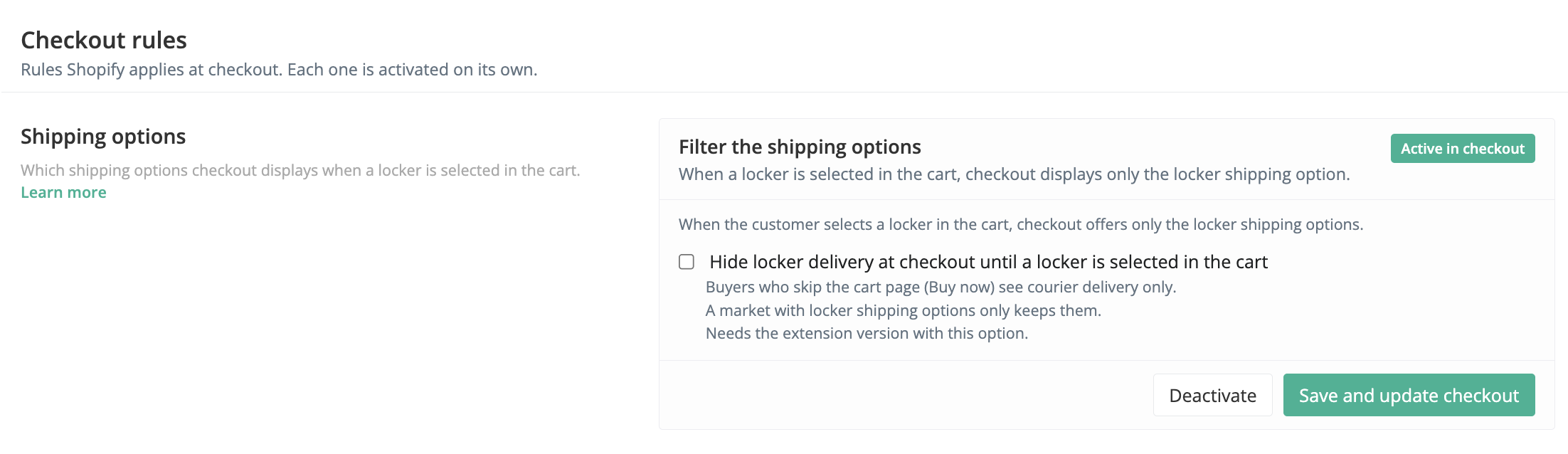
1. Go to xConnector > Profile > Checkout customization > Checkout rules > Shipping options.
2. In the card Filter the shipping options, click Activate rule. When a locker is selected in the cart, checkout displays only the locker shipping option. When the rule works, the card shows Active in checkout.
3. If Shopify asks you to approve a permission, approve it. Without it, the rule is not activated.
Optional: hide locker delivery until a locker is selected
Turn on Hide locker delivery at checkout until a locker is selected in the cart, then click Save and update checkout. Customers who did not choose a locker in the cart do not see the locker shipping option in checkout.
- Customers who skip the cart page (for example, with a Buy now button) see only courier delivery.
- A market that has only locker shipping options keeps them.
- The option needs the latest version of the cart widget.
Part 4: After the order
Also add the locker map to the Thank you and Order status pages. There, customers can check the locker and choose one if they did not do it in the cart. How to set it up: Locker map - Thank you & Order status page - all Shopify plans.
If a customer still has no locker: Locker map - check orders without a locker.
Test your setup
1. Add a product to the cart, open the locker selector and choose a locker.
2. Go to checkout. Check that the address is prefilled (if you turned the option on) and that only the locker shipping option is shown (if the rule is active).
3. Place a test order.
4. Open the order in xConnector: the locker is under Additional details.
5. Also test a purchase without choosing a locker, to check what checkout shows.
Useful articles
- Locker map - all solutions
- Locker map - check orders without a locker
- Locker map - send automatic emails when no locker is selected
- Google API Key
Subscription plan
This feature is available on the xConnector Advanced plan.
Need help?
Our team is here to help. You can contact us:
- Chat: directly from your xConnector account or on about.xconnector.app
- Email: support@xconnector.app
- Phone and WhatsApp: +40 373 747 991
- Website: about.xconnector.app
Was this article helpful?
That’s Great!
Thank you for your feedback
Sorry! We couldn't be helpful
Thank you for your feedback
Feedback sent
We appreciate your effort and will try to fix the article
