CONTENTS
- Part 1: Settings in xConnector
- Part 2: Settings in Shopify
- Part 3: Check and test
- Locker not selected: automatically email the customer a link to the map
- Other ways to display the map
_______________________________________
Locker map on the Thank you and Order status pages
The customer chooses locker delivery at checkout, places the order, and then picks the locker from a map shown on the order confirmation page (Thank you) and on the order tracking page (Order status). The selected locker is saved on the order automatically, and xConnector uses it when creating the shipping label.
This solution works on all Shopify plans: Basic, Grow, Advanced and Plus. In xConnector, the locker feature is available from the Advanced plan.
What the customer sees
- At checkout, the customer chooses the locker shipping method, for example “Pick up from locker”.
- The customer places the order.
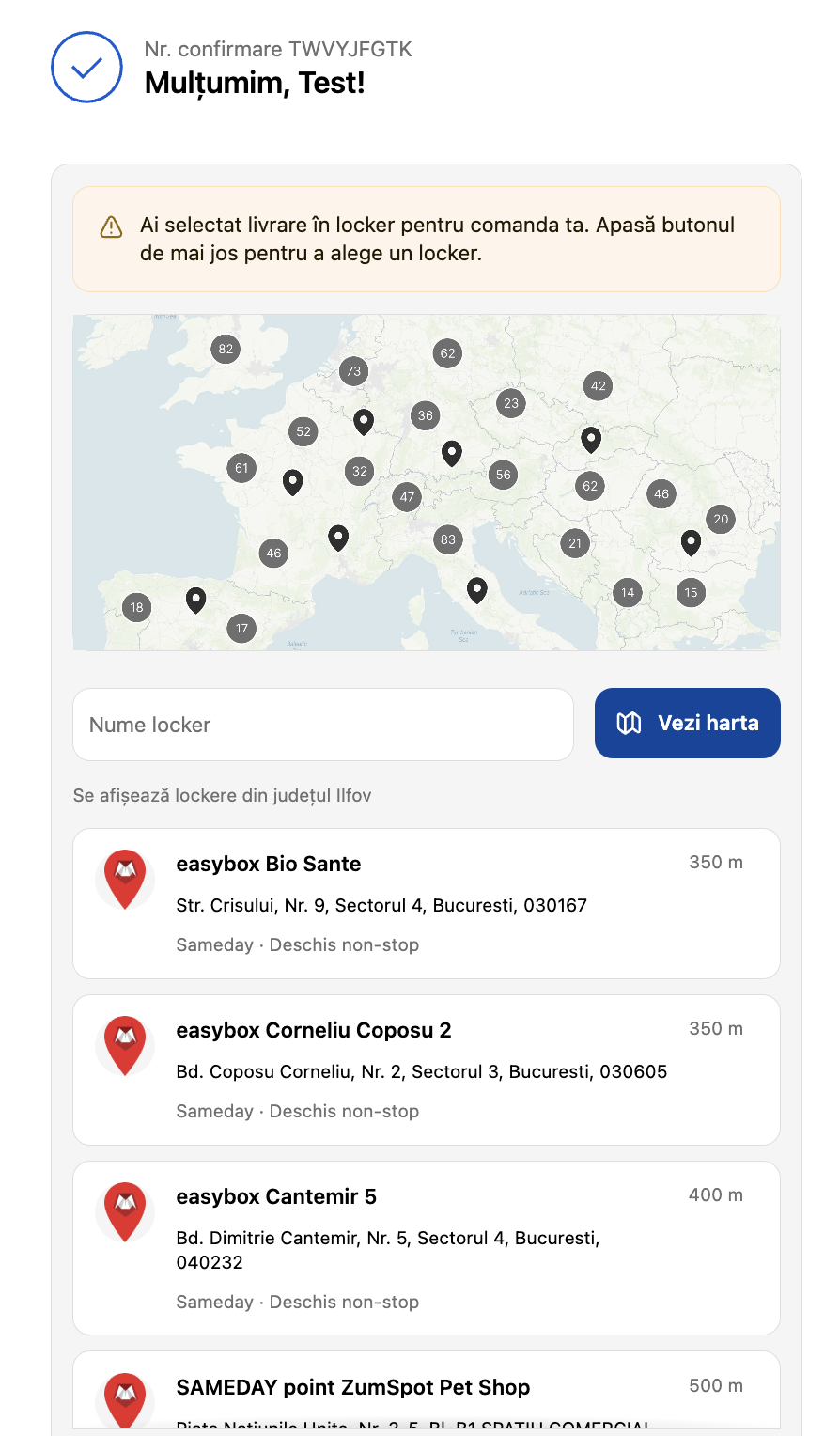
- The Thank you page shows the message “You selected locker delivery for your order. Click the button below to choose a locker.”, together with:
- the list of lockers near the shipping address, with distance and opening hours;
- a search field for the locker name;
- the View map button, to choose from the map.
- The customer clicks a locker. The “Selected pickup point” section and the message “Delivery information updated” appear.
If the customer closes the page without choosing, they can return to the order's Order status page at any time and choose the locker the same way.
From the order confirmation email, the customer gets to the Order status page quickly by clicking the View order button.
Part 1: Settings in xConnector
Step 1: Connect the courier
- Go to xConnector → Profile → Connected services.
- Add the courier whose lockers you want to display (for example Sameday, FAN Courier, GLS, DPD, Cargus, Packeta).
- Enter the access details you received from the courier and click Test connection, then Save.
You can connect multiple couriers. The map shows the lockers of every courier that has Collect points turned on.
See all couriers available in xConnectorStep 2: Turn on Collect points
- Open the settings of the connected courier, from xConnector → Profile → Connected services.
- At Collect points, set the switch to ON.
- Click Save.
- Repeat for every courier whose lockers you want on the map.
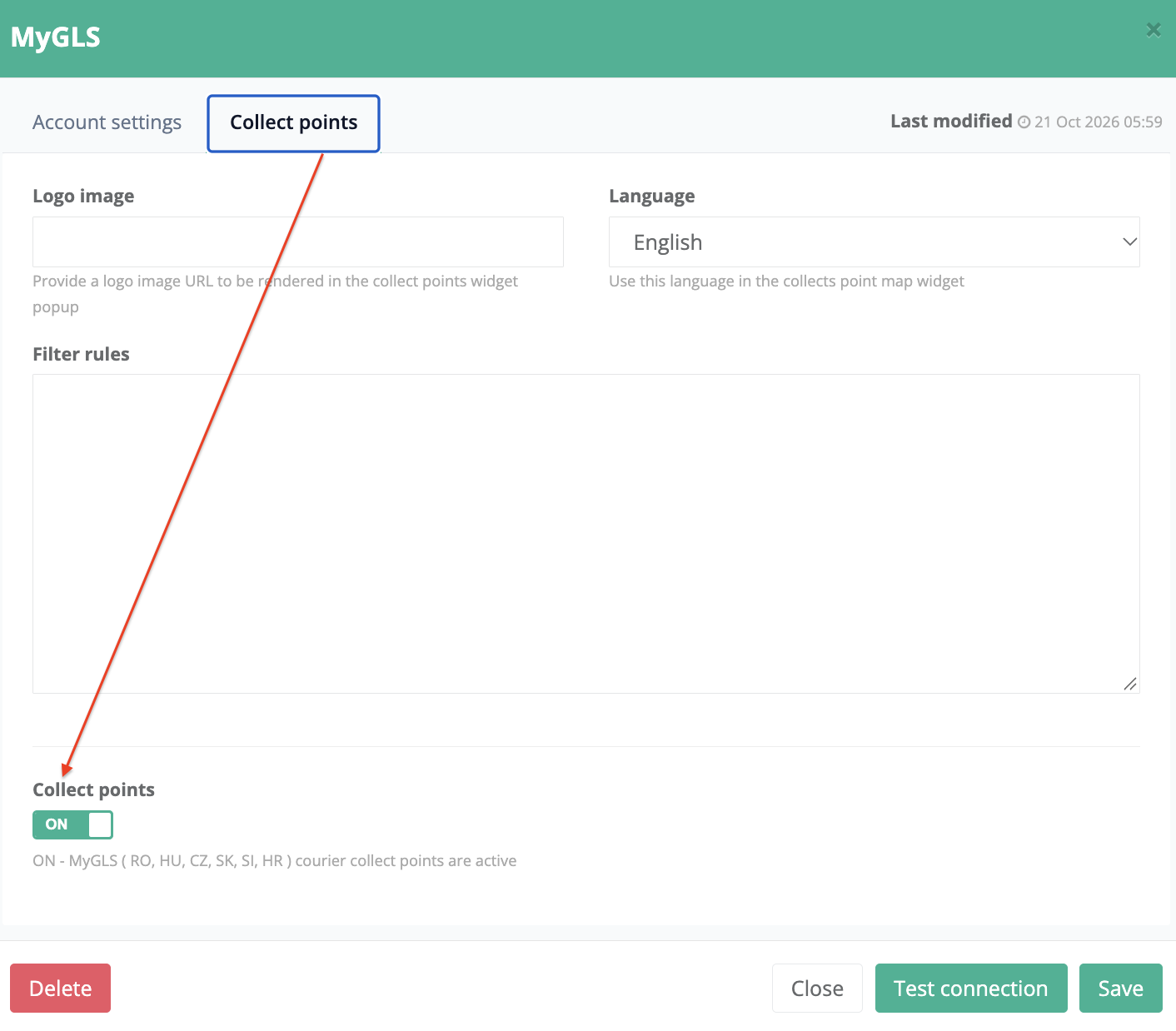
Without turning Collect points ON, the map does not show the courier's lockers, even if the block is installed in Shopify.
Step 3: Tell xConnector which shipping methods are locker delivery
- Go to xConnector → Profile → Checkout customization, in the section Locker shipping options.
- At Keywords, enter a keyword that appears in the name of every locker shipping method in Shopify, for example locker. You can add several keywords, separated by commas, if you use Markets and want one keyword per country, for example locker, csomagautomat
- Click Save, in this card.
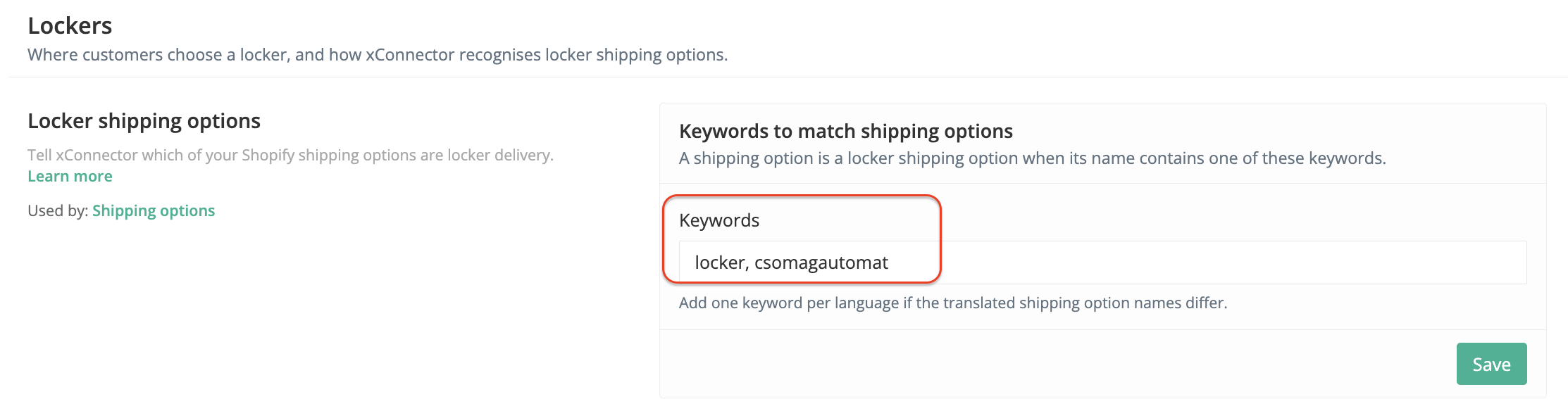 Based on this keyword, the map appears only on orders with locker delivery, not on orders with home delivery.
Part 2: Settings in Shopify
Step 4: Create the locker shipping method
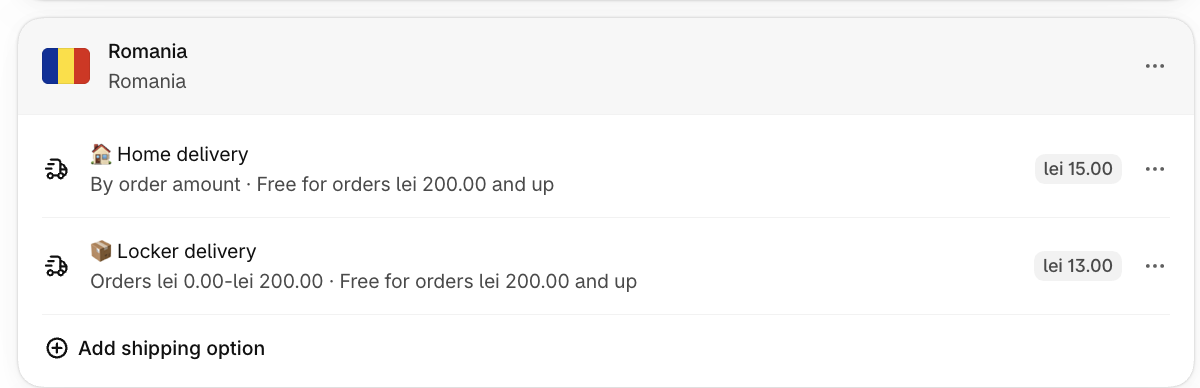
- Go to Shopify → Settings → Shipping and delivery and open the shipping profile.
- In the shipping zone for Romania, click Add rate. Repeat for other Markets if you also sell in other countries.
- Give it a name that contains the keyword from Step 3, for example Pick up from locker, and set the price.
- Optionally, add a description that tells the customer what happens next, for example: “You choose the locker after you complete the order, on the next page.”
- Click Done, then Save.
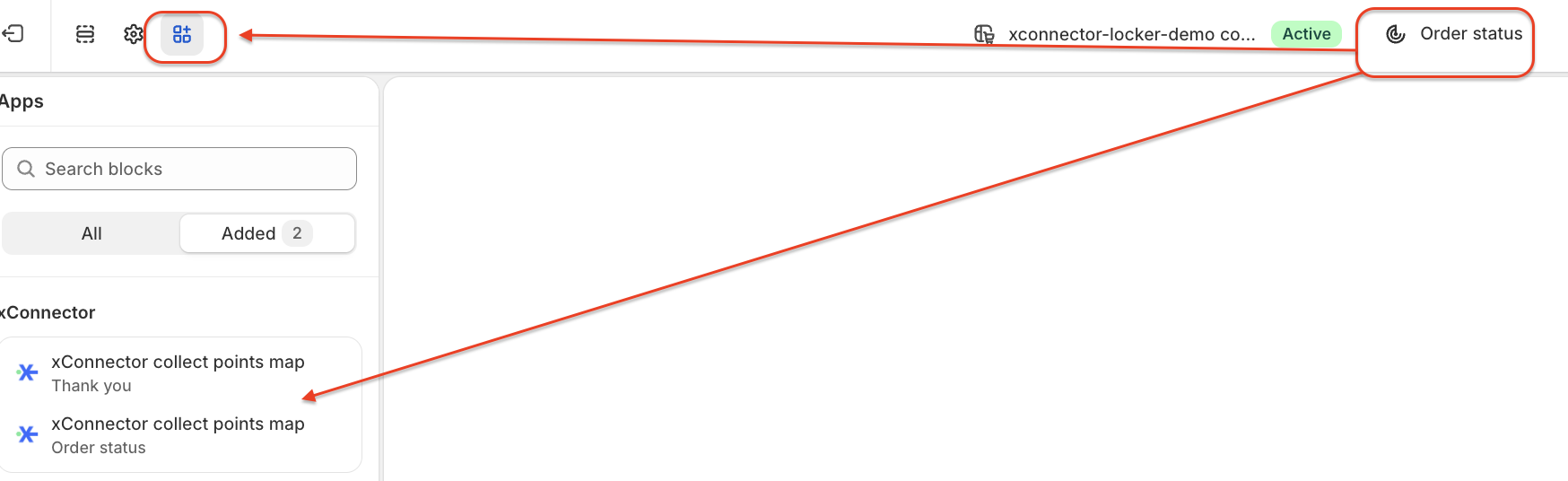
Step 5: Add the map to the Thank you page
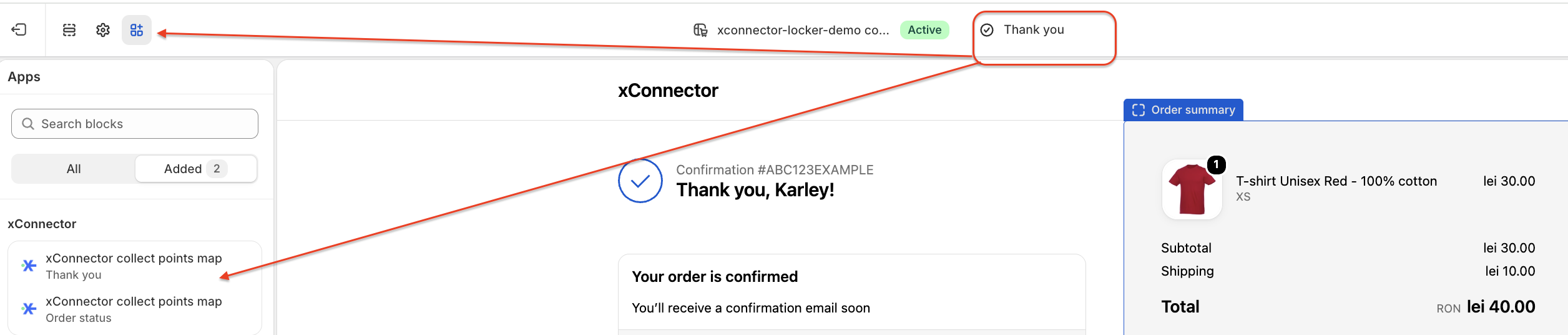
- Go to Shopify → Settings → Checkout and click Edit (in older Shopify versions: Customize).
- From the page list at the top of the editor, choose Thank you.
- Click Apps (or Add block) and choose the xConnector locker map block - see below how to customize the block
- Place the block in a visible area, preferably right below the order confirmation.
Customize the xConnector block on the Thank you pageSetting What it does Our recommendation Locker method name The text the block uses to recognize locker delivery orders. The map appears when the shipping method name contains this text, or when the order already has a locker selected. Upper or lower case does not matter. You can enter several texts, separated by commas, for example locker,easybox.
On the Order status page, the map also appears when the method name contains one of the keywords set in xConnector in Step 3.Required, with the same keyword as in Step 3, for example locker. On the Thank you page, the block uses only this field, not the keywords from xConnector. Show quick list Shows the list of nearby lockers under the map, with distance and opening hours. True. Customers choose faster from the list than from the map. Prevent locker changes after selection After the customer chooses a locker, the change button disappears from the Thank you and Order status pages. False, so the customer can change the locker until the order is shipped. Choose True only if you create the shipping label right after the locker is selected. Show lockers only in these countries Shows only lockers in the countries listed here, by country code, separated by commas, for example RO,BG. An empty field means all countries. A locker already selected in a country that is not on the list stays selected. Fill in only if you deliver to lockers in specific countries, for example RO,HU Show only lockers with cash on delivery (COD) Shows only lockers with a payment terminal, where the customer can pay at pickup by card or cash True if you want the map to show only lockers with a payment terminal, for card or cash.
False if you want the map to show all lockers, with or without a payment terminal.
Google Maps API Key The Google Maps key used for the map. If left empty, the xConnector app key is used. Leave empty. Fill in only if you want to use your own Google Maps account. - Click Save.
Step 6: Add the map to the Order status page
- In the same editor, switch the page at the top to Order status.
- Add the xConnector locker map block on the Order status page as well
Also customize the xConnector block on the Order status page
- Locker method name: the same keyword, for example locker;
- Show quick list: True;
- Prevent locker changes after selection: True so the customer can no longer change the locker at this step;
- Show lockers only in these countries: the same countries, or empty;
- Show only lockers with cash on delivery (COD): the same value as on the Thank you page;
- Google Maps API Key: empty, or the same key.
3. Click Save.
Part 3: Check and test
Step 7: Check in xConnector that everything is set up
- Go to xConnector → Profile → Checkout customization, in the card Locker map in Thank-you and Order-status page.
- The card must show Prerequisites met. If it shows Setup required, check the steps above, especially Collect points (Step 2).
- With Preview widget you can see what the map will look like.
Step 8: Place a test order
- Place an order and choose the locker shipping method.
- On the Thank you page, check that the map appears and choose a locker.
- Check that the “Selected pickup point” section appears.
- In xConnector, open the order and check that the locker is saved on it.
- Create the shipping label and check that the destination is the selected locker.
Locker not selected: automatically email the customer a link to the map
Some customers place the order and close the page without choosing a locker. For these cases, you can turn on the “locker not selected” notification.
If the customer does not choose a locker within a few minutes, they automatically receive an email with a direct link to the Order status page. The map opens there and the customer can choose the locker. The store can also receive an informational email.
How to set up the notification: “Locker map - send automatic emails when no locker is selected”Troubleshooting
| Situation | Likely cause | What to do |
|---|---|---|
| The map does not appear on the Thank you page or on the Order status page | The Advanced plan is not active in xConnector | Go to xConnector - Profile - Subscription |
| The map does not appear on the Thank you page, but appears on the Order status page | The block was added only to the Order status page | Add the block to the Thank you page as well (Step 5) |
| The map does not appear on the Thank you page, although the block is added | The Locker method name field in the block is empty or does not match the shipping method name | Enter in the block the same keyword as in the shipping method name, for example locker |
| The map does not appear at all | The block is not added, or the shipping method name does not contain the keyword | Check Steps 3, 5 and 6 |
| Some lockers that should appear are missing | The block filters: countries, or only lockers with cash on delivery | Check the Show lockers only in these countries and Show only lockers with cash on delivery settings |
| The customer cannot change the selected locker | Prevent locker changes after selection is set to True | Set it to False if you want to allow changes |
| The map appears, but without lockers, or without one courier's lockers | Collect points is not turned on for that courier | Check Step 2 |
| The map also appears on home delivery orders | The keyword also appears in the name of the home delivery method | Choose a keyword that appears only in locker shipping methods |
| The card in xConnector shows Setup required | A prerequisite is missing, usually Collect points | Check Step 2 and Step 3 |
| The shipping label was created without a locker | The label was created automatically before the locker was chosen | Cancel the label, add the locker to the order and create it again. In the future, use the ON HOLD solution |
Good to know
- The lockers shown are those near the shipping address the customer entered.
- The map shows the lockers of every courier with Collect points turned on, unless you set up multiple shipping options and costs per courier (see Locker map - multiple shipping options and costs per courier).
- If a customer did not choose a locker, you can add it yourself in xConnector - click the order number - top right, under Additional details - click the link
- If you use Shopify Plus, you can show the map directly in checkout. Contact us at support@xconnector.app for the right setup.
Other ways to display the map
The map on the Thank you page works on any Shopify plan. Depending on your plan and the checkout app you use, you can also show lockers before the order is placed. The solutions can be combined, for example the map in the cart and the map on the Thank you page, for customers who skip the cart.
| Shopify plan | Checkout type | Where the customer chooses the locker | Article |
|---|---|---|---|
| All plans | Standard Shopify checkout | On the Thank you and Order status pages, after the order is placed |
|
| All plans | Standard Shopify checkout | In the cart, and on the Thank you page and Order status page if no locker was selected in the cart | |
| Grow and Advanced | Standard Shopify checkout, with calculated shipping rates | In the checkout, as a list of the nearest lockers (no map) | |
| Shopify Plus | Standard Shopify checkout | In the checkout | |
| – | Alternative checkout (COD order form) | In the alternative checkout form, before the order is placed |
All solutions are also available in xConnector → Profile → Checkout customization, each in its own card, with a link to its help article.
Test store
Here you can place test orders to see how the locker selection map is displayed on the Thank You and Order Status pages.
This is the standard version, which does not include these additional features:
- Locker selection directly in the cart.
- Payment methods shown based on the selected shipping method.
- Separate lockers for each courier.
To pay for test orders, you can use the following test card details:
Card number: 1
Expiry date: 11/29
PIN: 111
Examples:
1. How the map and locker list look on the Thank you page
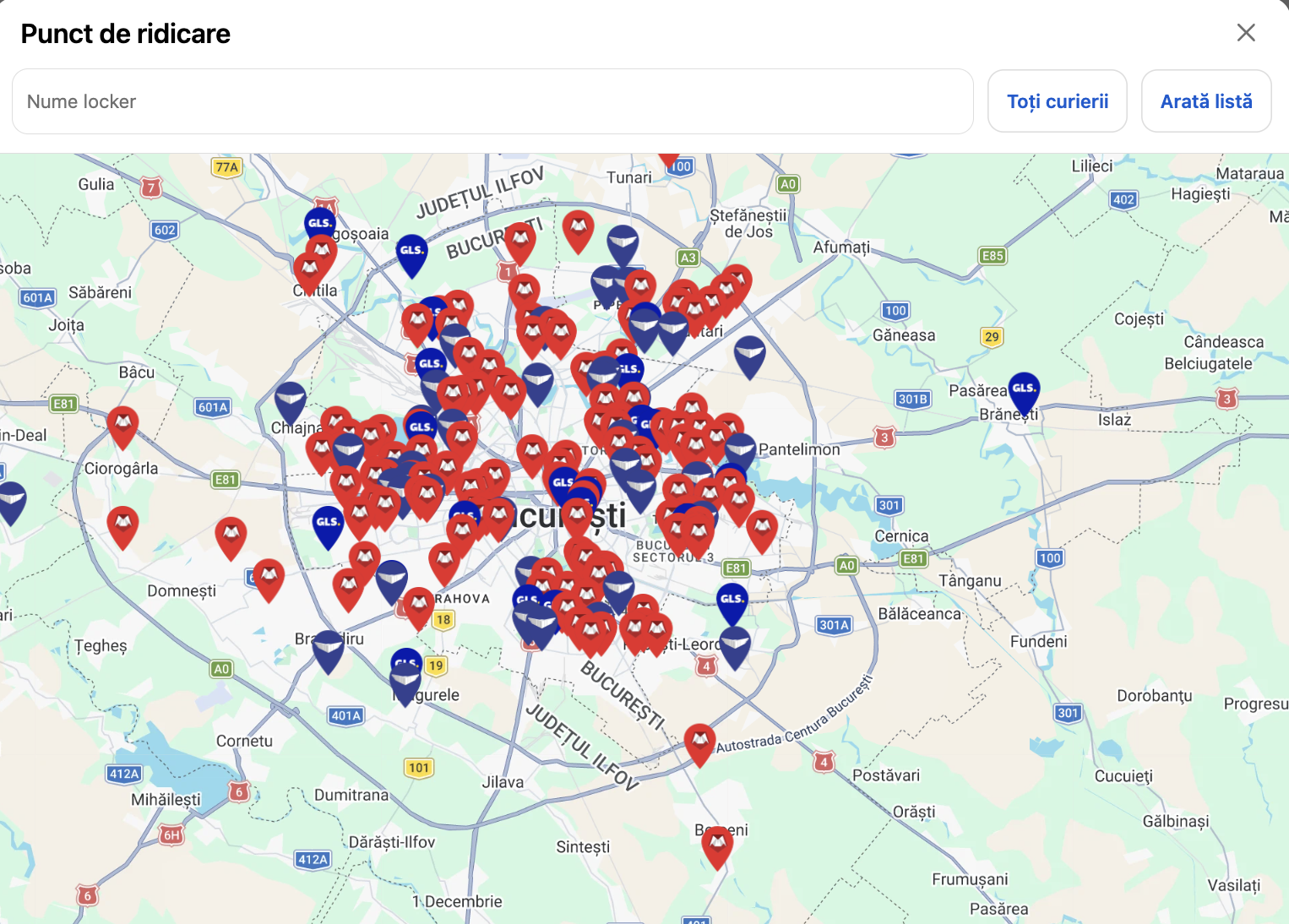
2. What appears when you click View map
When the customer clicks View map, the “Pickup point” window opens, with a map of all available lockers. Here the customer can:
- move the map and zoom, to look for lockers in another area;
- search for a locker by name, in the “Locker name” field;
- filter lockers by courier, with the “All couriers” button;
- see the lockers as a list, with the “Show list” button.
Each locker is marked on the map with the courier's logo, so the customer can easily see which courier operates it.
After choosing a locker, it appears on the order page under “Selected pickup point”.
Useful articles
- Locker map - all solutions
- Locker map - send automatic emails when no locker is selected
- Locker map - check orders without a locker in xConnector
Need help?
Our team is here to help. You can contact us:
- Chat: directly from your xConnector account or on about.xconnector.app
- Email: support@xconnector.app
- Phone and WhatsApp: +40 373 747 991
- Website:about.xconnector.app
Was this article helpful?
That’s Great!
Thank you for your feedback
Sorry! We couldn't be helpful
Thank you for your feedback
Feedback sent
We appreciate your effort and will try to fix the article