Use this setup when you offer lockers from multiple couriers and want a separate locker shipping option for each courier, with its own price. For example: Livrare la locker Sameday 10 lei, Livrare la locker GLS 12 lei, Livrare la locker Fan courier 14 lei.
After the order is placed, the map on the Thank you and Order status pages shows only the lockers of the courier the customer chose at checkout. You still use one map block; you do not add a block for each courier.
Table of contents
- How it works
- Before you start
- Step 1: Create one locker shipping option per courier in Shopify
- Step 2: Tell xConnector which shipping options are locker delivery
- Step 3: Tell xConnector which courier each shipping option belongs to
- Step 4: Set up the map on the Thank you page
- Step 5: Set up the map on the Order status page
- Step 6: Check in xConnector
- Step 7: Test
- Good to know
How it works
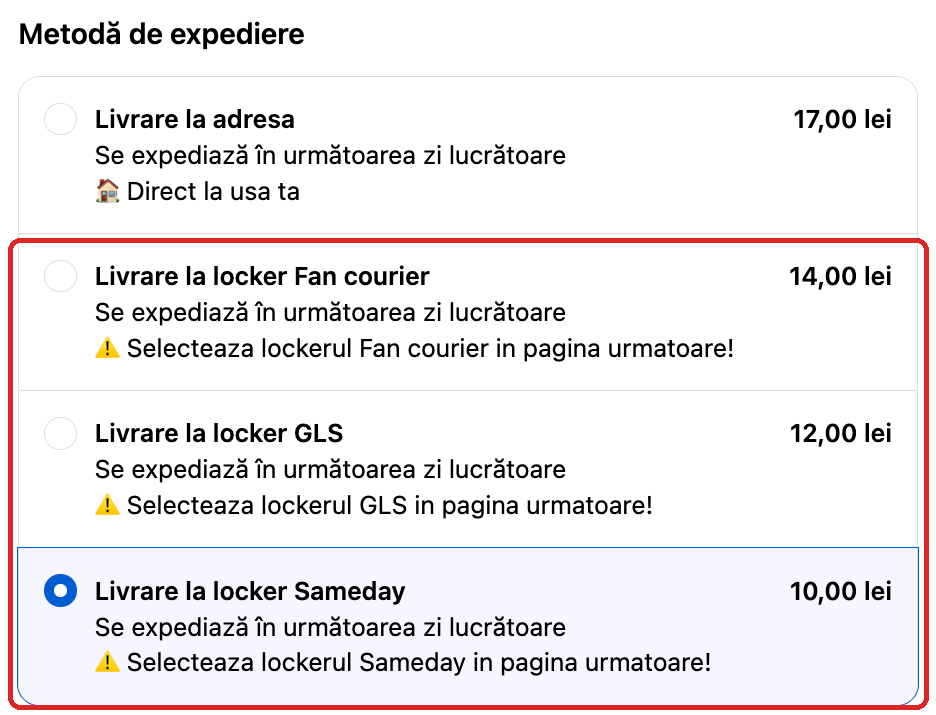
Step 1 – Checkout: the customer sees a separate locker shipping option for each courier, each with its own price, and chooses one, for example Livrare la locker Sameday.
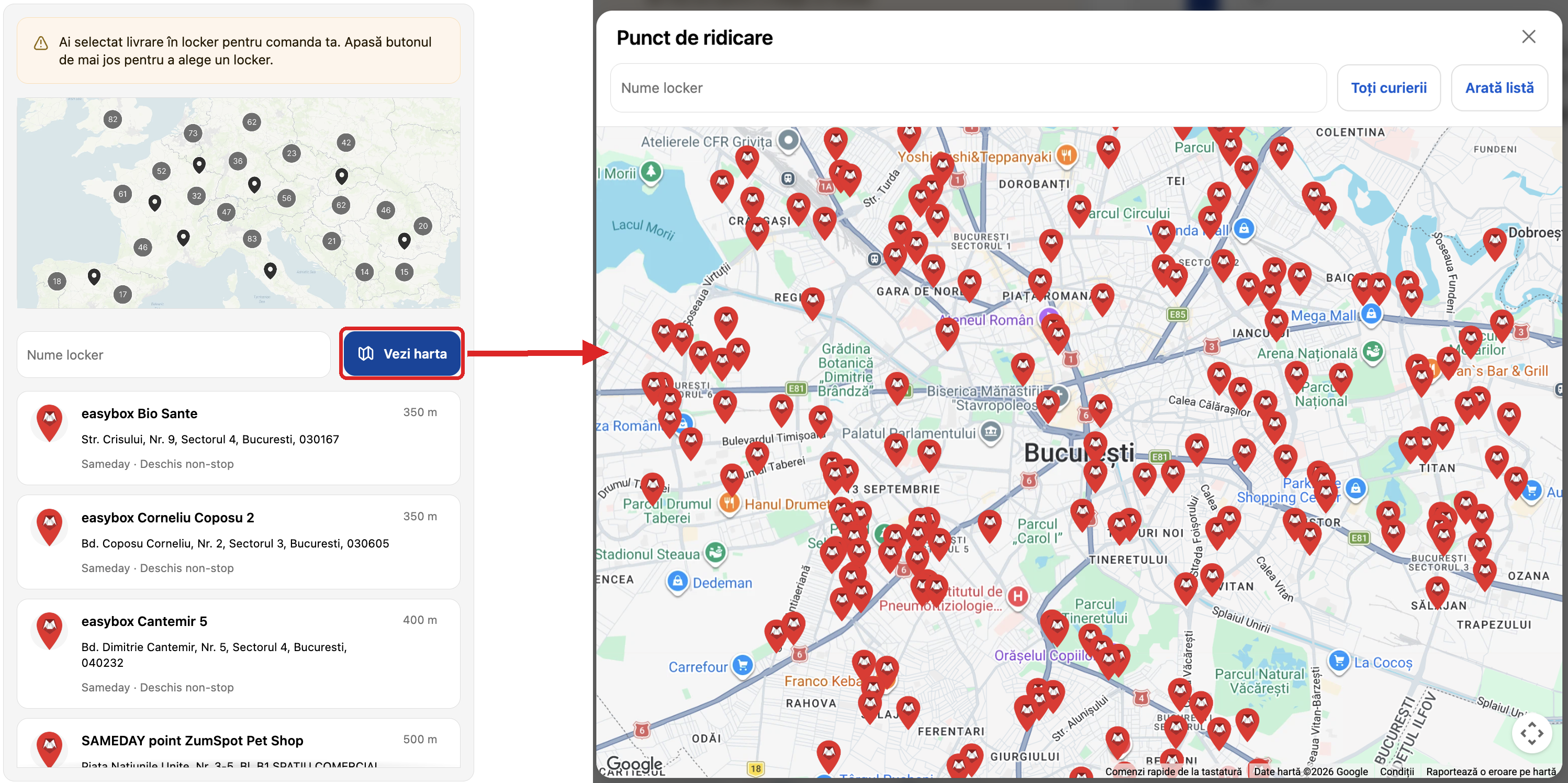
Step 2 – Thank you page: after the order, the list and the map (Vezi harta) show only the lockers of the chosen courier, here Sameday. The customer chooses a locker, and it is saved on the order. On the Order status page, the customer sees the chosen locker.
Before you start
- Install the locker map on the Thank you and Order status pages, as described in Locker map - Thank you - Basic.
- At least two couriers are connected in xConnector, and Collect points is turned on for each of them (Profile > Connected services > the courier > Collect points tab).
- You have the xConnector Advanced plan.
Step 1: Create one locker shipping option per courier in Shopify
1. In Shopify, go to Settings > Shipping and delivery and open your shipping profile (for example General profile).
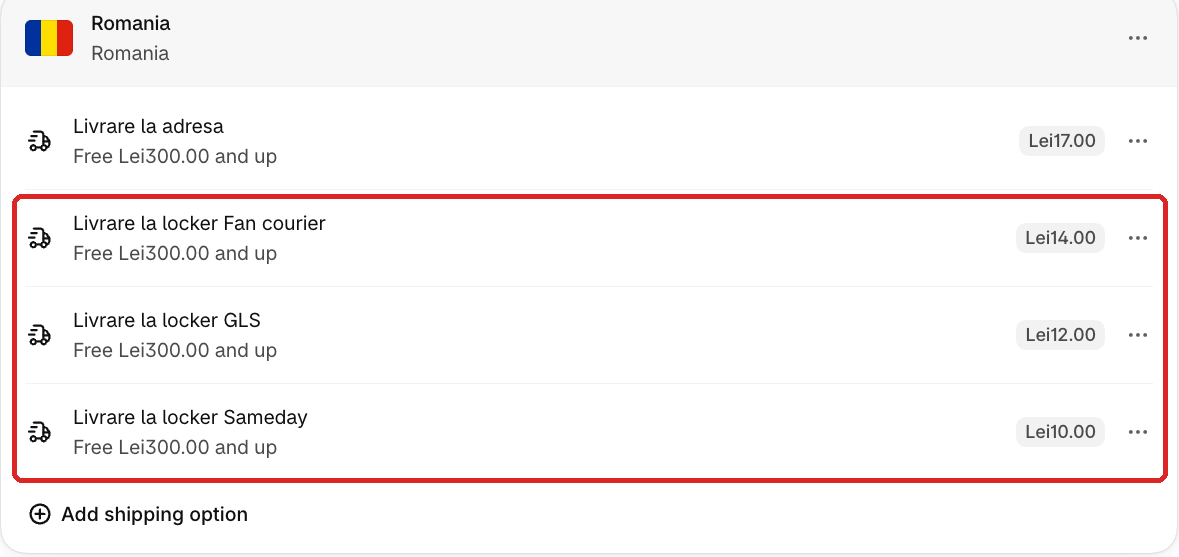
2. In the shipping zone (for example Romania), click Add shipping option once for each courier.
3. Give each option a name that contains both:
- the common locker keyword, for example locker;
- a text that appears only in this courier's option, for example Sameday, GLS or Fan.
4. Set the Price (it can be different for each courier) and the Transit time (Shopify requires it), then click Done and Save.
Example: Livrare la locker Fan courier (14 lei), Livrare la locker GLS (12 lei), Livrare la locker Sameday (10 lei):
– Do not use a courier text that appears in another courier's option. For example, do not use courier if two couriers have it in the name.
– The courier text must not contain the locker keyword, and the keyword must not contain the courier text.
– If you sell in several languages, the translated names must also contain the keyword and the courier text.
Step 2: Tell xConnector which shipping options are locker delivery
1. In xConnector, go to Profile > Checkout customization > Locker shipping options.
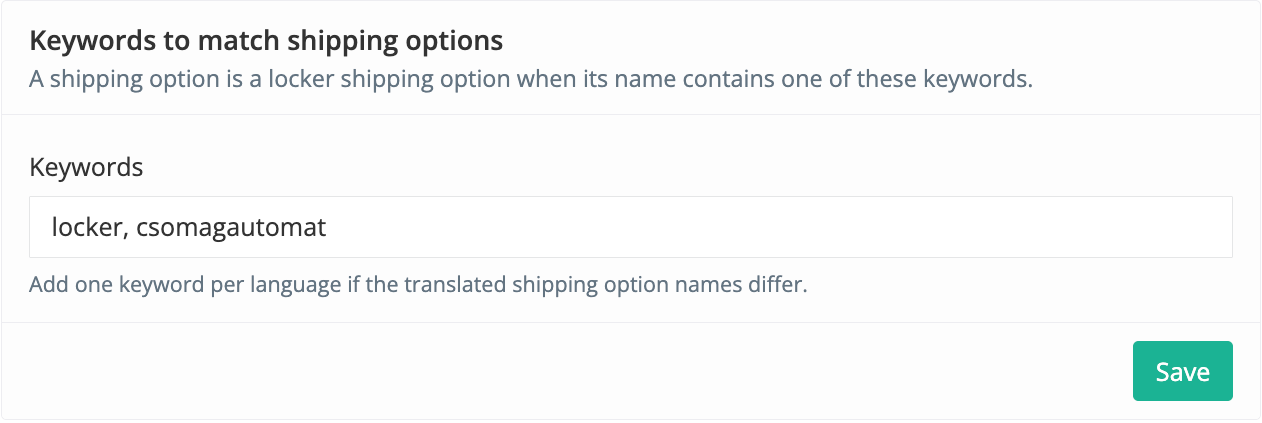
2. In the card Keywords to match shipping options, enter the common keyword in Keywords, for example locker. If the translated names differ, add one keyword per language, separated by commas (for example locker, csomagautomat for Hungarian).
3. Click Save in this card.
Step 3: Tell xConnector which courier each shipping option belongs to
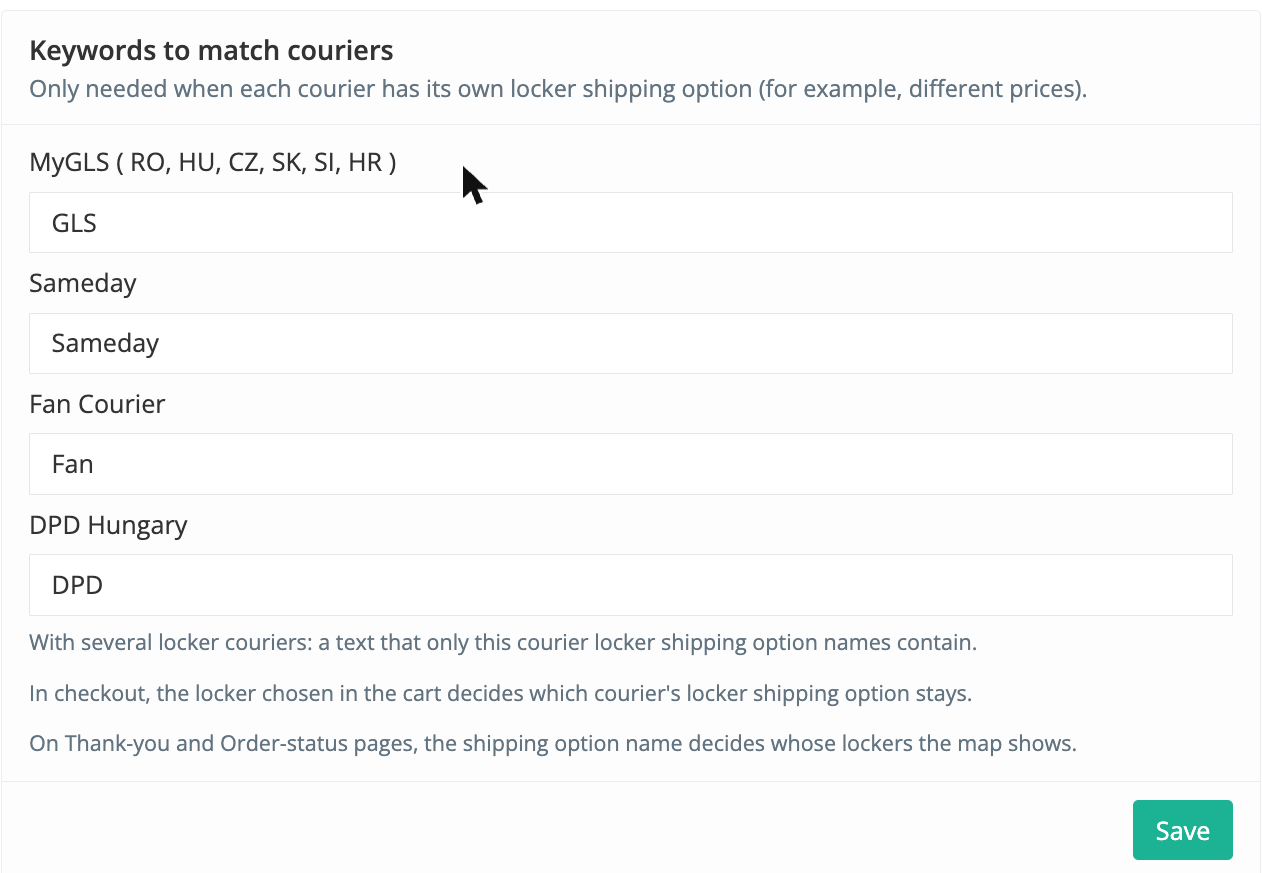
1. On the same page, go to Locker couriers > Keywords to match couriers. The card shows one field for each courier with Collect points turned on. It appears only when at least two such couriers are turned on.
2. In each courier's field, enter the text that only that courier's option name contains, for example MyGLS: GLS; Sameday: Sameday; Fan Courier: Fan; DPD Hungary: DPD. You can enter up to 5 texts per courier, separated by commas (for example, one per language). Upper or lower case does not matter.
3. Click Save in this card. If a warning appears, change the texts so that each one matches only one courier's option name.
4. Leave Allowed couriers (below this card) empty. It limits the couriers in every locker widget and does not choose the courier for each shipping option.
Step 4: Set up the map on the Thank you page
1. In Shopify, go to Settings > Checkout and click Edit.
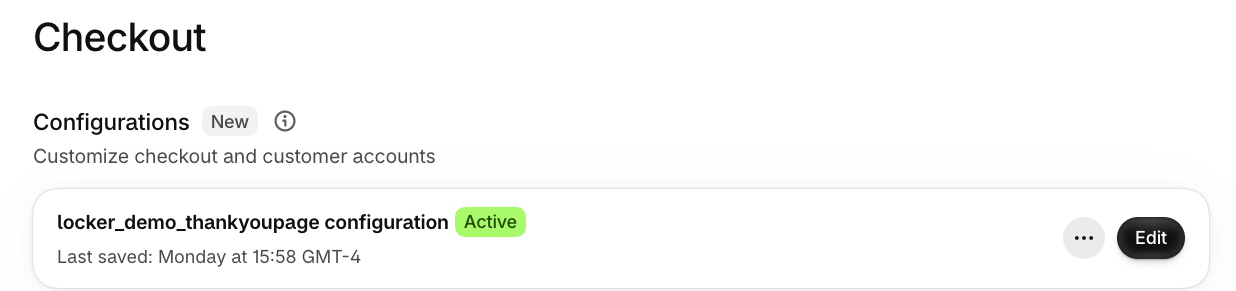
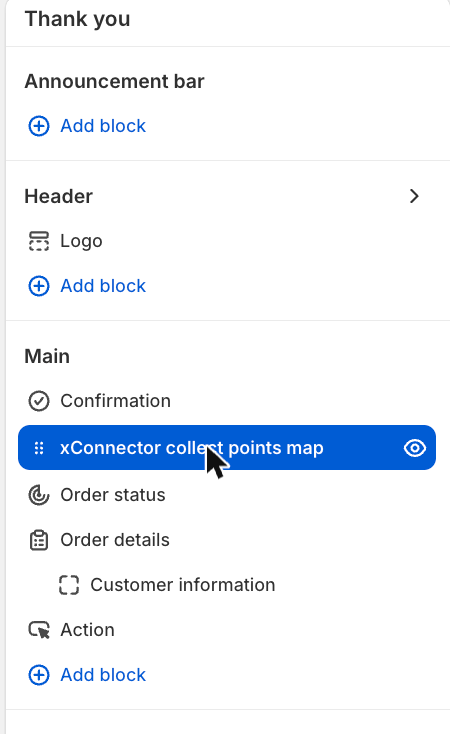
2. From the page list at the top, choose Thank you, then click the xConnector collect points map block. If it is missing, add it with Add block.
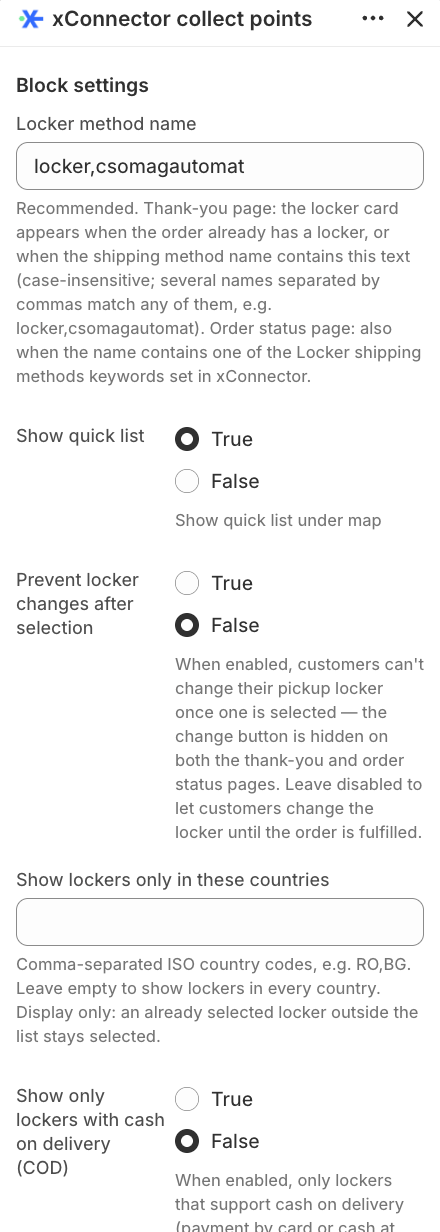
3. In Locker method name, enter the same keyword(s) as in Step 2, for example locker (or locker,csomagautomat). On the Thank you page, the map appears only when the shipping option name contains this text.
4. Set Prevent locker changes after selection to False, so the customer can choose or change the locker here. Click Save.
Step 5: Set up the map on the Order status page
1. In the same editor, choose Order status from the page list. Click the xConnector collect points map block (under Order details). If it is missing, add it with Add block.
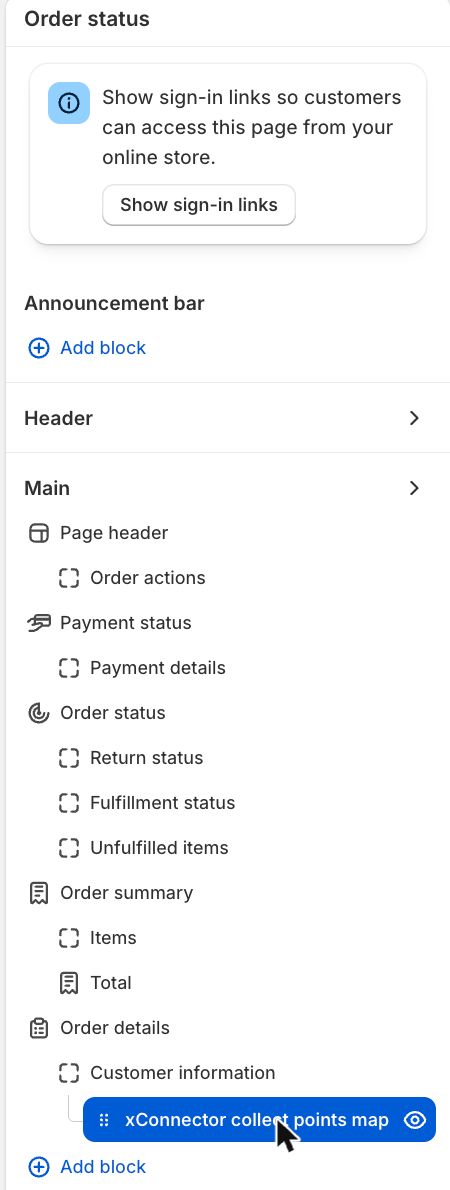
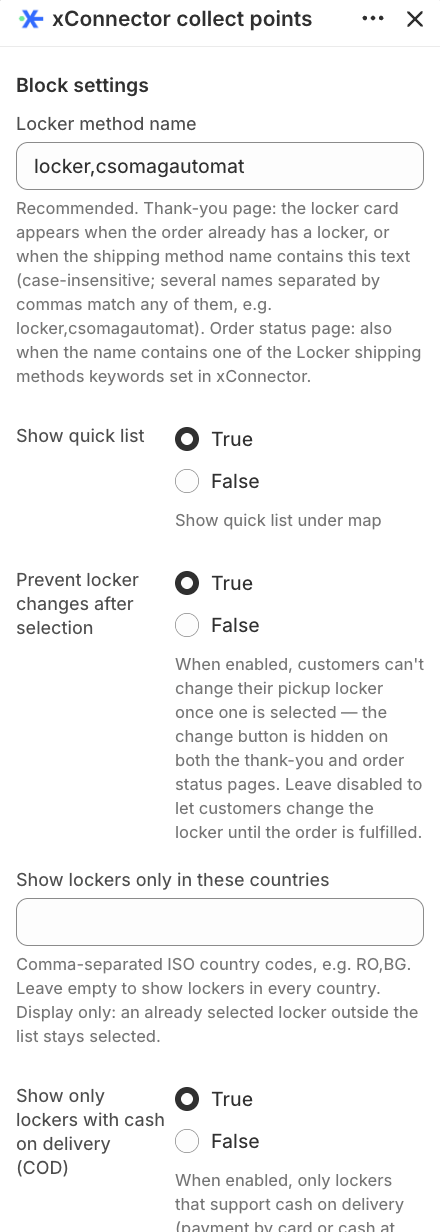
2. In Locker method name, enter the same keyword(s).
3. Set Prevent locker changes after selection to True. The customer sees the locker chosen on the Thank you page, but can no longer change it here. Click Save.
Step 6: Check in xConnector
Go to xConnector > Profile > Checkout customization > Locker map in Thank-you and Order-status page. The card must show Prerequisites met and the line “The map shows only the lockers of the courier in the chosen shipping option's name.”

Step 7: Test
1. Place a test order with Livrare la locker Sameday. On the Thank you page, the list and the map (Vezi harta) must show only Sameday lockers (see Capture 2 above). Choose a locker.
2. Open the Order status page of the order and check that the chosen locker is shown and cannot be changed.
3. Place a second order with another courier's locker option and check that the map shows only that courier's lockers.
4. In xConnector, open the order: the locker is under Additional details. Create the shipping label and check that the destination is the chosen locker.
Good to know
- If a shipping option name matches no courier text, or the texts of two couriers, the map shows the lockers of all couriers.
- If the chosen courier has no courier connector with Collect points turned on, the map shows all couriers.
- A courier platform (for example Innoship) counts as one courier for this setting.
- If a customer does not choose a locker, see Locker map - send automatic emails when no locker is selected and Locker map - check orders without a locker in xConnector.
Useful articles
- Locker map - all solutions
- Locker map - send automatic emails when no locker is selected
- Locker map - check orders without a locker in xConnector
Subscription plan
This feature is available on the xConnector Advanced plan.
Need help?
Our team is here to help. You can contact us:
- Chat: directly from your xConnector account or on about.xconnector.app
- Email: support@xconnector.app
- Phone and WhatsApp: +40 373 747 991
- Website: about.xconnector.app
Was this article helpful?
That’s Great!
Thank you for your feedback
Sorry! We couldn't be helpful
Thank you for your feedback
Feedback sent
We appreciate your effort and will try to fix the article