V0.3 The locker map available for the new Checkout version
How does it works?
With the recent changes in Shopify that remove access to customizing the Checkout and Thank You pages, there is no longer a method to add scripts the Order Status Page - Additional Scripts section to display the locker map on the Thank You page.
To support the Shopify stores that do not have anymore acces to the Deprecated version of checkout and also no Shopify Plus activated, we have implemented a solution that allows you to offer locker delivery on their shops - the v0.3 version of the lockers map widget.

The version v0.3 is available for all Shopify Subscription plans: Basic, Shopify, Advanced and Plus and the locker map widget is displayed on the Thank you page.
Stores that use Shopify Plus can display the Locker Map widget on the Checkout page, but this requires a custom version (other than v03).
Please let us know if you have an active Shopify Plus subscription and would like to install the map in the Checkout. You can send us an inquiry to support@xconnector.app.
Admin Experience: how to install the Locker Map
Customer Experience: how to select the Locker
Steps to implement the locker map widget
Shopify settings
1. Go to Shopify > Settings > Shipping and delivery > General shipping rates > Shipping zones
Make sure you have defined a shipping method for locker delivery - choose a name.
On the checkout page, customers will be able to choose between Home Delivery and Locker Delivery.
When they select Locker Delivery, the locker map will open automatically.
The shipping method name is important, as it will be detected by the xConnector extension installed in Shopify. Based on this name, the locker map will be triggered and displayed.
Example:

You can customize the locker delivery method text in Shopify to make it clear to customers that the locker will be selected on the next page.

In the Checkout page the message will be displayed like this

2. Add the xConnector extension
- Shopify > Settings > Checkout > Customize

- Select Thank you page

- Click on the Apps (see the icon left side of the screen)

- Add the extension on Thank you page : 'xConnector - Collect points' by clicking the plus (+) button - select Thank you page

- Fill in the exact name you defined in Shopify - Shipping and delivery and SAVE

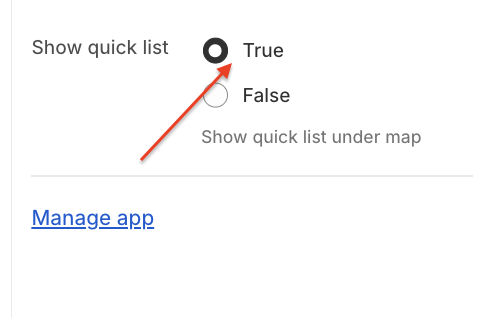
- Click here for the quick list of the lockers
Repet the process for Orders status
- Select Order status page

- Add the extension on Thank you page : 'xConnector - Collect points' by clicking the plus (+) button - Select Order status

- Fill in the exact name you defined in Shopify - Shipping and delivery and SAVE

After adding the extension to both pages, it will be displayed accordingly

xConnector settings
To activate the Collect Points functionality for your courier in xConnector:
Go to xConnector > Profile > Connected Services > Select courier > Collect points - Collect points [ON] > Save

Map display and locker selection
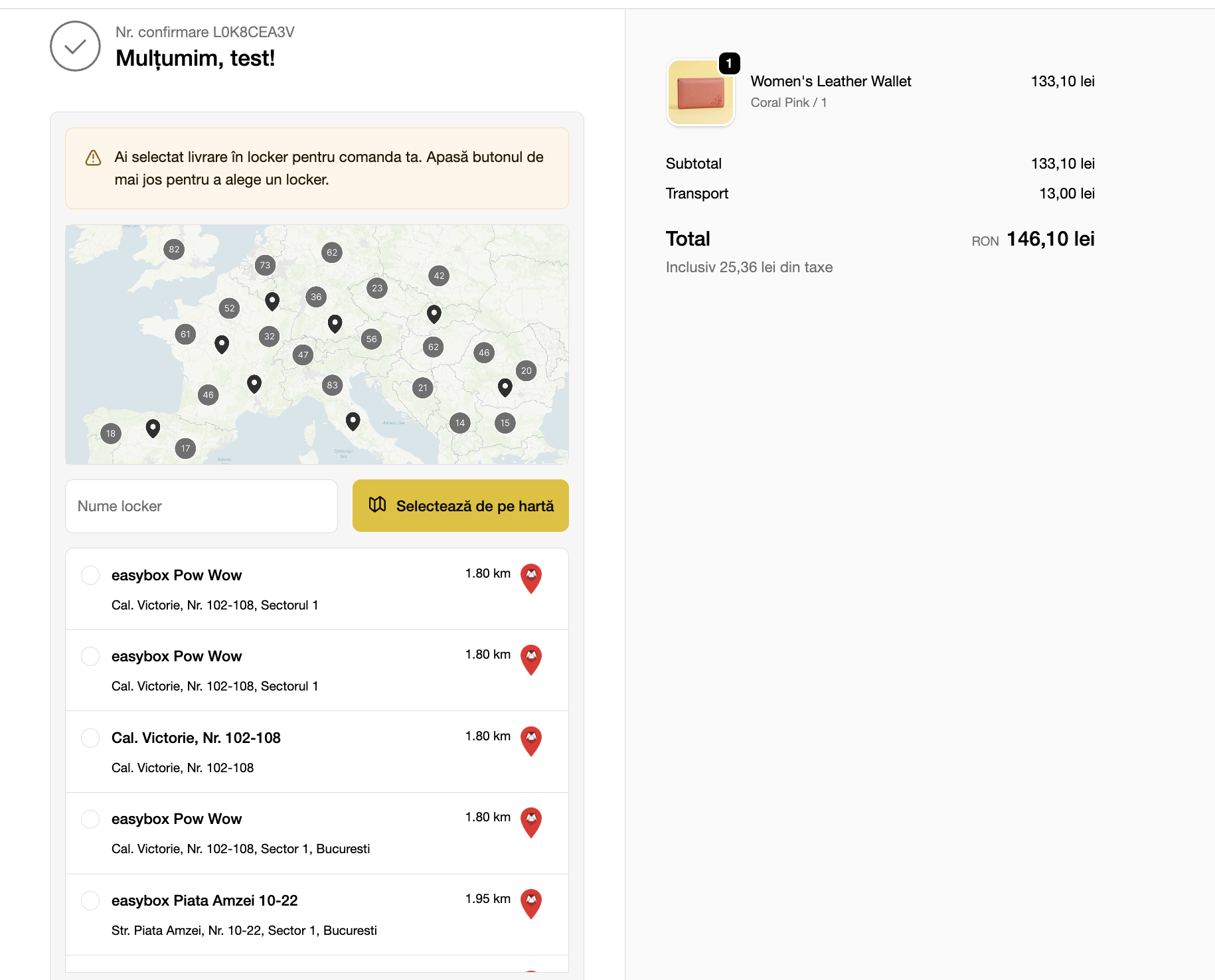
- After the order is completed, the Thank You page opens, displaying the map.

- Once you click on the map, a pop-up opens where you can select the locker.
In the next step, the map will open in a pop-up window.

Please make sure that your browser’s pop-up blocker is disabled.
- After selecting the locker, the details are confirmed on the Order Status page.

How can I add a locker if it’s missing from the order?
If you offer the locker delivery option it can happen that in some cases, the customer might forget selecting a locker.
For this situation, we have implemented a Flow where the store is notified and will receive an email every time an order is placed with locker delivery, but a locker has not been selected (within 10 minutes of placing the order.
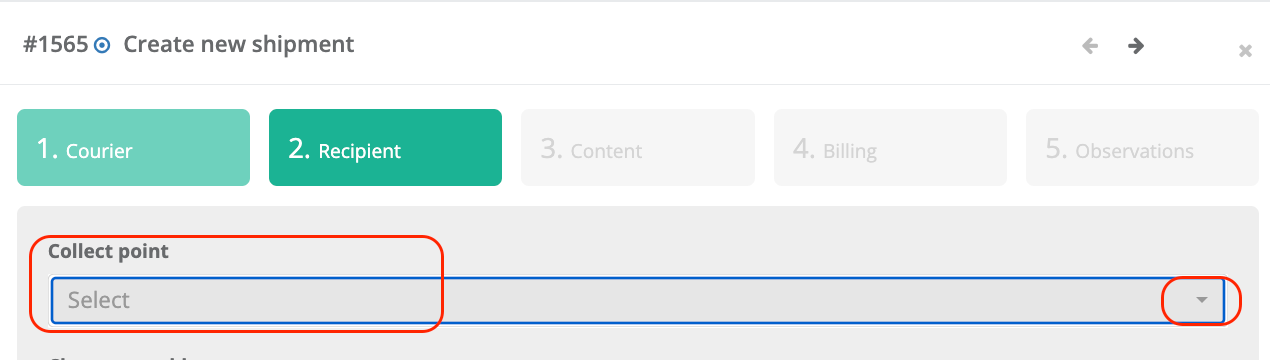
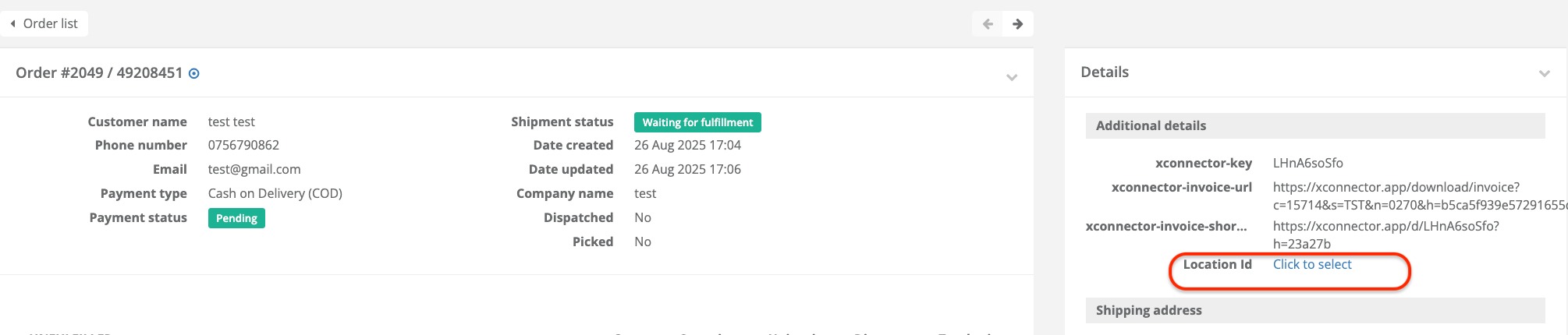
To save a locker to the order or to modify an existent one, you can select the desired locker from the map by clicking the icon below.
You can find it on the Recipient page when generating an individual shipping label.
How to check if the locker is selected?
Go to xConnector
Click on the order number
Up-right there is Additional details
Here should be displayed a Location ID, the Location name and the ConnectorID

What if the customer doesn't select a locker?
If the customer has not selected a pickup point from a locker on the Thank You page, there are three ways to save the pickup address in the order.
- You can tell them to revisit the Thank you page by clicking the link View order in the Shipping Confirmation e-mail. The map popup window will open and they can select their desired pickup location
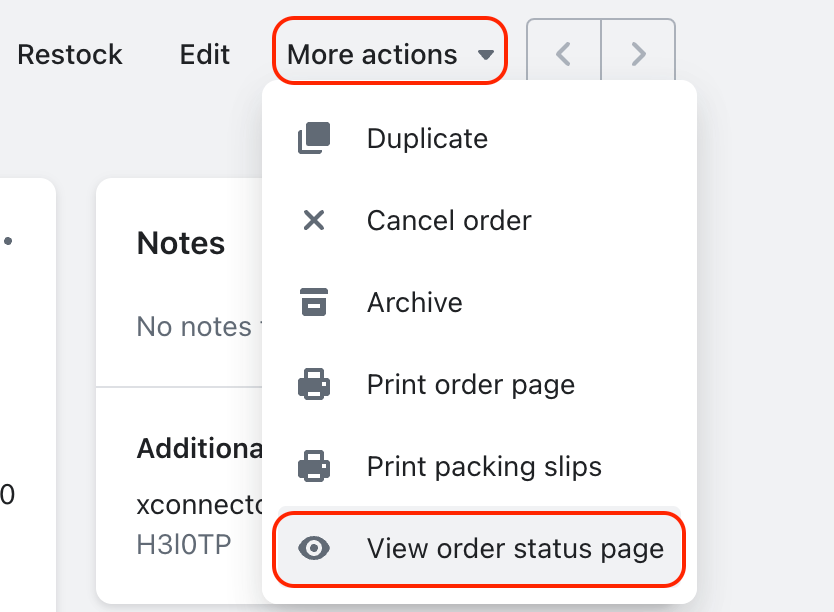
- Alternatively, you can select it for them by accessing the order's details in Shopify, then selecting "More actions" and "View order status page."
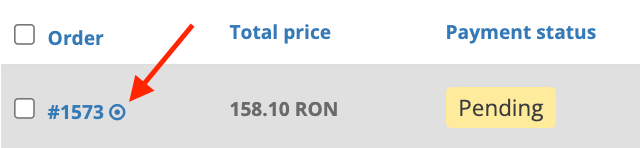
See the order in xconnector - Click on the round button
- Click on More actions - View order status page - The map popup window will open and you can select the desired pickup location
3. When generating the shipping label at Recipient tab > Collect point: here you can select the locker
4. Click on the order number in xConnector - check the Additional details - Location ID and select the locker
Was this article helpful?
That’s Great!
Thank you for your feedback
Sorry! We couldn't be helpful
Thank you for your feedback
Feedback sent
We appreciate your effort and will try to fix the article
