Smart courier routing by location
Got multiple Shopify locations and ship from different stores? You can now map each Shopify location to the right courier connector — and when you generate an AWB, xConnector automatically picks the correct courier for the location the order ships from.
What it does
This feature lets you map each Shopify location to a courier connector defined in xConnector. When you create a shipment, xConnector automatically selects the courier mapped to the location the order ships from. If an order contains products fulfilled from different locations, it is automatically split into one AWB per location, each on its own courier.
Useful, for example, for retailers with multiple points of sale (mall stores, regional warehouses) that use a different courier account per location.
Prerequisites
- Synced Shopify locations — your locations must appear in xConnector* (automatically retrieved from Shopify → Settings → Locations)
- Active courier connectors — defined in Profile → Connected services. Only courier-type connectors that are active and not deleted can be mapped.
- Split fulfillment mode — the feature applies only when shipments are created per fulfillment order, i.e. "Merge fulfillment orders" is disabled. In Merge mode (a single AWB per order), location routing does not apply (xConnector- Profile - Your account - Fulfillment location - disable Merge fulfillment orders)
*After making any changes to Locations in Shopify, please close the xConnector tab and reopen xConnector from Shopify. This ensures the updated Locations are loaded and reflected in xConnector.
How to configure
- Go to xConnector - Profile - Preferences.
- Find the Location connector routing section.
- For each location, pick the desired courier connector from the dropdown (or "— Not set —" to leave that location unmapped).
- Click Save.
Example:
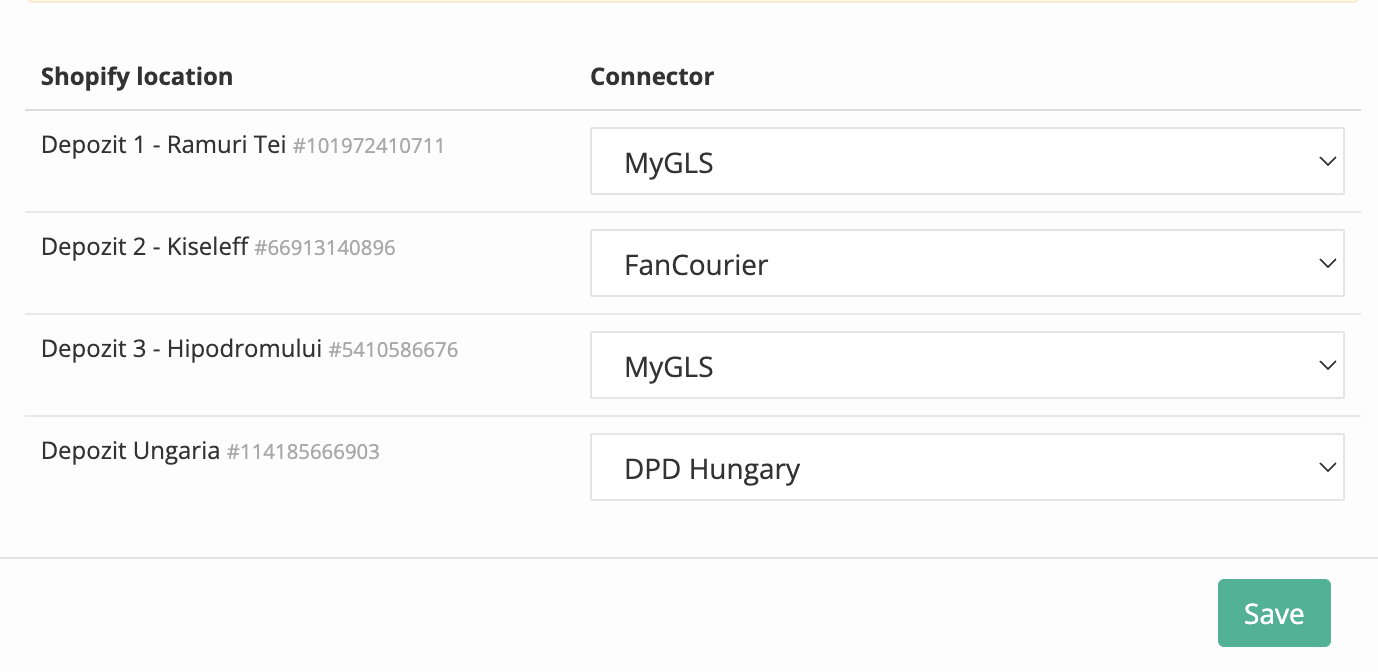
The mapping is stored on your shop and stays active until you change it. Selecting "— Not set —" removes the mapping for that location, and orders from it fall back to the manually selected default courier.
? Only active courier connectors appear in the dropdown. Disabled, deleted, or non-courier connectors (e.g. printing) are not available for routing.
How it behaves when shipping
Manual create-shipment (the "Create shipment" window)
When you select the fulfillment location in the window, the courier switches automatically to the mapped one. If you change the courier manually, your choice is respected (operator override takes priority).
Mass shipping
Each order with products from different locations produces one AWB per location, each on the location's mapped courier. Orders from an unmapped location use the default courier.
Automatic AWB from Shopify Flow
Same behavior: on automatic trigger, each location gets its AWB on its own courier.
Important notes
- Cross-courier: locations can be mapped to connectors of different courier types; the courier service adjusts automatically to the routed connector.
- Locker / easybox: orders with a pickup point (locker/easybox) keep the locker's courier, regardless of the location mapping.
- Unmapped location: orders from locations without a mapping use the default selected courier, as before.
- No mappings = no change: if you don't define any mapping, behavior stays identical to before.
- Split mode only: if "Merge fulfillment orders" is enabled (one AWB per order), location routing does not apply.
Example
A retailer with two stores in different malls, each with its own courier account (differing only by the pickup point): map Store A → Connector A and Store B → Connector B. An order with products from both stores will automatically generate two AWBs — one picked up from Store A on Connector A, the other from Store B on Connector B.
Was this article helpful?
That’s Great!
Thank you for your feedback
Sorry! We couldn't be helpful
Thank you for your feedback
Feedback sent
We appreciate your effort and will try to fix the article