Delivery Notes
Delivery notes allow you to ship products without generating an invoice beforehand.
In xConnector, delivery notes are automatically generated together with the shipping label and can be printed based on the shipping label generation method.
1. Individual Shipping Label Generation or Automaticall generated shipping labels
When a shipping label is generated individually or automatically:
- Select one or more orders
- Click the arrow next to Create Documents
- Select Print Documents
- Click Delivery Notes
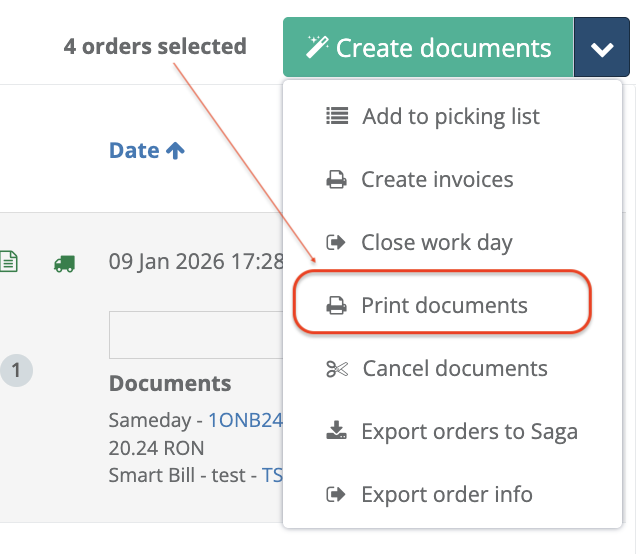
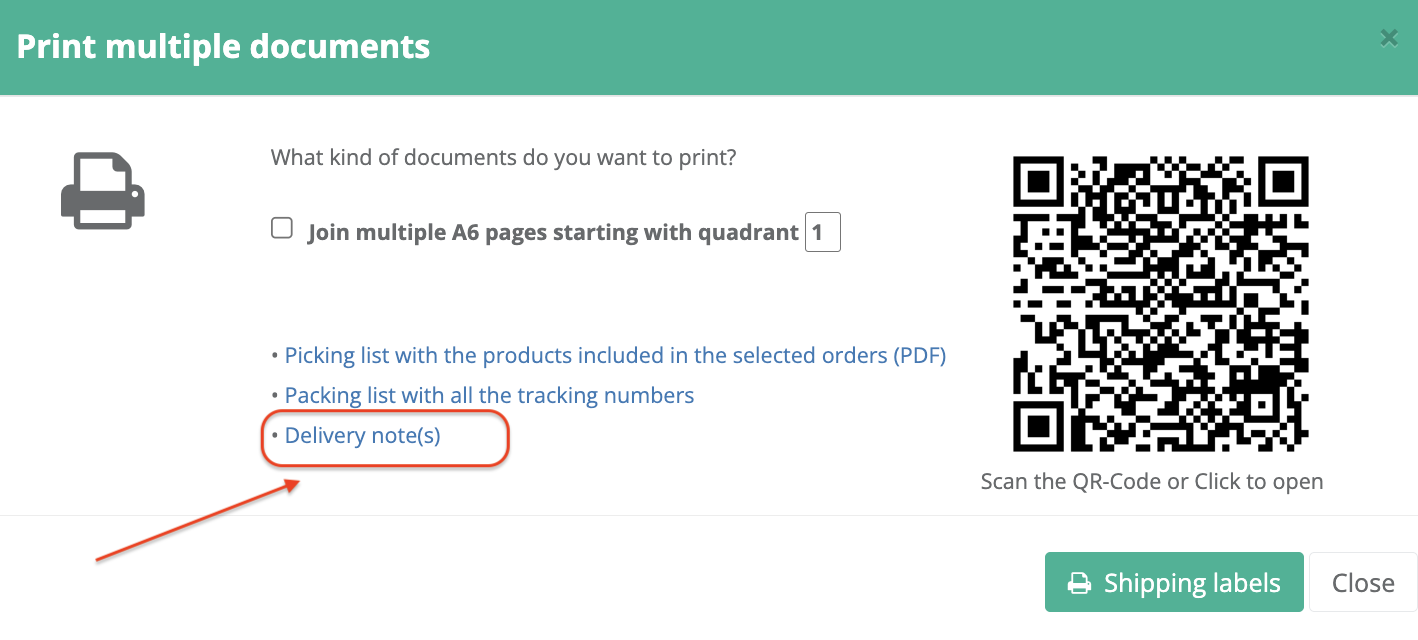
A PDF file containing all selected delivery notes will be generated and is ready for printing.
2. Bulk Shipping Label Generation
When shipping labels are generated in bulk (for one or multiple orders):
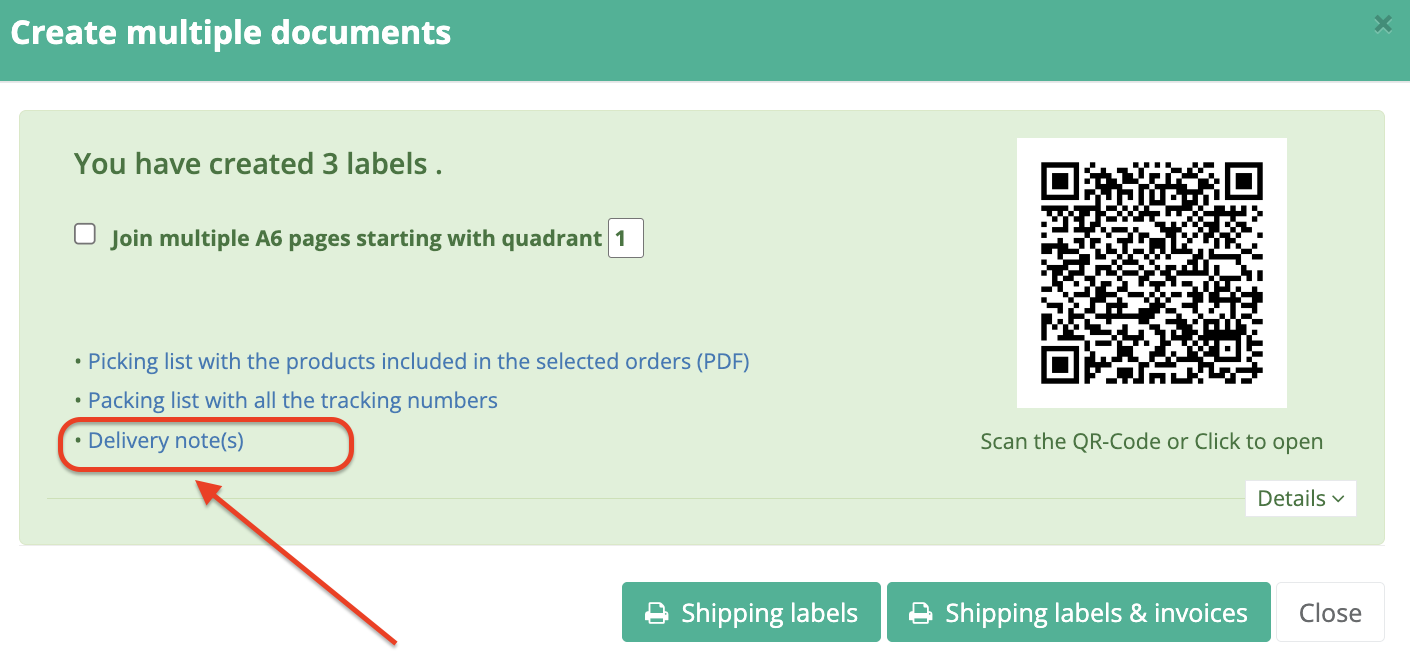
- Delivery notes are available directly on the final generation screen
- The same screen used to print shipping labels also allows you to view and print delivery notes
Additionally details:
- Delivery notes are generated automatically; no additional configuration is required
- Delivery notes are available only for orders where a shipping label has been generated
- Delivery notes cannot be customized (layout and content are predefined)
- Invoicing can be performed later, independently of delivery notes
Feel free to contact us if you need any further information:
Chat: click on the blue chat icon (bottom-right)
E-mail: support@xconnector.app
Phone: +4 0373 747 991
Was this article helpful?
That’s Great!
Thank you for your feedback
Sorry! We couldn't be helpful
Thank you for your feedback
Feedback sent
We appreciate your effort and will try to fix the article