Cloud Printing with PrintNode — Print Labels & Invoices Straight to Your Printer
What's new
xConnector can now send your documents directly to a physical printer — no more downloading a PDF, opening it in a viewer, and hitting Ctrl+P for every order.
Connect a printer once and print shipping labels (AWBs) and invoices with a single click, from the order screen, from the create-shipment / create-invoice confirmation pop-ups, or even fully automatically the moment an AWB is generated.
It works through PrintNode, a cloud-printing service with a small local app that sits on the computer your printer is attached to and executes the print jobs we push to it.
How it works (the short version)
xConnector ──► PrintNode (cloud) ──► PrintNode local app ──► your printer
- xConnector takes thealready-generated PDF(the same label/invoice you download today) and pushes it to PrintNode.
- PrintNode relays it to the local app running on the machine next to your printer.
- The document prints. That's it.
Because we send the document we already created, what comes out of the printer is exactly the label or invoice you'd otherwise download — same format, same content.
One-time setup
One-time setup
Step 1 — Create a PrintNode account and install the local app
- Sign up atprintnode.com.
- Download and install thePrintNode clienton the computer that your printer is connected to (Windows, macOS or Linux).
- Log in to the client. It automatically detects the printers installed on that machine.
- Make sure the printer you want to use shows asonlinein the PrintNode dashboard.
- In your PrintNode account, copy yourAPI key(Account → API Keys).
The computer with the local app must be switched on and online when you print. If it's off, the job simply waits in the queue until the machine comes back online.
Step 2 — Add the PrintNode connector in xConnector
- Go to xConnector → Profile → Connected services Additional services
- Find PrintNode and add a new connector.
- Fill in:
- Name— a label for this printer/connector (e.g. "Front desk Zebra", "Warehouse A4").
- API key— paste the key from your PrintNode account.
- Click Load printers— xConnector calls PrintNode and lists every printer currently available on your account.
- Pick the printer this connector should print to.
- Toggle it on and Save.
One connector = one printer. Have several printers (e.g. a thermal one for labels and an A4 one for invoices)? Just add one PrintNode connector per printer, each with its own name.
Step 3 (optional but recommended) — Set default printers per document type
If you added more than one printer, set in xConnector which one to use for each document type:
If you added more than one printer, set in xConnector which one to use for each document type:
- Go to xConnector → Profile → Preferences → Print routing, set the print routing options:
- Shipping label →your thermal/label printer
- Invoice →your A4/document printer
- Save.
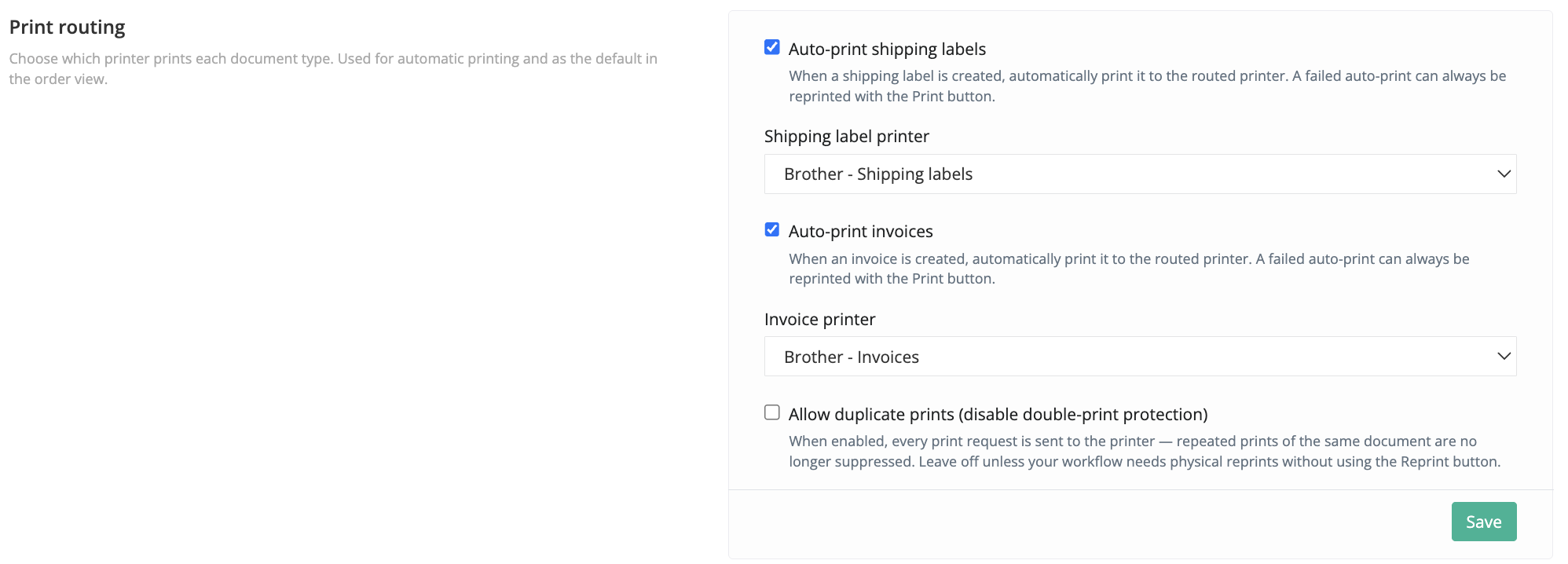
Now every print button defaults to the right printer, and you can still override per-job from the dropdown.
Step 4 (optional) — Turn on automatic label printing and/or invoice printing
Want the shipping label to print the instant the Shipping label is created — no clicks at all?
- EnableAuto-print shipping labelin your settings.
- From then on, whenever a new outbound Shipping label or an Invoice is generated (single order, bulk shipping, picking flows), the label is pushed to your routed label printer automatically.
If an auto-print ever fails (printer offline, etc.), nothing breaks — the Shipping lable is still created and you can always print it manually with one click.
How to use it day to day
How to use it day to day
From the order screen
Open any order details (xConnector - Click on the order number)
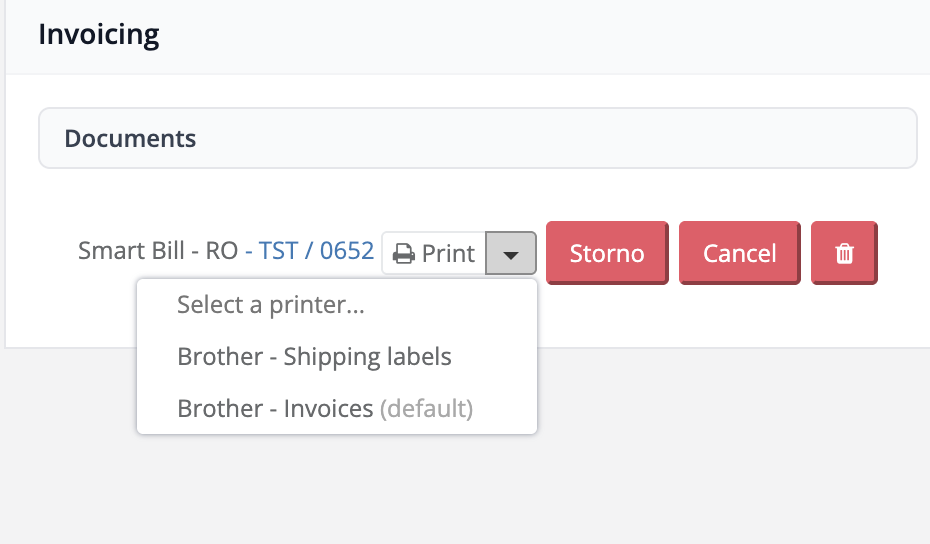
On the timeline, next to a generated shipping label or invoice, you'll see a Print split-button:
- Click the main button→ prints to your default (routed) printer.
- Click the little arrow (caret)→ pick a different printer/connector for this one job.
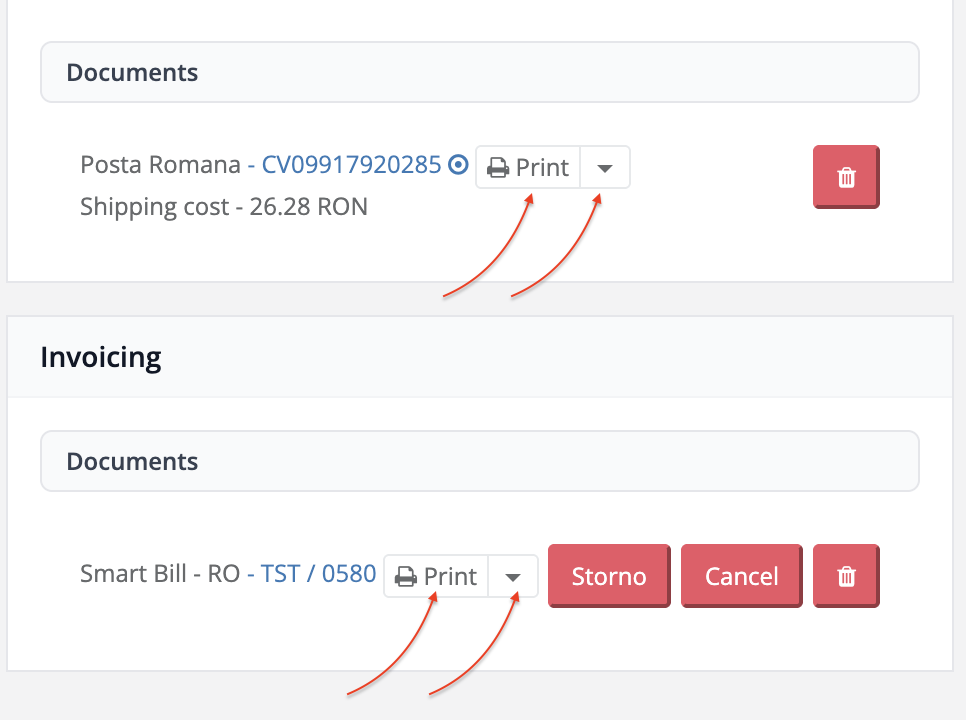
You can see and select your own printers. 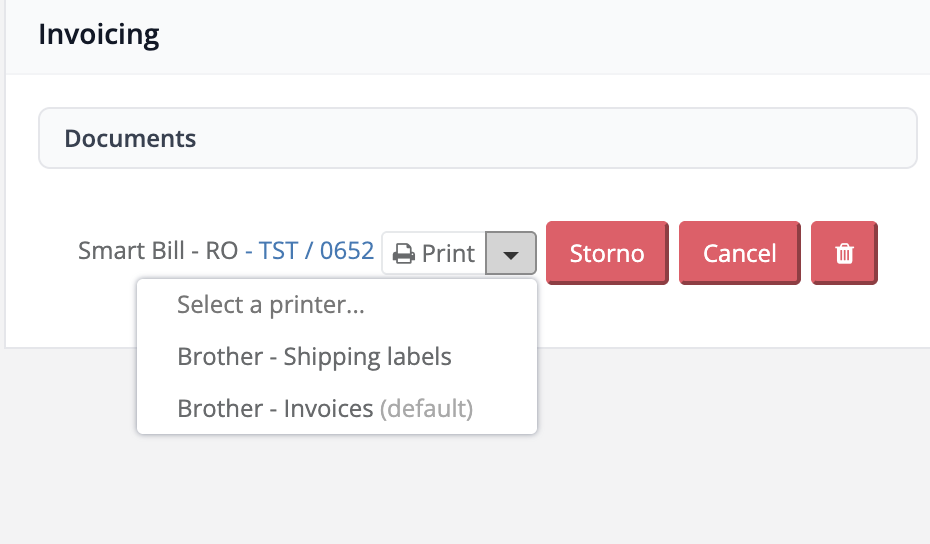
From the create-shipment / create-invoice pop-ups
After you generate an Shipping labelor an invoice in the confirmation modal, the View button now has a caret next to it:
Open the caret to Print the document you just created, without leaving the pop-up.
In bulk
For high-volume operations, printing is also available through the API actions surface (
After you generate an Shipping labelor an invoice in the confirmation modal, the View button now has a caret next to it:
[ View | ⌄ ]Open the caret to Print the document you just created, without leaving the pop-up.
In bulk
For high-volume operations, printing is also available through the API actions surface (
/api/actions/print), so labels/invoices can be printed in batches as part of your automated fulfillment.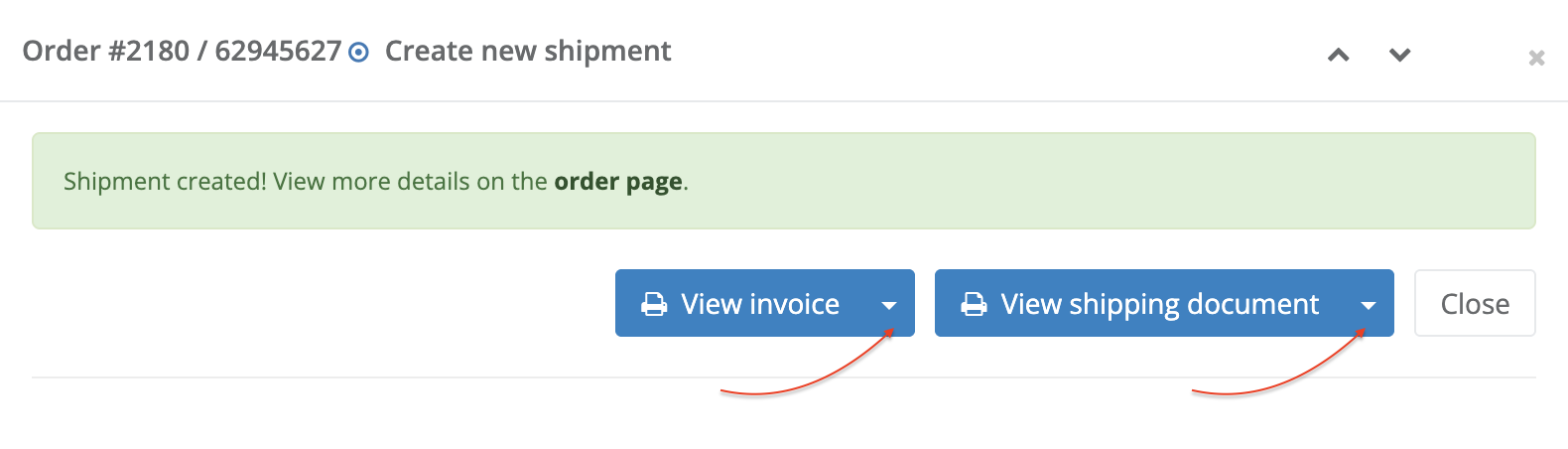
Document Printing History
Automatic printing operations are logged in the Timeline of each order in xConnector. This allows you to check the printing history of a document at any time.
To view it, open xConnector, click the order number, and scroll down to the Timeline.
Good to know
- Async by design. When xConnector reports a job assubmitted, it has been accepted by PrintNode. Actual printing happens on your local machine a moment later (just like a normal print queue).
- No double-printing.Every job carries an idempotency key. If you accidentally click twice, or a request is retried after a network blip, you won't get two copies. A deliberatereprintis always available when you actually want another copy.
- Multiple printers, no problem.Add as many PrintNode connectors as you have printers; route documents per type.
- Return labels are intentionally not printablethrough this feature (a built-in safety boundary).
- PDF only for now.Picking lists (which are HTML) and raw/ZPL thermal formats aren't covered yet — labels and invoices are.
- Security.Your API key is stored encrypted (Vault). Each print job is scoped to your merchant account, validated against printers you own, and audited.
Troubleshooting
SymptomLikely cause / fix"Load printers" shows nothingThe PrintNode local app isn't running, or no printer is online on that machine. Open the client and check.Job submitted but nothing printsThe computer with the local app is offline — the job will print once it's back online. Check the printer is powered and selected.Wrong printer prints the documentSet Print routing per document type, or use the caret to pick the right connector.Auto-print didn't fireConfirm Auto-print shipping label is enabled, and that a new outbound Shipping label was generated (not a return label). Use the manual Print button as a fallback.
TL;DR
- Install the PrintNode client on the printer's computer, grab your API key.
- Add a PrintNode connector in Connected services → Additional Services, pick a printer, save.
- (Optional) Route labels and invoices to specific printers; turn on auto-print.
- Print with one click from the order screen, the create-shipment/invoice pop-ups, or automatically.
Need help?
- Chat — click the blue icon in the bottom-right corner
- Email — support@xconnector.app
- Phone — +40 373 747 991
Stay connected:
Was this article helpful?
That’s Great!
Thank you for your feedback
Sorry! We couldn't be helpful
Thank you for your feedback
Feedback sent
We appreciate your effort and will try to fix the article