Starting today, 27.10.2026, the automation rules move exclusively to Shopify Flow. We removed the rule settings from xConnector, because Shopify Flow already offers them: there you can set up automations based on many rules, criteria, conditions and triggers, using the actions published by xConnector.
What you need to do
If you have rules set up in xConnector, they no longer apply. Turn off the conditions in xConnector → Profile → Preferences → Automation (the for / value fields) and define your rules in Shopify Flow instead.
If you only use the automatic creation of invoices and shipping labels, without a tag condition, nothing changes: you can keep it as it is.
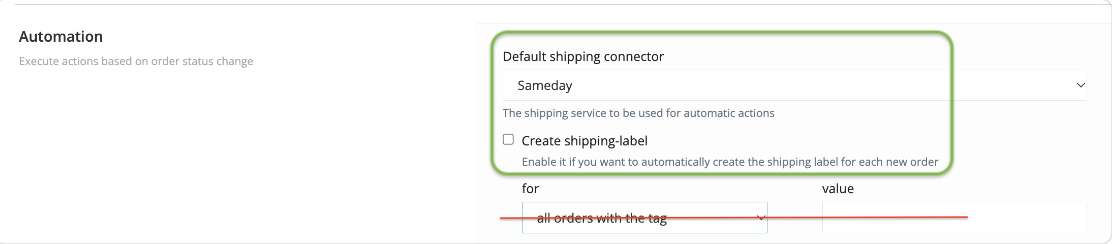
xConnector → Profile → Automation
- The action highlighted in green can remain enabled.
- The action highlighted in red is no longer supported. You can configure automatic document generation based on order tags directly in Shopify Flow.
Below you will find all the details and ready-made Flows. You can use them as they are, or create new ones based on your own requirements.
What you get with Shopify Flow and the xConnector actions
- Flexibility – combine as many triggers, conditions and rules as you need: tag, status, payment, shipping country and much more.
- All xConnector actions – not just document generation: create, cancel and revert invoices, mark an invoice as paid, create and cancel shipping labels, mark an order as dispatched, estimate the shipping cost and send a notification when the customer has not selected a locker. Plus the xConnector triggers: address validated, collect point selected, order picked in Pick & Pack.
- Monitoring – Shopify Flow keeps the history of every run, so you can easily check what happened with each order.
- Control – test the Flow before turning it on, and turn it on or off at any time.
- More automations in one place– combine the xConnector actions with other Shopify rules and actions. For example:
- by country – the invoice is issued automatically with the right series: one series for Romania and another for international orders;
- by payment – for orders paid online, the invoice is issued and automatically marked as paid;
- unwanted customers – orders from customers tagged “blacklist” automatically get the same tag, so you can exclude them from automatic shipping label and invoice generation;
- automatic tags – after the documents are issued, the order automatically gets a tag (for example “Invoiced” or “Label created”), so you can find it easily;
- after the order is picked – when the order is marked as picked in the Pick & Pack app, the shipping label and the invoice are issued automatically.
Two ways to automate
- Automation in xConnector – applies to all new orders, without any rule.
- Automation in Shopify Flow with the xConnector actions (recommended) – applies to new orders, with complex rules, conditions and triggers.
Option 1: Automation in xConnector (no rules)
Use this option if you want the shipping label and the invoice to be created automatically for every new order, with no conditions.
In xConnector → Profile → Preferences → Automation:
- select the default connector (for example Default shipping connector for shipping labels);
- tick the action you want (for example Create shipping-label for shipping labels, or the invoice creation action).
The for / value condition fields (for example “all orders with the tag”) are no longer available. If you need rules, use Option 2.
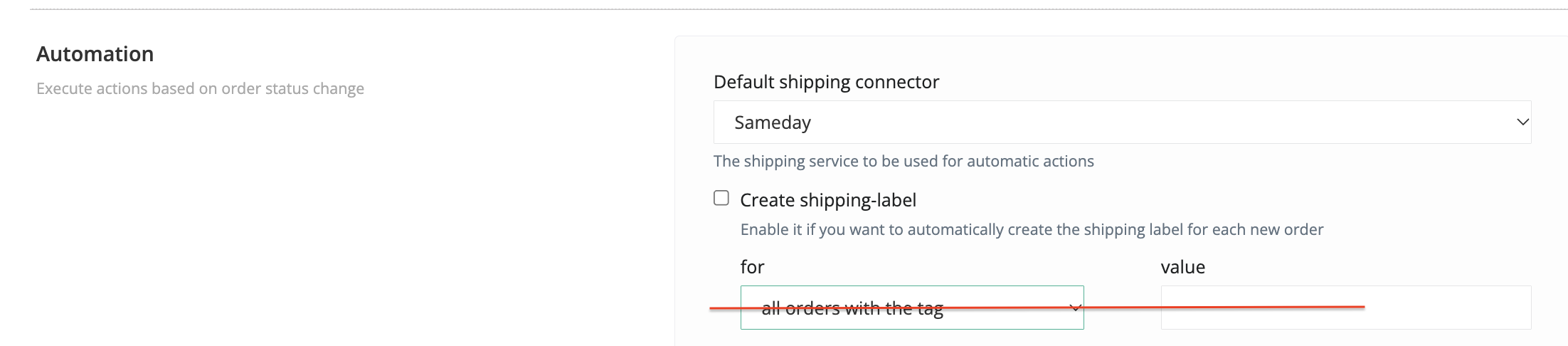
Option 2 (recommended): Automation in Shopify Flow with the xConnector actions
This option lets you create shipping labels and invoices only for the orders that meet certain conditions: tag, status, payment, shipping country and much more.
Creating, cancelling and reverting documents (shipping labels and invoices) are xConnector actions. Shopify Flow only decides when they run and for which orders.
Settings in xConnector
In xConnector → Profile → Preferences → Automation:
- Do not tick the document creation action. If it is ticked, the shipping label and the invoice are created for every new order, without rules, in addition to the ones created by the Flow.
- Choose the connector used for the documents: either set a default connector here, or specify the connector directly in the Flow, in the Connector ID field of the xConnector action.
You find the connector ID in xConnector → Profile → Connected services, by clicking on the connector. Each connector has its own unique ID.
Settings in Shopify Flow
Setting up a Flow to create shipping labels and invoices automatically is very simple:
- choose the event that starts the Flow (for example Order created, Order paid, Fulfillment created);
- define the rules and conditions (for example tag, status, shipping country);
- add the xConnector action you want (for example Create invoice or Create shipping label);
- optionally, fill in the Connector ID field of the action with the ID of the connector you want to use.
xConnector triggers in Shopify Flow
- Address validated – fired each time the xConnector address validation status of an order changes, with the reason of the decision.
- Collect point selected – fired when the customer selects a collect point (locker) from the widget map.
- Order picked – fired when the order is marked as picked in the Pick & Pack mobile app.
xConnector actions in Shopify Flow
- Create invoice – creates the invoice automatically, with the default invoicing connector (or the connector set in Connector ID).
- Create shipping label – creates the shipping label automatically, with the default courier connector (or the connector set in Connector ID).
- Create invoice payment – changes the status of an existing invoice to “PAID”.
- Cancel invoice – cancels the invoices issued for the order.
- Revert invoice – creates a reversal invoice for the invoice of the order.
- Cancel shipping label – cancels the latest shipping label of the order. If there are several, repeat the action for each one.
- Dispatch order – marks the order as dispatched.
- Estimate shipping price – gets an estimate of the shipping cost from the courier.
- Locker not selected notification – sends a notification when no locker / collect point has been selected for an order.
Flow examples
Below are a few ready-made Flow examples. The options are unlimited: adapt them to your own process and to how you want to set them up.
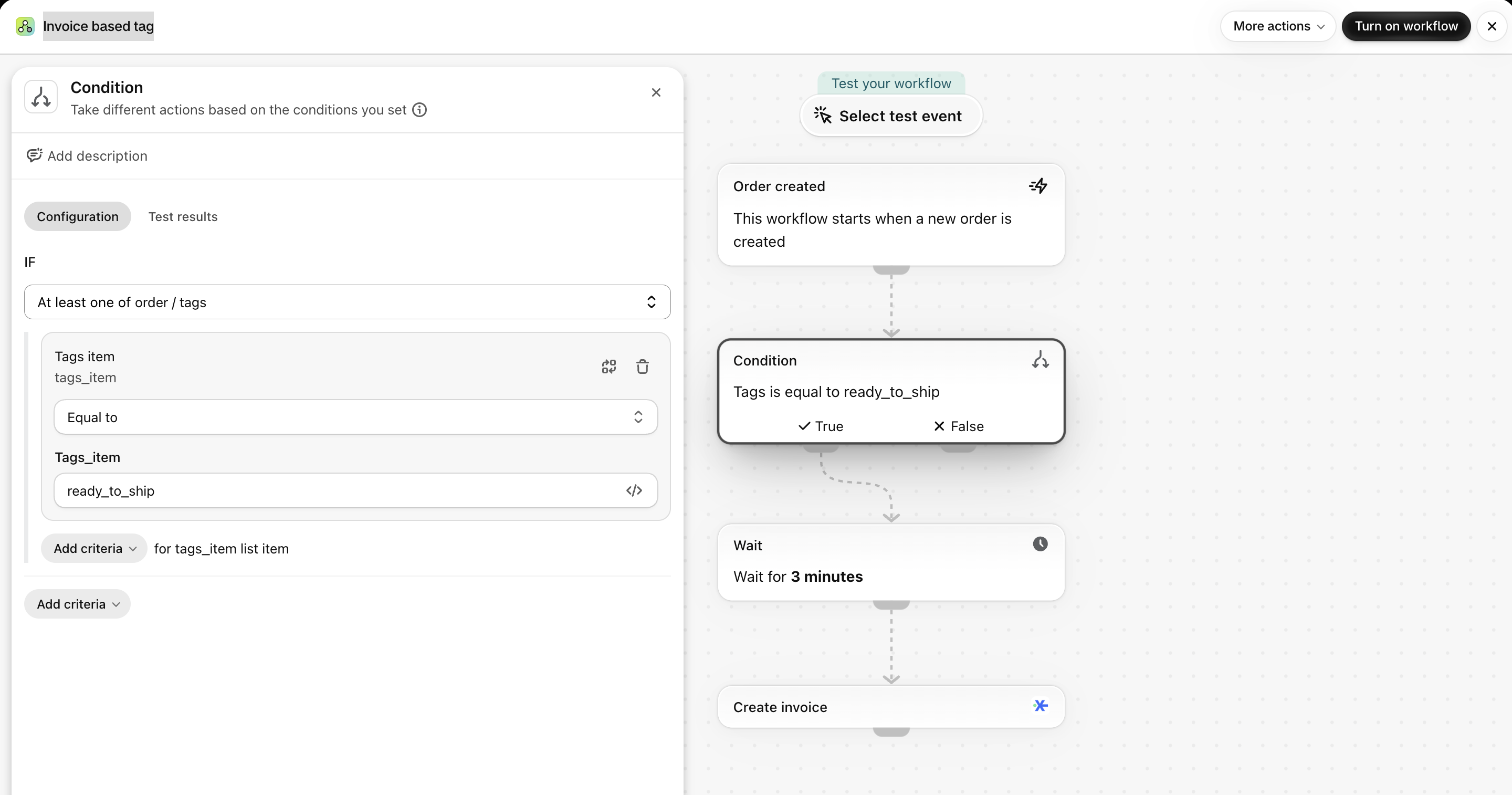
1. Invoice based on a tag
When a new order is created, the Flow checks if it has the ready_to_ship tag. If it does, the invoice is issued automatically after 3 minutes.
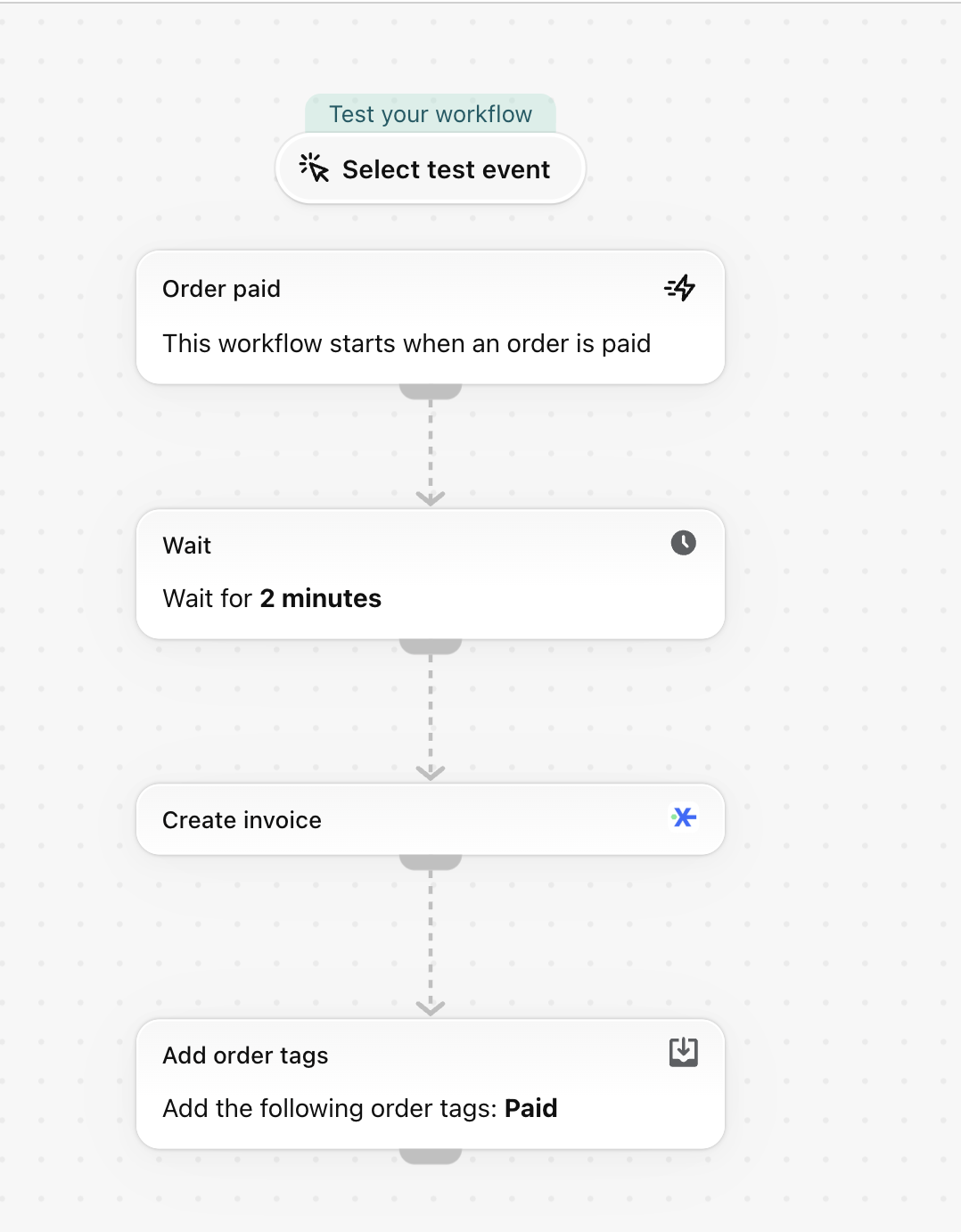
2. Invoice when the order is paid
When the order is paid, the invoice is issued automatically after 2 minutes, and the order gets the Paid tag.
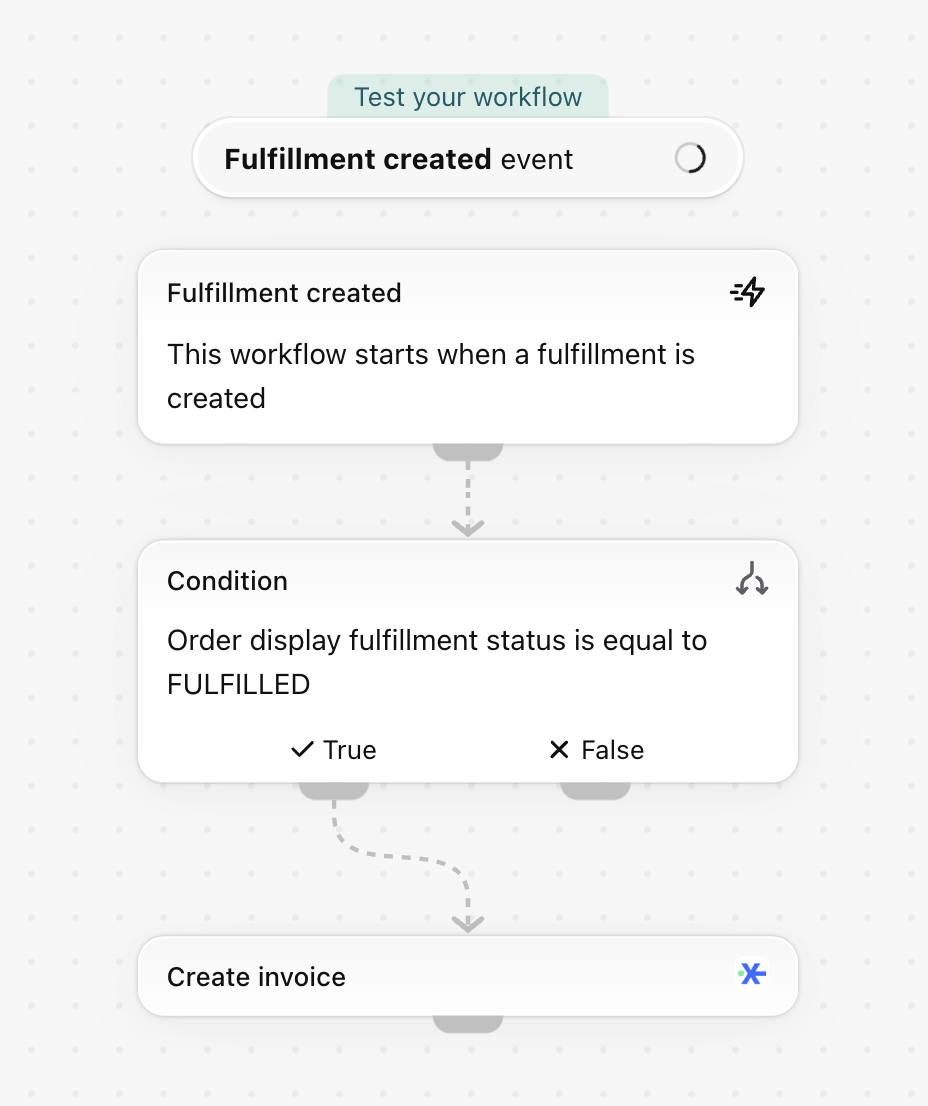
3. Invoice when the order is fulfilled
When a fulfillment is created, the Flow checks if the order status is FULFILLED. If it is, the invoice is issued automatically.
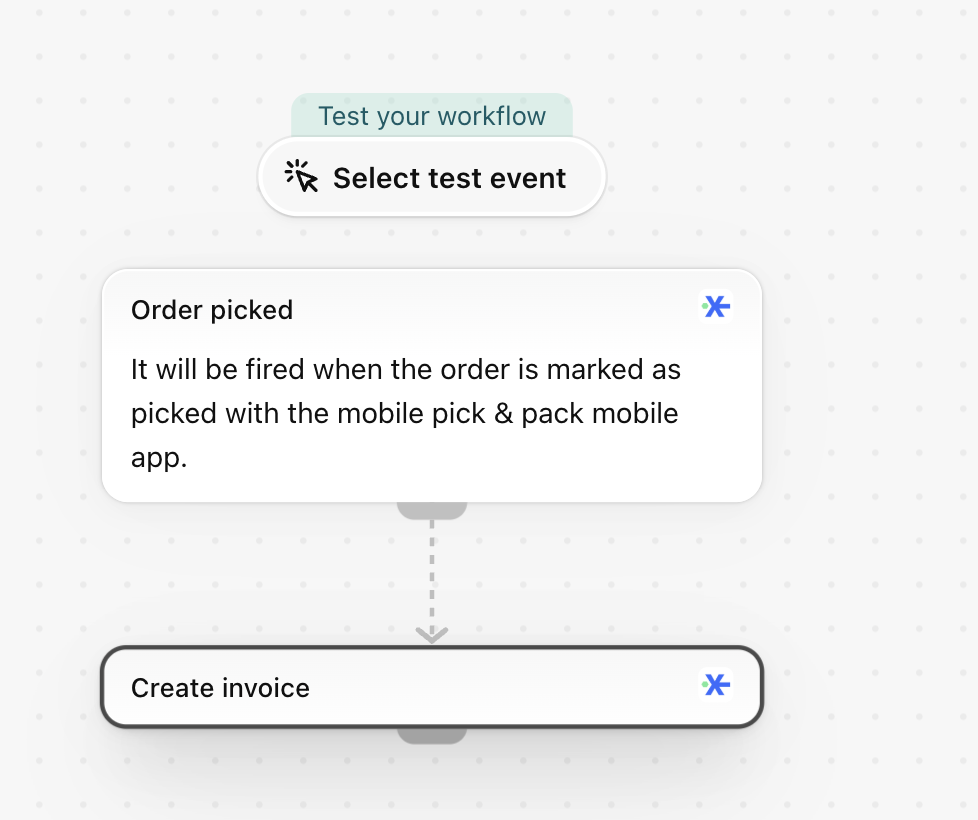
4. Invoice after the order is picked (Pick & Pack)
When the order is marked as picked in the Pick & Pack mobile app, the invoice is issued automatically.
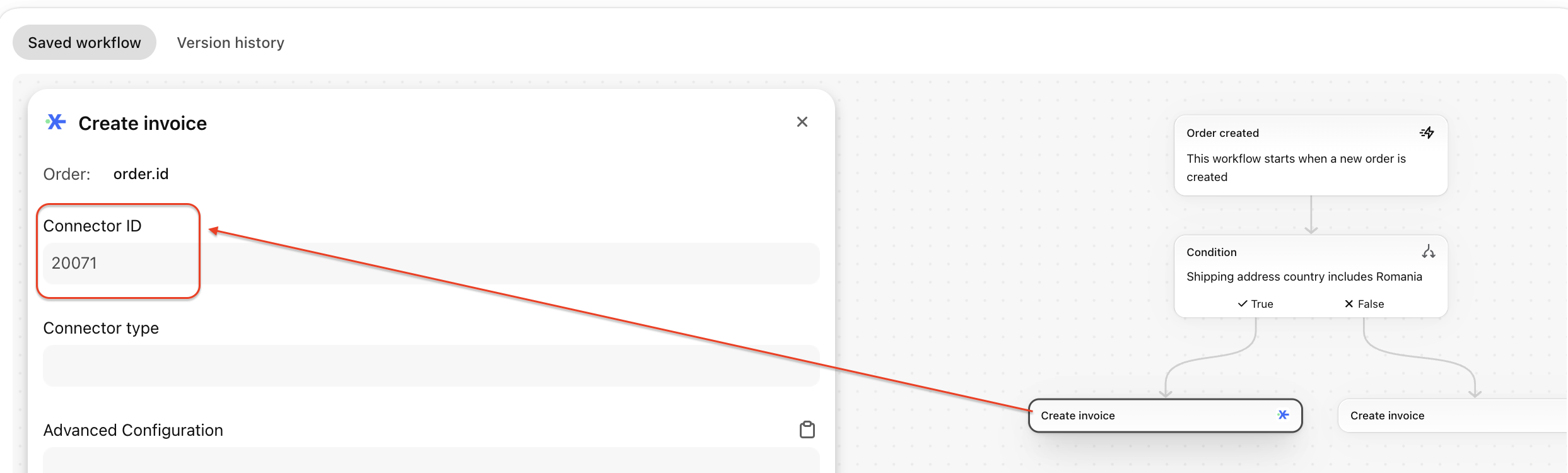
5. Different invoice series for Romania and international orders
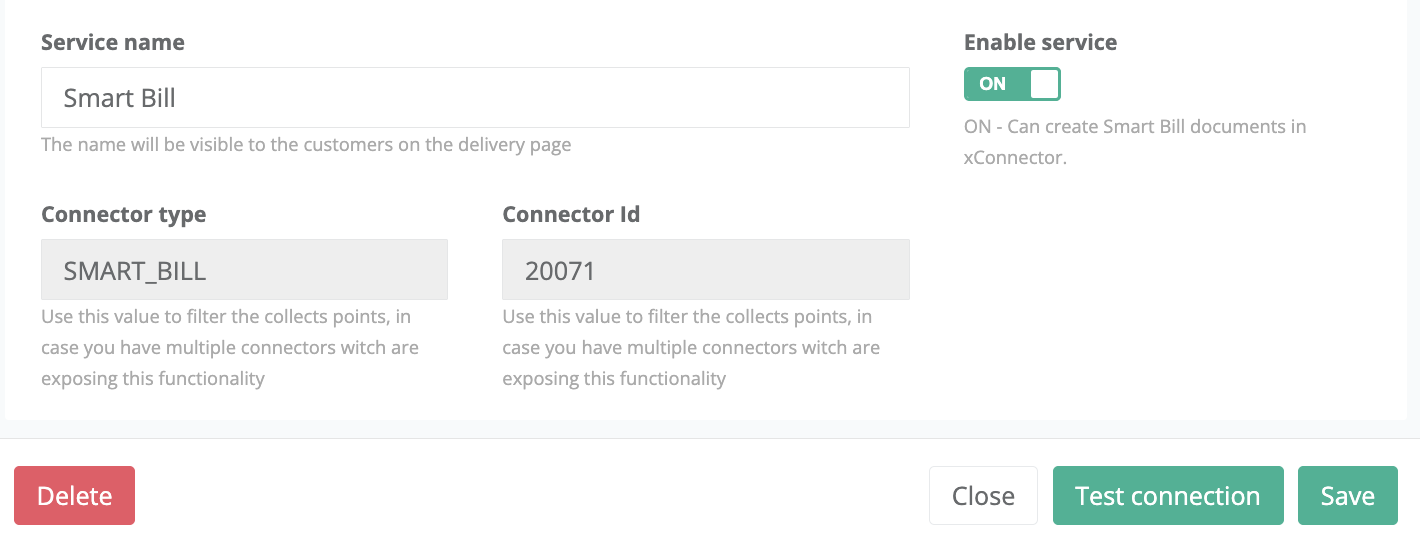
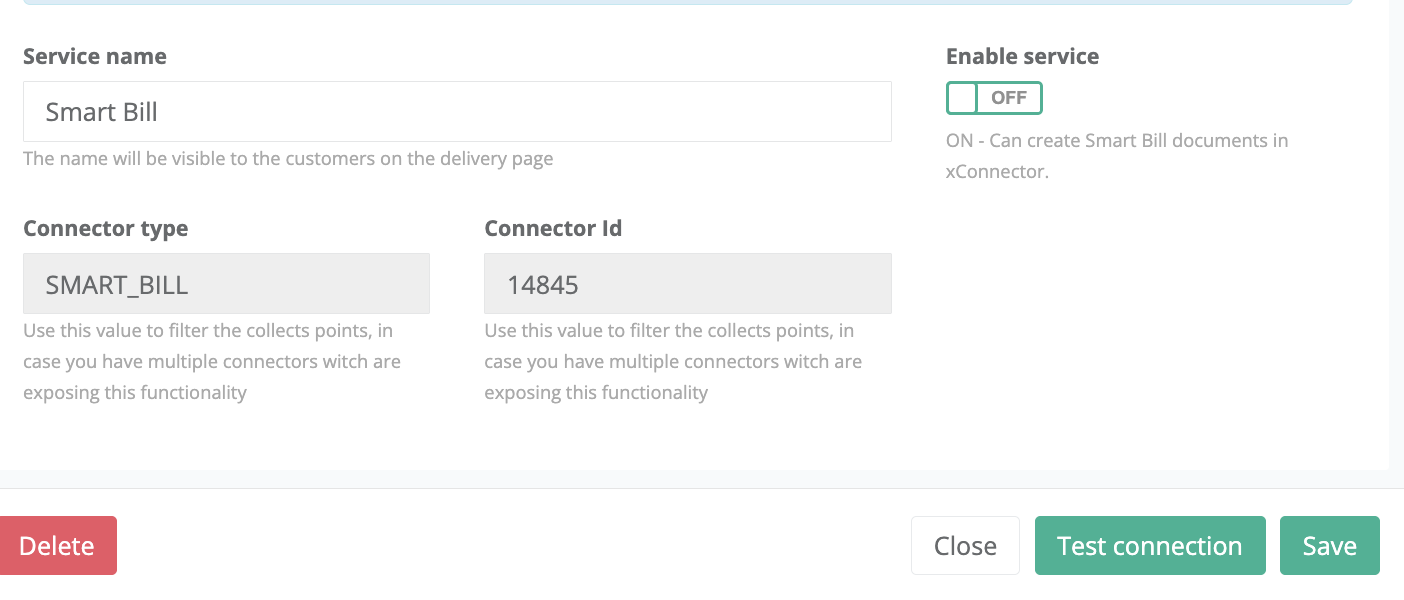
For example, you can have one SmartBill connector for domestic invoices, with the series AAA, and another SmartBill connector for international invoices, with the series BBB. Each connector has a unique ID and its own invoice series.
You find the ID of each connector in xConnector → Profile → Connected services, by clicking on the connector, in the Connector Id field. In the example below, the two SmartBill connectors have the IDs 20071 and 14845. Both connectors must be active (Enable service: ON), otherwise they cannot create documents.
In the Flow, set the rule:
- if the shipping address country includes Romania, the invoice is issued with the domestic connector (fill in its ID in Connector ID);
- if the shipping address country does not include Romania, the invoice is issued with the international connector (fill in its ID in Connector ID).
Useful articles
- Select the Invoice Connector for Automatic Invoicing via Shopify Flow
- Locker map - send automatic emails when no locker is selected
- Automate Invoice Generation via Flow
- On Hold - Release Hold: Generate the documents automatically after you confirm/verify the orders
- Blacklist customer: tag an order or automatically cancel the order
- Tag orders if customer placed more than 1 order in the last 24h
- Customer can check products upon delivery - automatically check this option
- Automatic generation of the documents
- Automatically add an email address to the order when the email field is empty
- Add automatically a free gift product to all orders
- Parcel Count – Auto-filled from Order Item Quantity
- Automatically generate the invoice for Picked order
- Flow: Automatic Generation of MyGLS Shipping labels
- Automatically cancel refused orders using tracking status
- Locker map - hold orders until a locker is selected
- Default services set in Flow
- Advanced configuration - Shopify FLOW
Need help?
Our team is here to help. You can contact us:
- Chat: directly from your xConnector account or on about.xconnector.app
- Email: support@xconnector.app
- Phone and WhatsApp: +40 373 747 991
- Website: about.xconnector.app
Was this article helpful?
That’s Great!
Thank you for your feedback
Sorry! We couldn't be helpful
Thank you for your feedback
Feedback sent
We appreciate your effort and will try to fix the article
