Invoicing Legal entities (PJ)
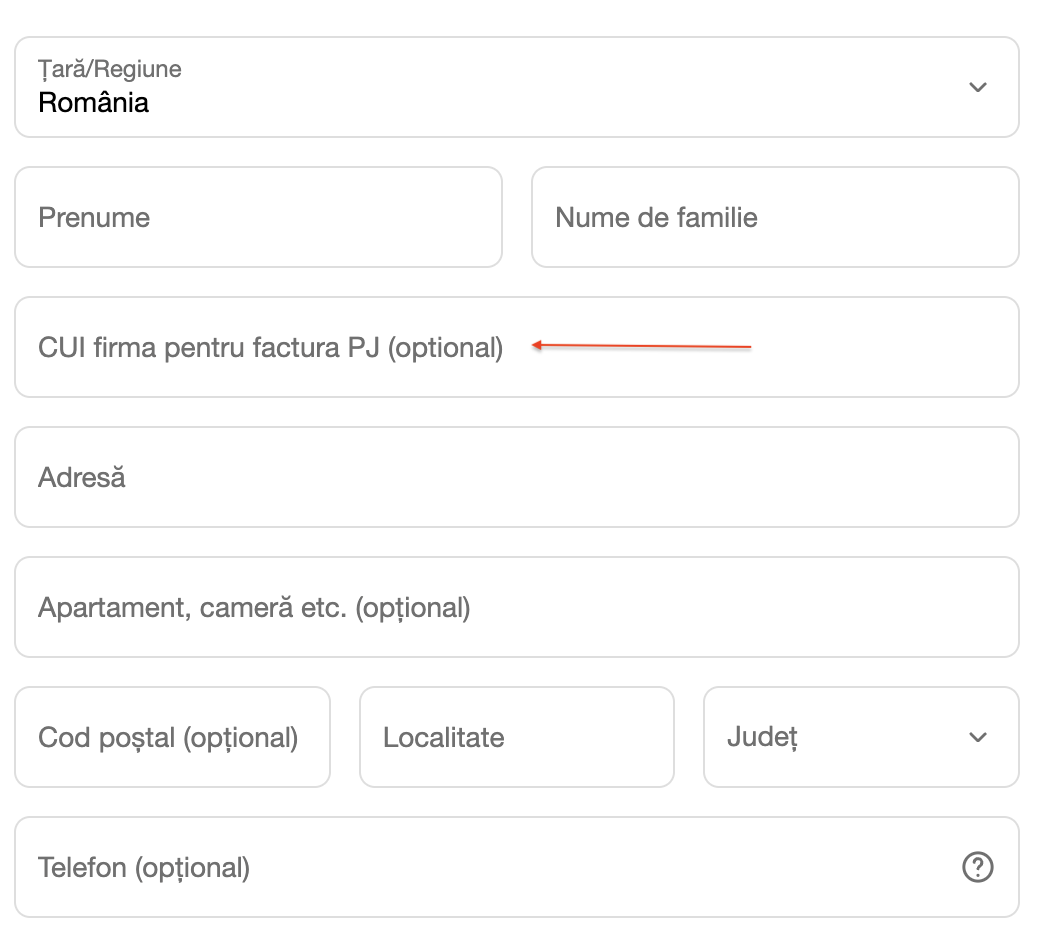
This option currently applies only for the Romanian legal entity nomenclatureTo generate legal entity invoices automatically, the company VAT number must be collected when the order is placed. To do this, the Company name field must be enabled in checkout.
How to activate the VAT number in Shopify?
xConnector has integrated the registry of Romanian legal entities. To generate invoices for companies, you need to collect the company’s VAT number (CUI) during checkout.
Based on the VAT number (CUI) xConnector identifies the company and generates the invoice using the official company details.
Shopify settings
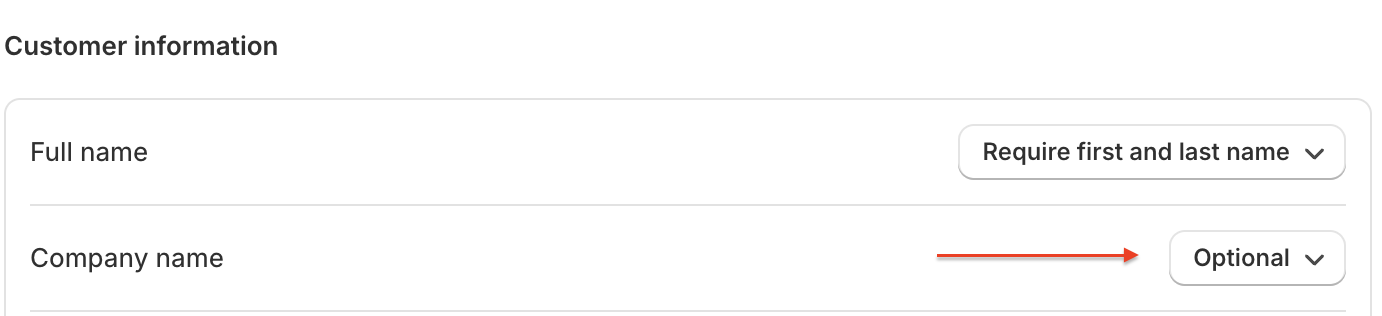
1. Enable the "Company Name" field in Shopify
Go to Shopify - Settings - Checkout - Customer information - Company name (optional)
2. Rename the “Company name” field in Shopify
Go to Shopify - Online store - Click on ... - Edit default theme content - Company label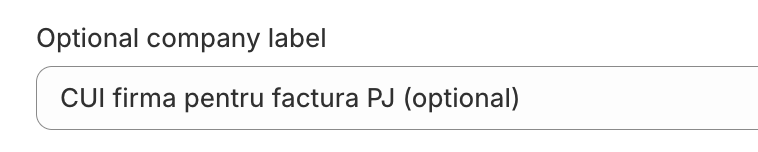
xConnector settings
1. Go to xConnector - Preferences - Content helpers - activate Search for company details
This option enables the company details lookup based on the VAT number entered by the customer.
2. Go to xConnector - Preferences - Shipping & Invoicing - Address invoice = Billing address
This option is available only for invoices generated via the BULK option or through full automation.
3. Go to xConnector - Preferences - Shipping & Invoicing - Don't create invoice if company not found
If the application cannot find the company, no invoice will be created.You can check the orders without an issued invoice using the filter on the left side: Flag → Has no invoice
4. Go to xConnector - Preferences - Shipping & Invoicing - Show address selector
How to generate the invoice for legal entities?
A. Generate a shipping label and an invoice at the same time or BULK
B. Generate just the invoice
C. Generate BULK or fully automated invoice
A. Generate a shipping label and an invoice at the same
- Click on the Shipping label generation option

- Click Next to the Recipient tab
- Click on the magnifying glass icon so xConnector will retrieve the company's informations needed to issue the invoice


- Click Next and generate the documents
=> The shipping label is generated based on the shipping details.
=> The invoice is generated based on the company details.
B. Generate just the invoice
1. Click on the Invoice generation option 
2. Click Next to the Recipient tab
3. Click on the magnifying glass icon so xConnector will retrieve the company's informations needed to issue the invoice


4. Click Next and generate the document
=> The invoice is generated based on the company details.
C. Generate BULK or fully automated invoice
1. Select your orders
2. Click on the Create documents or Create invoices
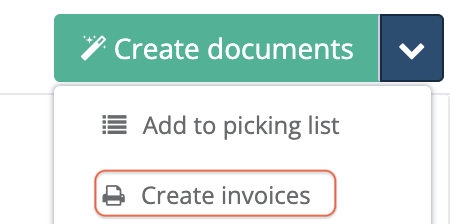
For invoices generated via the BULK option or full automation, you do not need to click the magnifying glass, as the data is retrieved automatically.
Follow the settings for BULK or fully automated invoice here.
How to identify orders that require an invoice for a legal entity?
Whenever the Company field is filled in on the checkout page, this information is also saved in xConnector. This allows you to filter and identify all orders where this field was completed.
In xConnector, go to:
Orders → Filters → Flag → Company invoice
This filter will display only the orders where the Company field is filled in, meaning the orders that require an invoice for a legal entity.

Orders that have the “Company” field filled in can be also easily identified by the yellow document-shaped icon displayed on the order line.

Updating Customer Addresses in the Billing Platform's Customer Directory
Why is this option necessary?
This option is essential when importing invoices into SPV for addresses in Bucharest, where the Sector is mandatory to include.
Why Update the Customer’s Address?
The customer's new address, which includes the Sector, must be updated in the customer directory of the billing platform. This update:
Ensures that the new address (including the Sector) is reflected on the invoices.
Replaces the existing address, which might not include the Sector.
Requires activating the Save Customer Data option to allow the billing platform's API to automatically retrieve the updated address (including the Sector).
How It Works
xConnector automatically retrieves the Sector based on the Postal Code for addresses in Bucharest and sends it to the billing platform to generate the invoice.
The Sector is not displayed in the interface but is sent directly via the API.
However, if the customer is already listed in the customer directory, the billing platform will use the existing address on the invoice instead of the updated address sent during invoice generation (which includes the Sector).
To ensure the customer’s new address (with the Sector) is correctly included on the invoice, you must update the customer data in the customer directory of the billing platform.
Updating the address ensures that:
The billing platform uses the new address instead of the existing one, which might lack the Sector.
The Save Customer Data option is activated so the platform's API can retrieve the updated address and not the outdated one stored in the database.
How to Enable the Save Customer Data Option?
xConnector > Profile > Connected services > Invoice service > Invoice preferences > Save customer
Open xConnector.
Navigate to:
Profile → Connected Services → Select the connected invoice service.
Go to Invoice Preferences.
Enable the option:
Save customer → Save customer to database [ON].
Click Save to confirm the changes.
By activating this option, all updated customer data will be saved correctly in the database, and invoices will be issued with the updated address as required.
Example
Invoice issued on 10.01.2024 for:
Ion Popescu, Calea Victoriei 150, Bucharest, Bucharest
In the billing platform's customer directory, the saved address is:
Ion Popescu, Calea Victoriei 150, Bucharest, Bucharest
Invoice issued on 10.01.2025 for:
- Ion Popescu, Calea Victoriei 150, Bucharest, Sector 1
In the billing platform's customer directory, the saved address will be:
-> If the Save Customer Data option is activated:
- Ion Popescu, Calea Victoriei 150, Bucharest, Sector 1
-> If the Save Customer Data option is not activated:
- Ion Popescu, Calea Victoriei 150, Bucharest, Bucharest
Invoice Reverting (Storno)
For situations where invoices have already been imported into SPV but, in the meantime, customers have returned the products, or if modifications to already imported invoices are necessary, the solution is to revert the invoices.
We would like to remind you that, through xConnector, it is possible to automatically cancel invoices when an order is canceled in Shopify.
xConnector > Profile > Preferences > Automation > Revert invoice on cancel order
Thus, if a parcel is returned, the corresponding invoice can be automatically reverted without any additional manual intervention.
See here the settings:
This feature is available to Advanced plan
Contact
➡️ Need help with xConnector? We are just a message away:
Chat: click the blue chat icon (bottom-right)
E-mail: support@xconnector.app
Phone: +4 0373 747 991
➡️ Stay connected with xConnector:
Facebook group: https://www.facebook.com/groups/shopify.romania.xconnector
Facebook page: https://www.facebook.com/xConnectorApp
TikTok: https://www.tiktok.com/@xconnector.app
YouTube: https://www.youtube.com/@xconnector_app
Was this article helpful?
That’s Great!
Thank you for your feedback
Sorry! We couldn't be helpful
Thank you for your feedback
Feedback sent
We appreciate your effort and will try to fix the article