Filtering and saving filters on the orders list
The orders list now includes a unified filter bar, located under the status tabs: To ship, In progress, Dispatched, and All.
From this filter bar, you can quickly build, save, and re-apply complex filters, making it easier to manage large order volumes and focus only on the orders that need attention.
1. Adding a filter
Click "+ Add filter" and choose:
- The field to filter by (SKU, tag, flag, discount code, payment status, fulfillment status, address status, carrier, county/country, payment type, shipment status, user, connector, number of products, etc.).
- The operator (see below).
- The value(s).
Click Apply — the filter is applied and shown as a pill in the bar. You can remove a pill with "×", or negate it (is not) from the control on the pill.
2. Available operators
Operators depend on the field type.
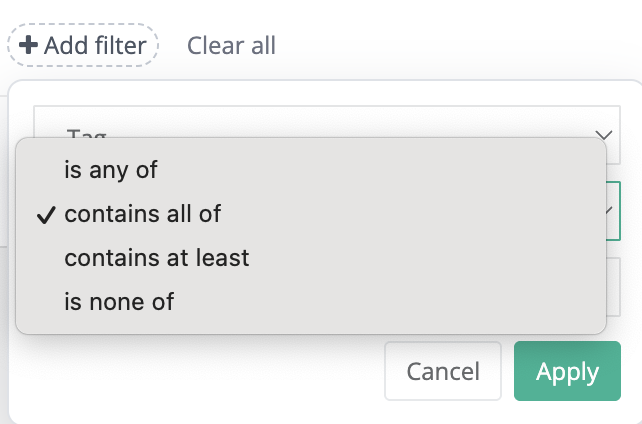
Fields that can hold multiple values per order (SKUs, tags, flags, discount codes, payment type, shipment status, user, connector):
| Operator | Meaning |
|---|---|
| is any of | the order contains any of the values (OR) |
| contains all of | the order contains all of the values (AND) |
| contains at least N | the order contains at least N of the values |
| is none of | the order contains none of the values (exclude) |
Example: "orders that contain at least 2 of SKUs A, B, C" →
contains at least 2.
Fields with a single value per order (payment status, fulfillment status, address status, carrier, county, country, number of products): operators is / is not. You can select several values — they are treated as "any of" (OR).
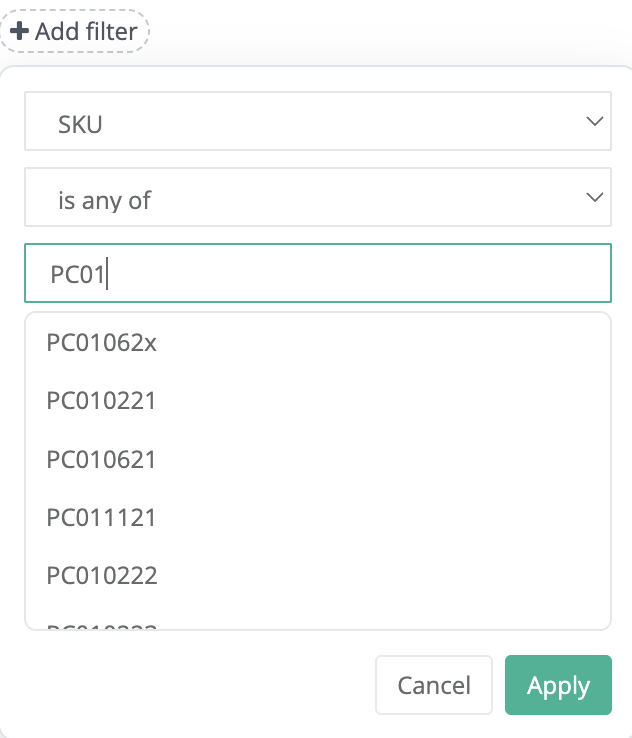
3. Typeahead (suggestions)
For SKUs, tags, flags, and discount codes, start typing in the field and xConnector suggests existing values from your orders. Pick them as chips. You don't have to remember them by heart.
4. Saved filters (views)
- Build the filters you want.
- Open the "Saved filters" dropdown (left side of the bar) → "Save as new view" and give it a name.
- The view appears in the list; re-apply it in one click anytime.
- "Update view" overwrites the active view with the current filters; the "×" icon deletes it.
Saved filters are per store — all users of the account see the same views.
An indicator ("●") shows when the current filters differ from the saved view (an "unsaved" state).
5. Sorting
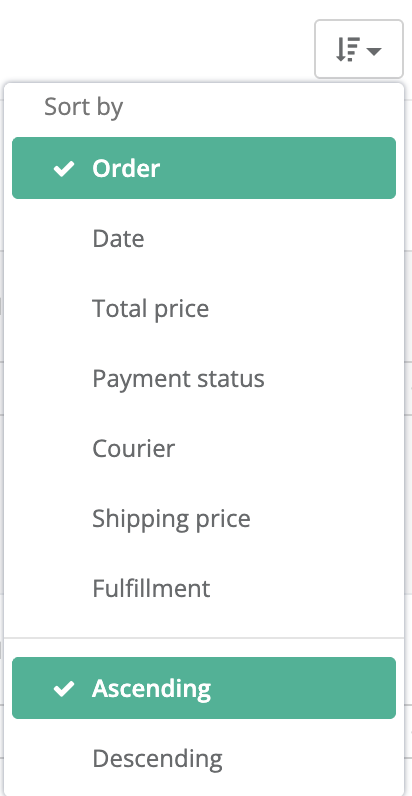
The "Sort by" button (right side of the bar) opens a list of sortable columns (Order, Date, Total, Status, Carrier, Shipping, Fulfillment) and the direction (ascending / descending). Sorting keeps the active filters.
6. Show / hide active filters
The ?️ (eye) button on the right side of the bar hides or re-shows the row of active-filter pills. The preference is remembered in your browser.

Notes
- URLs with filters can be shared or bookmarked — they re-apply the exact same selection.
- The available filters depend on your store's orders-list configuration; if a filter is disabled in settings, it won't appear under "Add filter".
Was this article helpful?
That’s Great!
Thank you for your feedback
Sorry! We couldn't be helpful
Thank you for your feedback
Feedback sent
We appreciate your effort and will try to fix the article