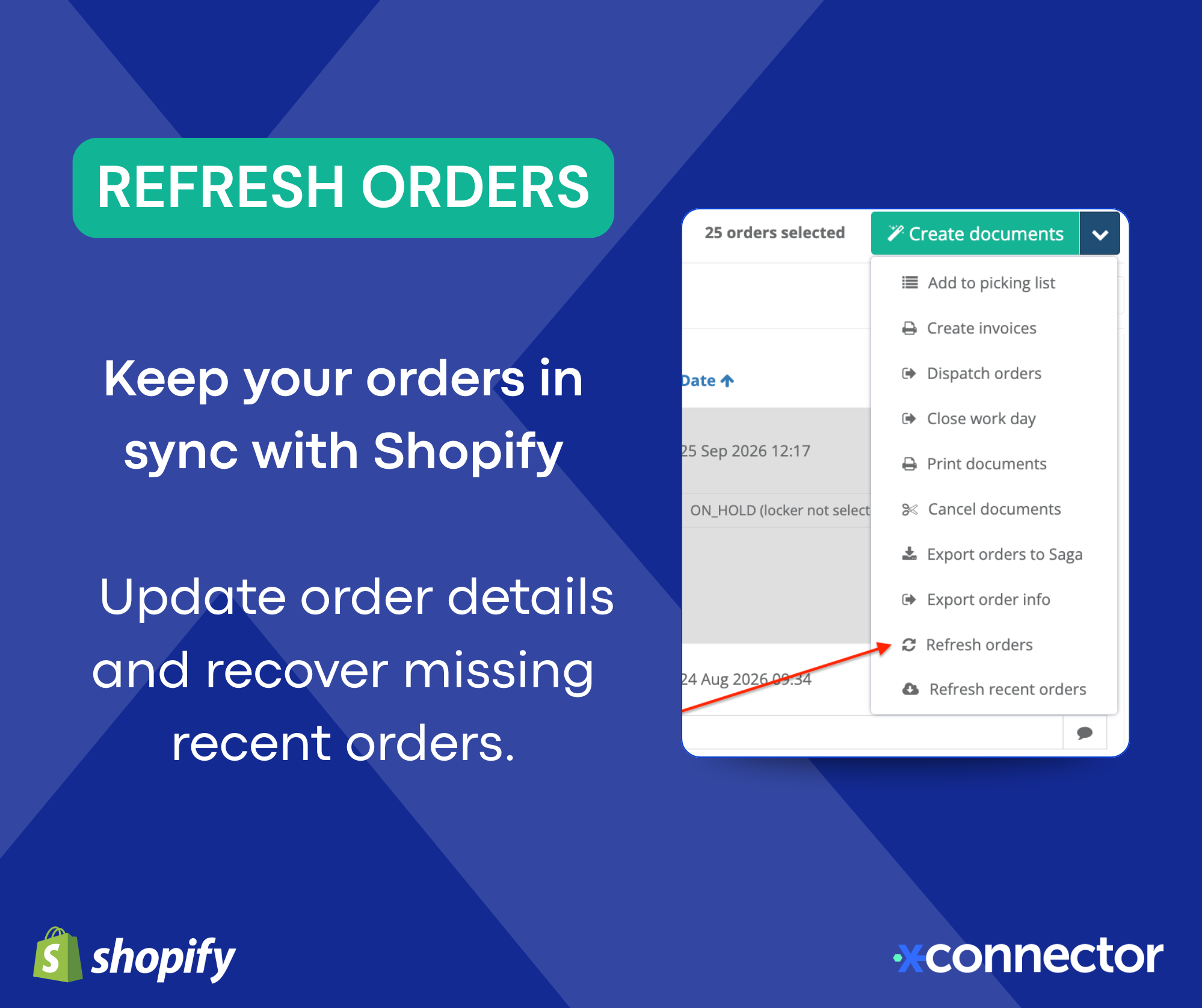
Use the refresh options in xConnector when an order is missing or its details do not reflect the latest changes made in Shopify.
Refresh orders
Updates the orders you select with the latest information from Shopify. This works for both recent and older orders already visible in xConnector.
How to use it:
- Select the orders you want to update.
- Click Refresh orders.
- Confirm the action.
- Review the result when processing finishes.
Use this option when you have edited an order in Shopify and want to update its details in xConnector.
Refresh recent orders
Checks recently created Shopify orders in the background. It updates existing orders where needed and imports orders that are missing from xConnector.
How to use it:
- Click Refresh recent orders. No order selection is required.
- Confirm the action.
- Allow time for processing, then reload the order list.
By default, this checks orders created within the last 24 hours. The period may vary depending on your configuration.
Important: “Recent” refers to the order’s creation date, not its last modification date. For an older order that was recently edited, select it and use Refresh orders.
If a refresh is already running or the option was used recently, xConnector may ask you to wait before trying again.
Accessing older orders after a subscription upgrade
Upgrading your subscription may extend the order history available to you. However, Refresh recent orders does not automatically expand its time window or import the entire history covered by your new plan.
- If the older orders are already stored in xConnector: reload the order list and adjust your date or status filters to find them.
- If the older orders are missing from xConnector: add a tag to the relevant orders in Shopify and save the change. This triggers an order-update notification that allows xConnector to synchronize them. You can
apply the tag to multiple orders using Shopify’s bulk actions.
Allow time for synchronization, then reload the order list. Orders remain subject to your current subscription’s history limits.
If they still do not appear, contact support with the affected order numbers.
Which option should I use?
Situation Recommended action

Was this article helpful?
That’s Great!
Thank you for your feedback
Sorry! We couldn't be helpful
Thank you for your feedback
Feedback sent
We appreciate your effort and will try to fix the article